Issues
How security risks are shown in Method.
Issues Overview
Method’s Ontology is a strongly typed data model that adds a semantic layer to data assets and their relations, making data legible to both users and AI.
Security risks in the Ontology are represented as Issues. Issues are defined a series of logical steps that take object discoveries and then interrogate specific properties to determine if there are exposures, misconfigurations, vulnerabilities, or other risks.
Method tracks dozens of potential security risks using Issue definitions that are Method-defined and via third-party integrations with tools like Tenable.
Issue Details
Method provides a significant amount of context to help you understand the issue by including a severity rating, Issue description, details of the underlying asset, details of any relevant related assets, when the Issue was first seen, last seen, and every time it was seen in-between, and provides remediation instructions for every Issue. These details can be see on the Issue View.
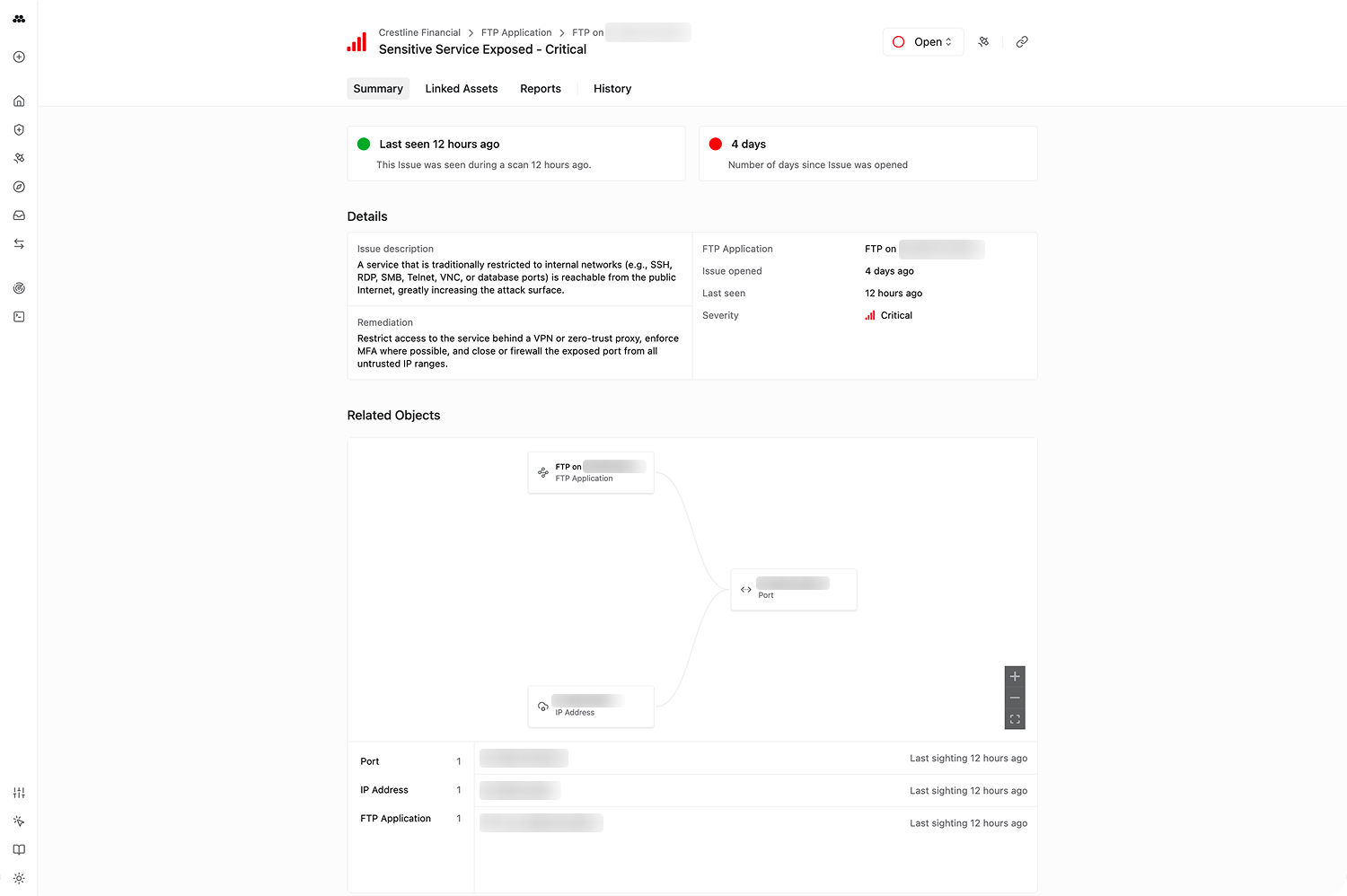
Issue actions
You can take a number of actions to triage, investigate, or remediate an Issue:
- Marking it as Open or Closed, with different types of closures
- Rescanning to see if the Issue is still open
- Creating an auto-generated Report with all of the Issue details
- Investigating the Issue in Operator
Rescanning
Method scans your estates every day, meaning that open Issues should be seen by the system again every day that they remain open. This is reflected at the top of the Issue View with either a green dot, indicating the Issue has been seen in the last day, or as a yellow warning, indicating that the Issue has not been seen in the last day.
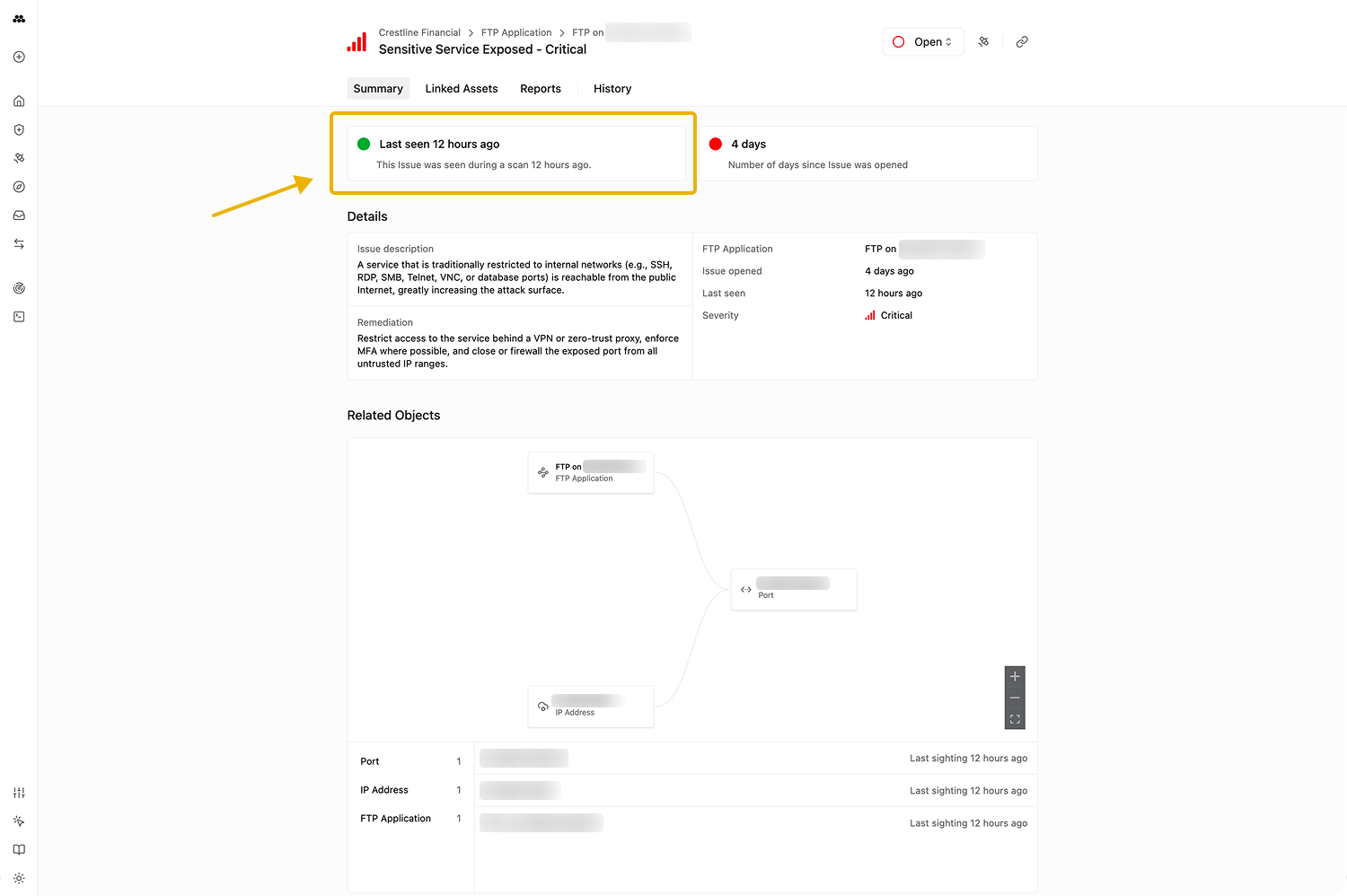
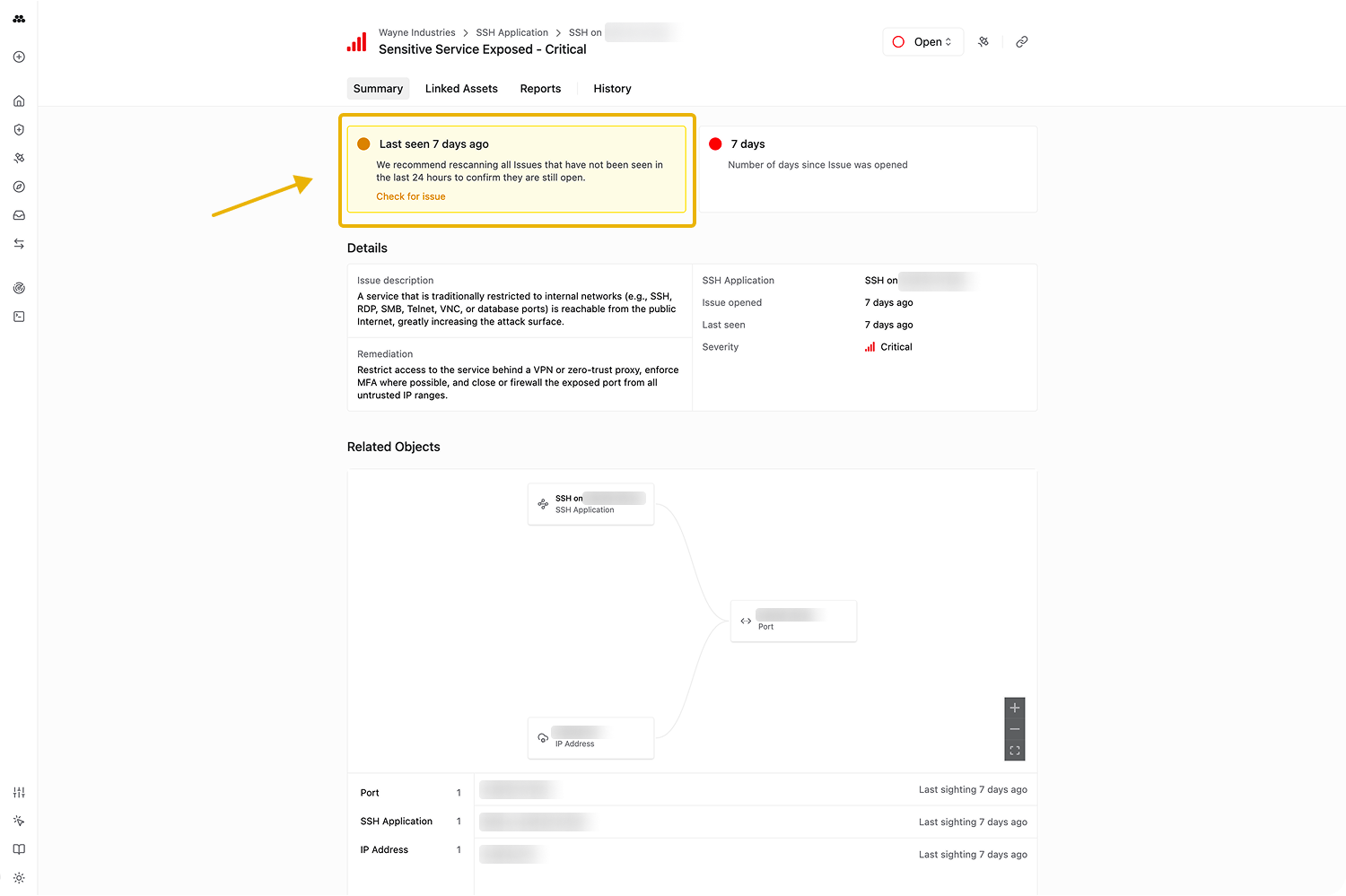
To Rescan an Issue, click on the Rescan button in the top-left card. This button is either visible by default on Issues that are >24 hours old. For Issues with a green dot, you need to hover on the card for the button to appear.
Rescanning an Issue can take anywhere from a few seconds to a couple of minutes. You can leave the page without interrupting the scan and can return to see the results.
The History tab shows all of the times an Issue has been seen between system scans and manual rescans.
Creating a Report
Method allows for one-click Report generation on every Issue. Switch to the Reports tab on an Issue and click “Create New Report”. Method will take all of the details from the Issue and add them to the Report.
For every Report, Method will run a quick scan to fetch the raw signal underlying the impacted asset. This may take a few seconds to a couple of minutes.
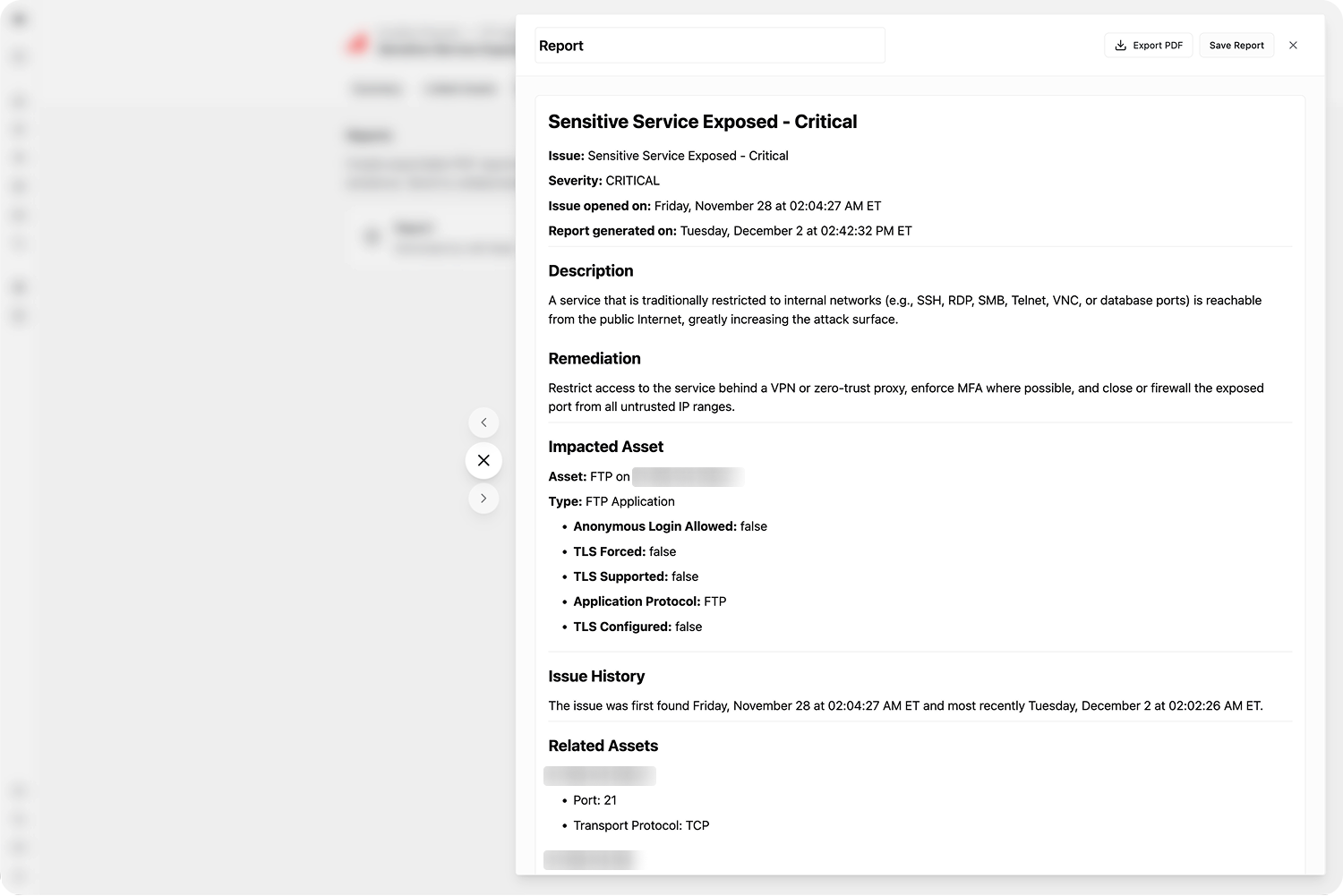
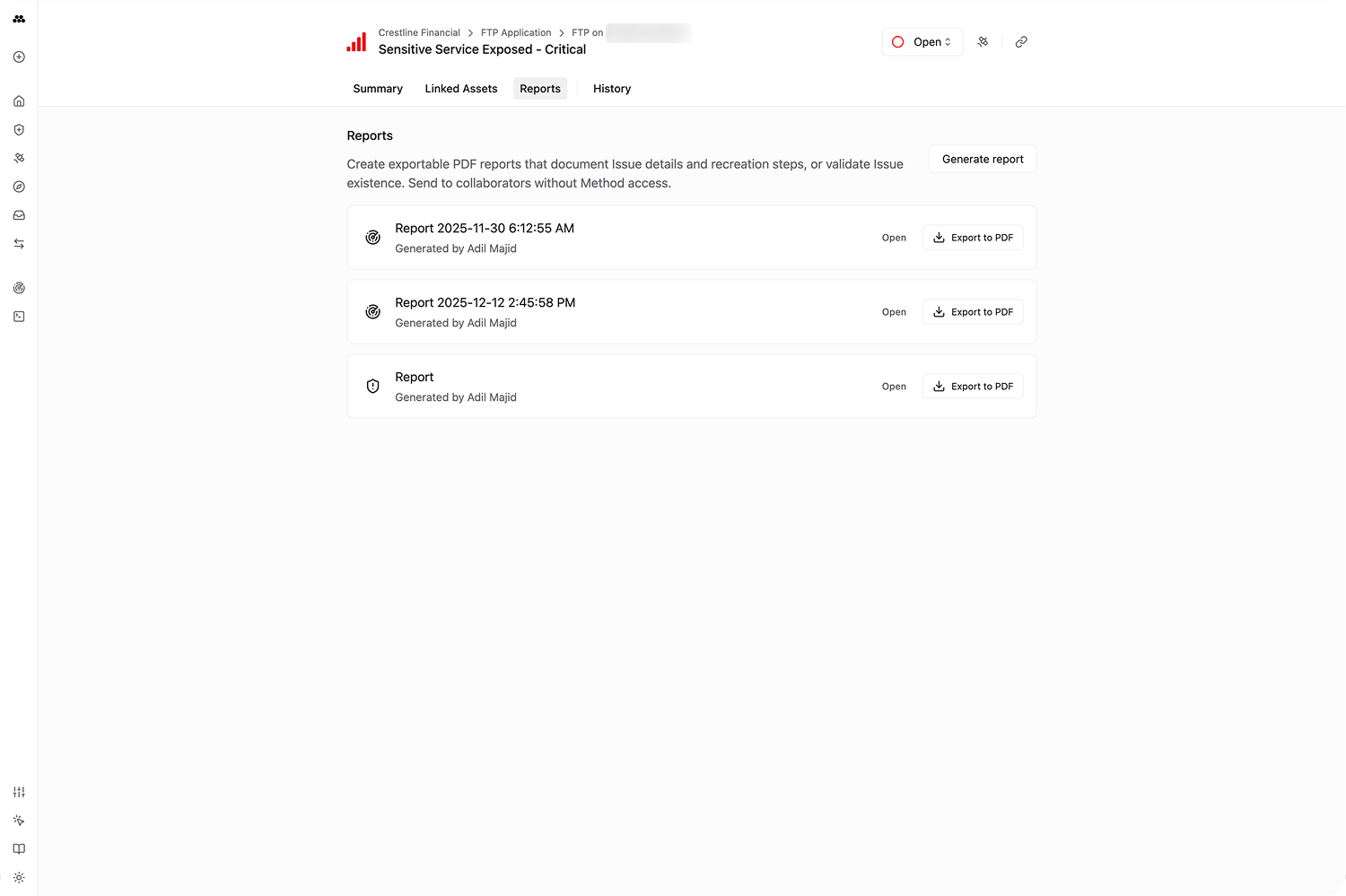
Reports can be exported to PDF with a click.
Managing Issues
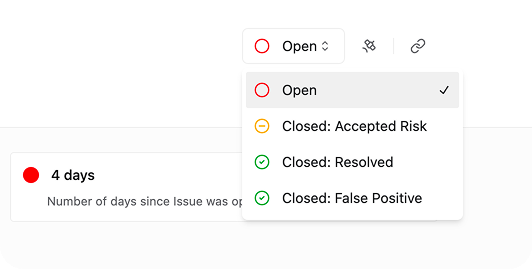
At the top-right of every Issue, there is a status indicating whether the Issue ticket is Open or Closed, enabling in-platform triage workflows.
When Closing an Issue, you can mark it as Resolved, False Positive, or Accepted Risk.
Investigating an Issue in Operator
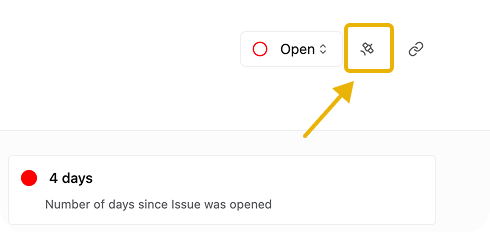
Method enables easy investigation into Issues using Operator. Click on the satellite icon in the top-right corner to send the Issue context and underlying assets into a new Operation. Method will set up the Operation for you and land you in Operator with AI suggestions loading to help you invesitgate the Issue.
Exploring Issues
Issues can be searched and filtered in the Issues app, which you can learn about here.

