

Objects
How data is modeled in Method’s Ontology and how to search, filter, and investigate it using Explorer.
Objects
What is an Object?
Method’s Ontology is a strongly typed data model that adds a semantic layer to data assets and their relations, making data legible to both users and AI. Every data entity in the Ontology is modeled as an Object: a typed, uniquely identifiable entity with defined properties and relationships.
Examples of what Method models as Objects:
- Assets: FQDNs, IP Addresses, Web Applications, Cloud Hosts
- Entities: Cloud IAM Identities, Organizational Units, Users
- Vulnerabilities: CVEs and other risk indicators
Properties and Links
Every Object has properties and links. For example, a Web Application belongs to an Environment, has a Title and Application Protocol, and can be linked to Web Endpoints, Web Pages, URLs, or Software Applications.
Object View
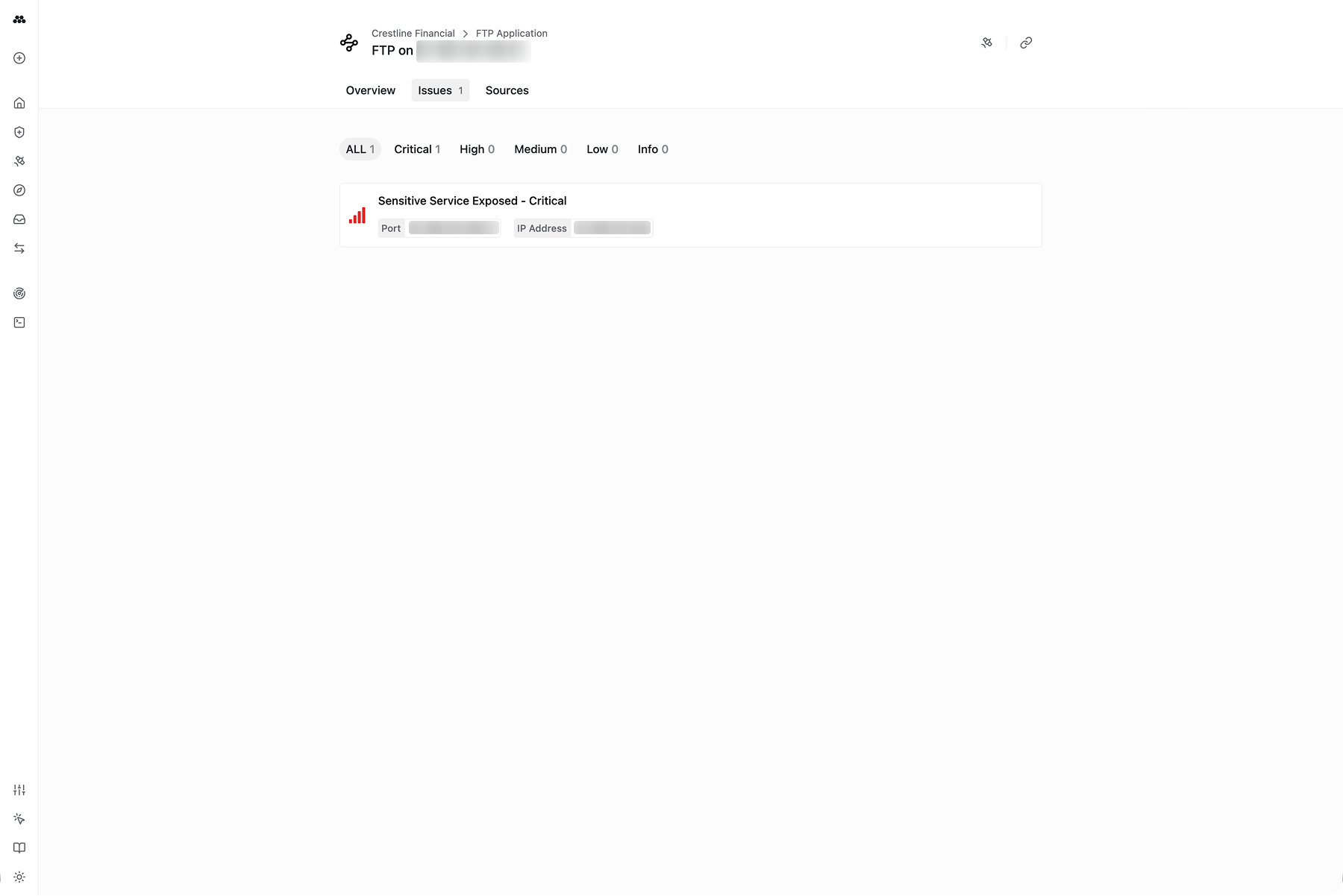
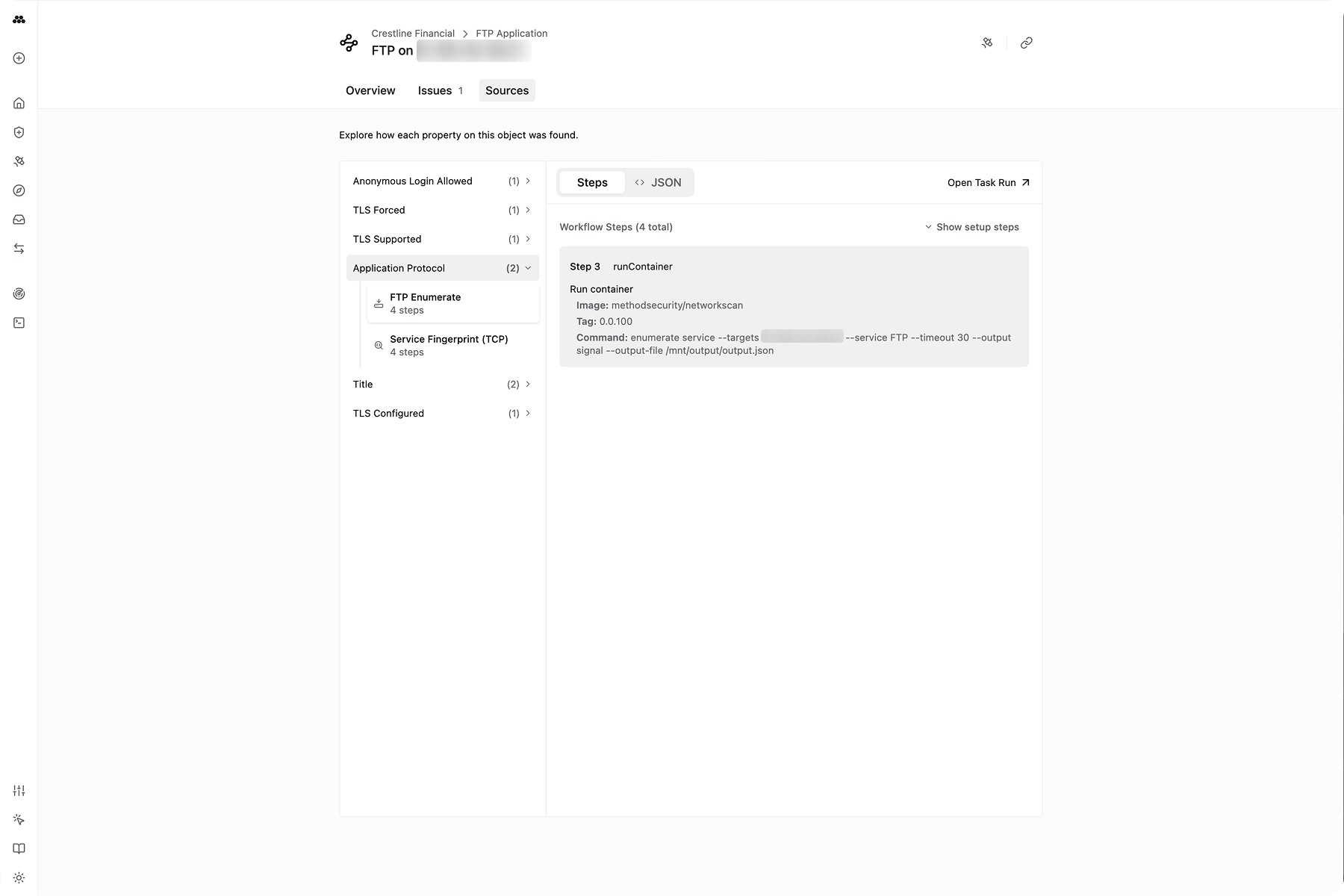
Every Object instance has an Object View for exploring its details:
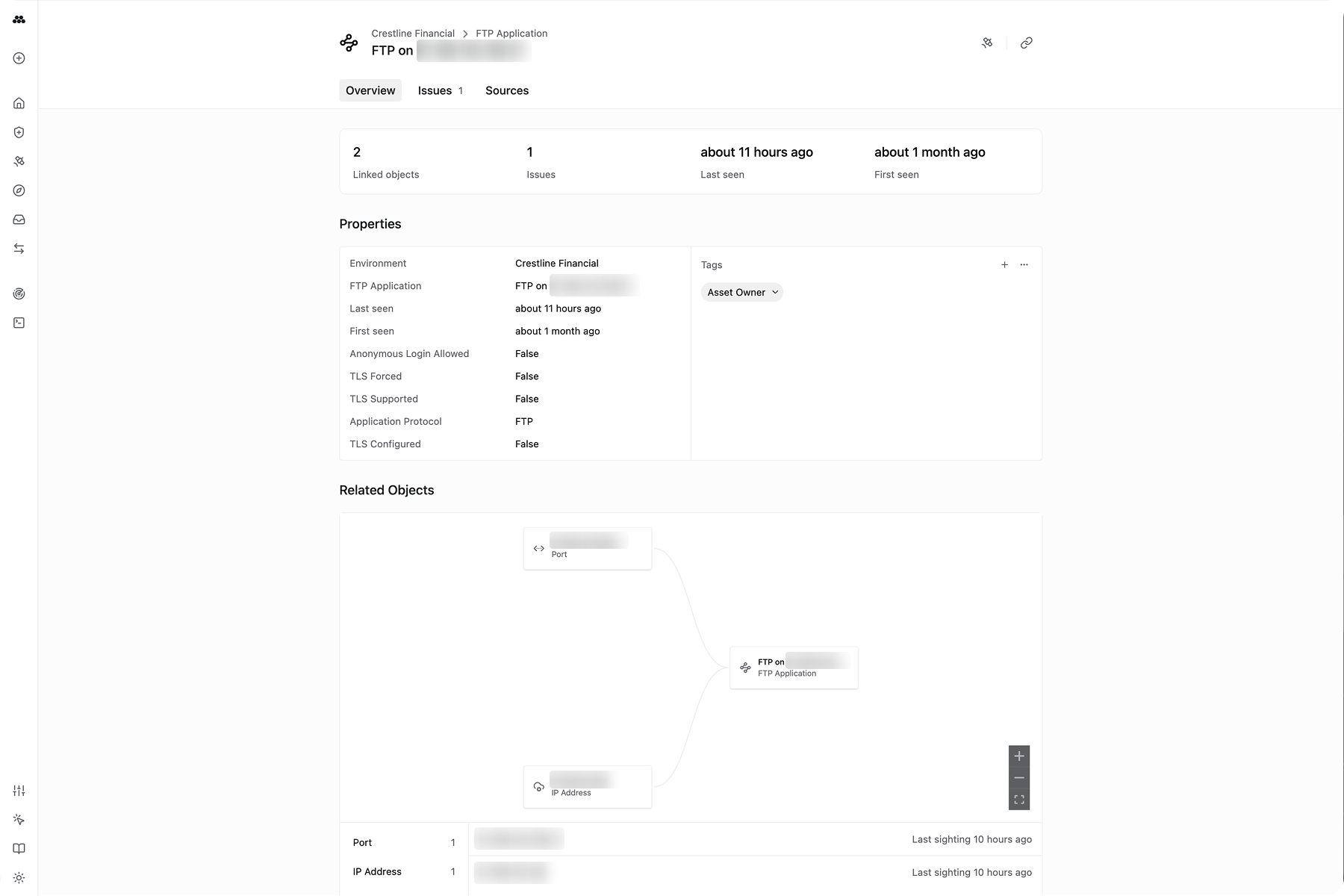
- Overview tab: Properties, links, and related entities
- Findings tab: All open Findings on the Object, filterable by severity. Click a Finding to open its details in a panel overlay.
- Sources tab: How each property was discovered. Shows the command that produced the output, the input command and target, and a link to the Task Run that ran the automation.
Explorer
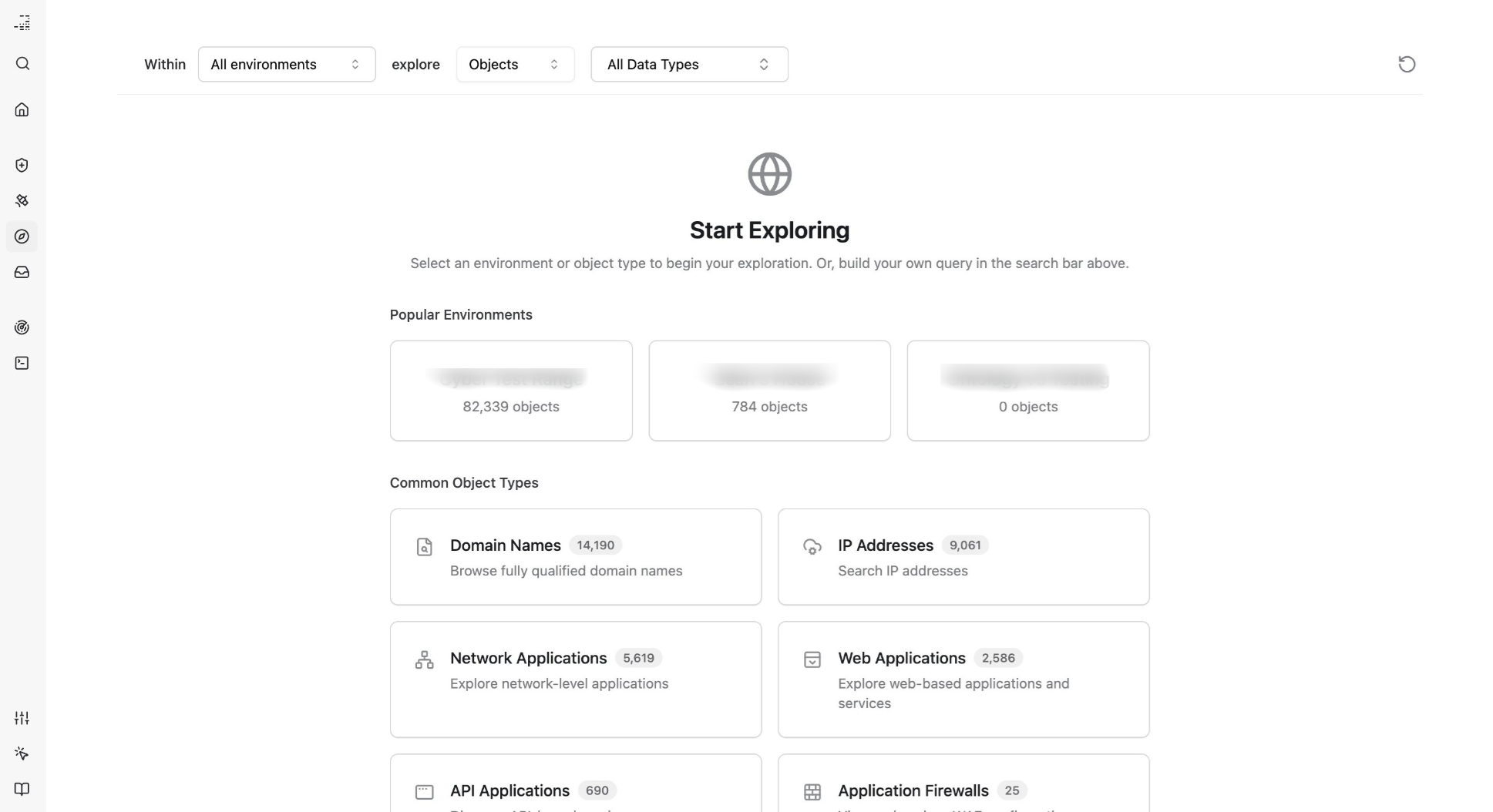
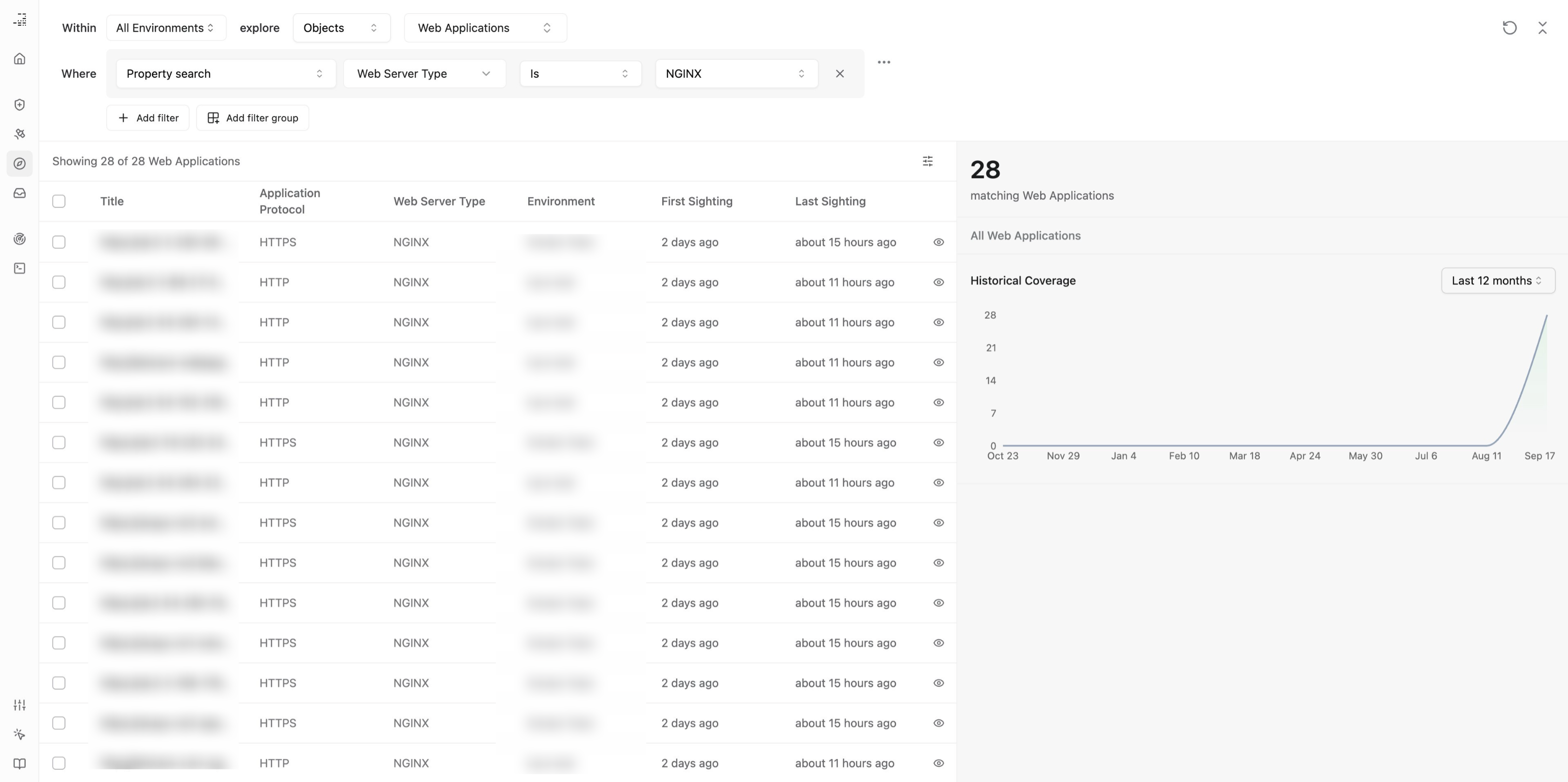
Explorer is the search and investigation interface for your environments. Browse and filter across object types, then inspect specific assets using tabular and graph-based views.
Capabilities
- Search across environments: Filter by tag, environment, Object or Finding type, and data type. Use additional filter groups to further narrow results.
- Pivot through related objects: Move from a single FQDN to its associated services, applications, and known findings to build a mental model of context and exposure.
- Visualize connections: Reference the relationship graph to see how assets are linked, helpful for understanding blast radius, dependencies, or chains of exposure.
- Track historical trends: View changes over time, such as new asset discovery rates and assessment frequency.
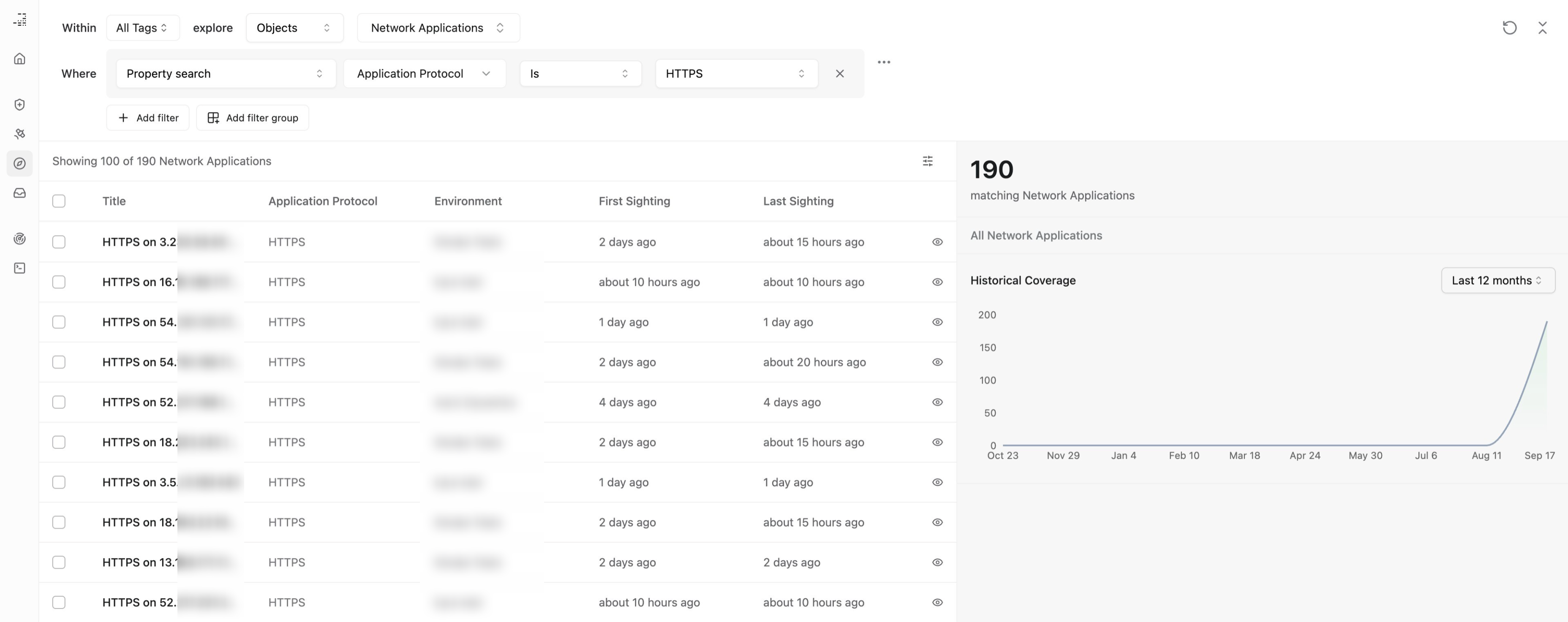
Click a row to open the Object View and inspect details, links, provenance, and pivot to related entities.
For a step-by-step guide to filtering, see Using Filters in Explorer. To start an Operation from Explorer, see Send findings to an Operation.