

Filter data in Explorer
Build basic and complex queries in Explorer to find the Objects or Object Sets relevant to your work.
Basic filtering
When you land on the Explorer homepage, you’ll see the Explorer zero state.
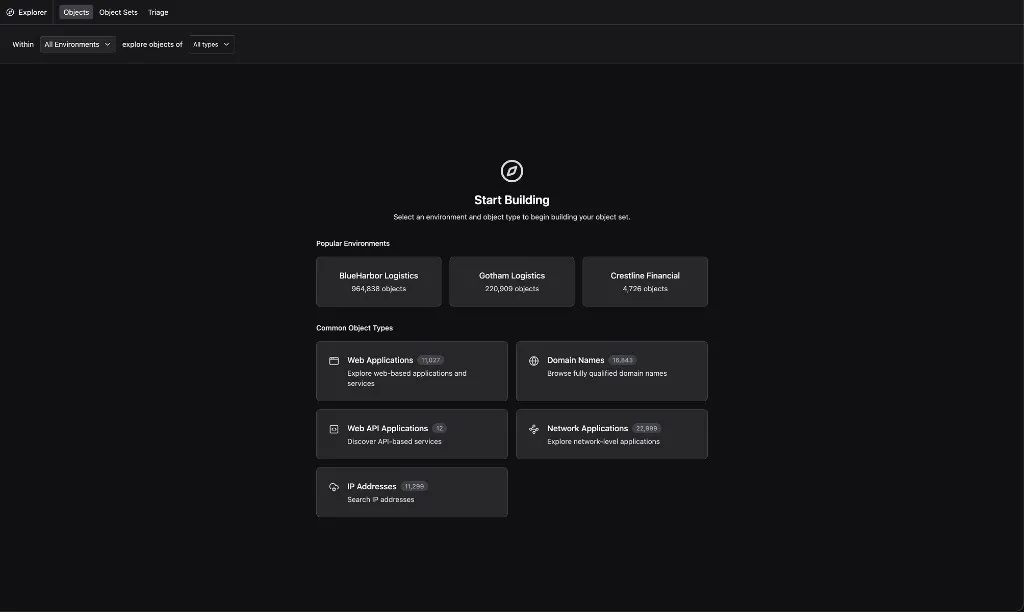
In the center of the screen, the filtering quickstart cards surface popular Environments and common Object Types within those Environments.
At the top of the page, the basic filters appear: an Environment selector and an Object Type selector.
To start filtering from the zero state, the only requirement is to select an Object Type. You can optionally filter by Environment as well.
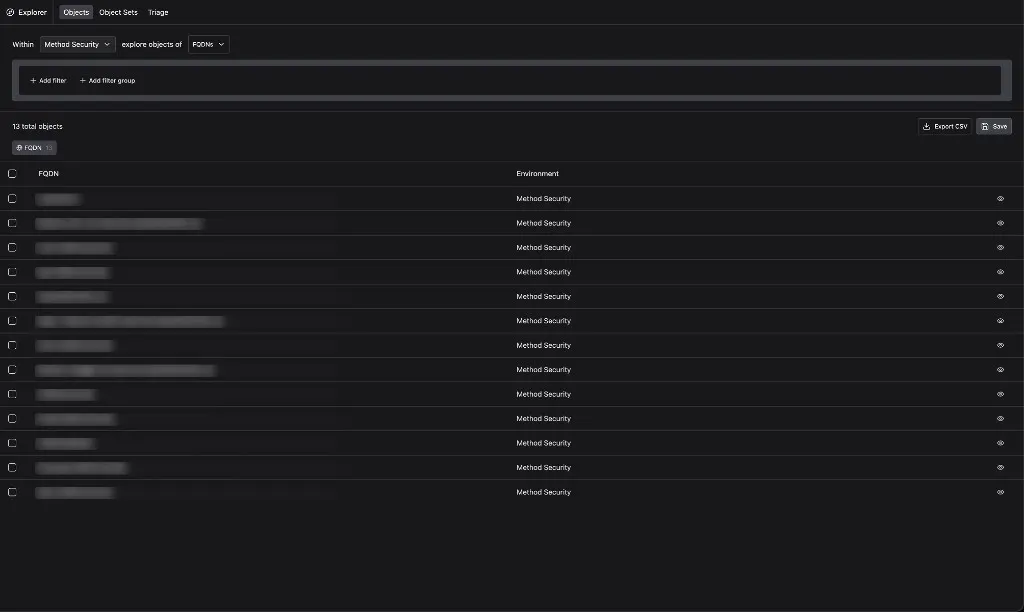
After you make your selection, the screen updates to show the first set of results. The filters you’ve applied appear at the top of the page.
Complex filtering
The rest of this guide uses SaaS Application Objects as a running example to build increasingly complex queries.
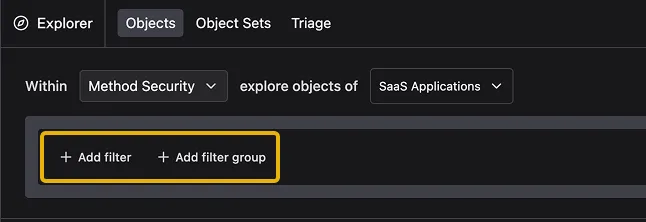
Once you’ve chosen your Environment and Object Type, you can layer in additional filters by clicking Add Filter or Add Filter Group.
Add a filter
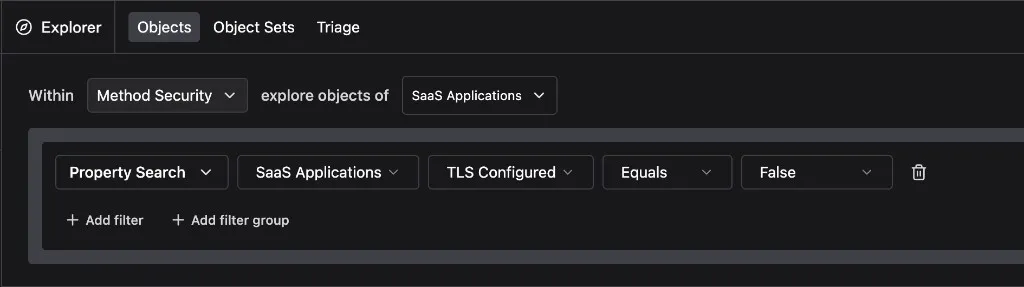
Say you want to identify SaaS Applications that may be misconfigured because they allow plaintext communication.
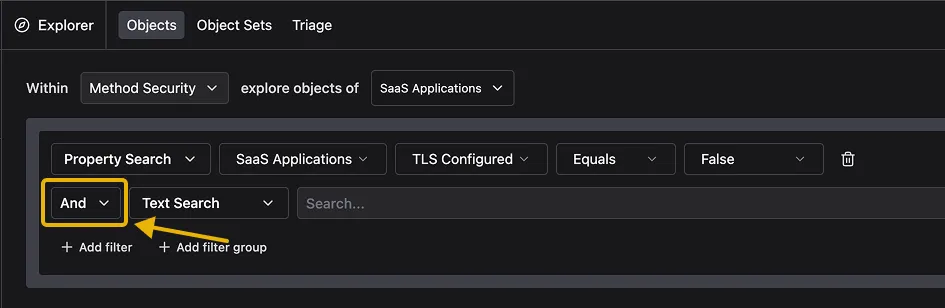
Clicking Add Filter adds another filter beneath your existing basic filters. This filter is interpreted as an AND filter with the top-level filters above it. So if your top filter is All Environments where Objects are SaaS Applications and your second filter is Property search where TLS Configured is False, Explorer interprets the query as:
“In All Environments, return Objects that are SaaS Applications AND whose TLS Configured is False.”
When you add a second or further filter, a new dropdown appears that defaults to AND. Use it to switch subsequent filters to OR logic. This lets you build increasingly complex queries.
Add a filter group
Filter groups help you chunk your query logic.
Say you want to find Web Applications that are either:
- Running Application Protocol HTTPS but without a TLS configuration, or
- Running Application Protocol HTTP
You can express this with two filter groups separated by an OR operator.
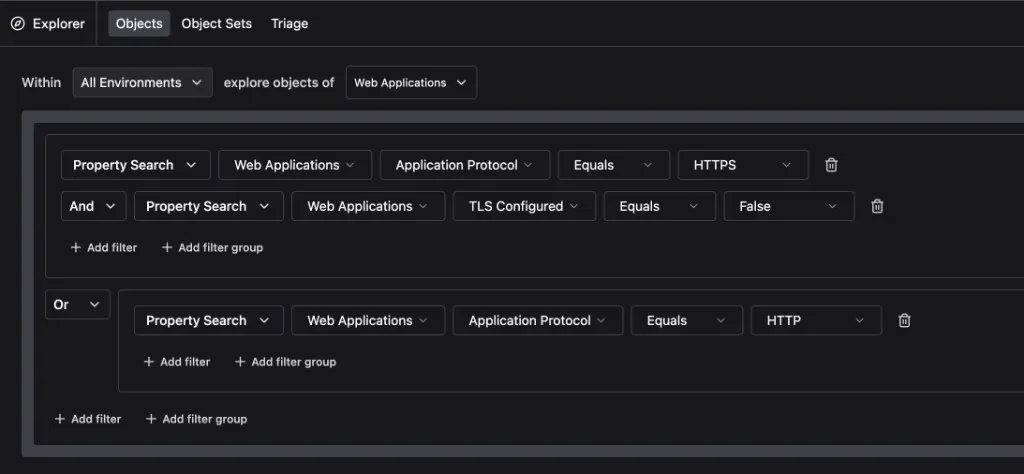
The first filter group uses AND logic within it, while the two groups themselves are joined by OR. This flexibility lets you construct increasingly complex queries.
Nested filter groups
You can also nest filter groups by clicking Add Filter Group from inside an existing filter group. The same logic operators that apply at the top level apply to nested filter groups.