

Set up Alerts
Alerts let Method notify an external system when something happens in the platform, such as a new Finding being created or a Target reaching a given stage.
An Alert has two parts:
- External channel: the destination an Alert is sent to. Method supports Microsoft Teams, Slack, and generic HTTP webhooks.
- Alert rule: the condition that fires an Alert and the channel it notifies. You add rules after connecting at least one channel.
Open Alerts
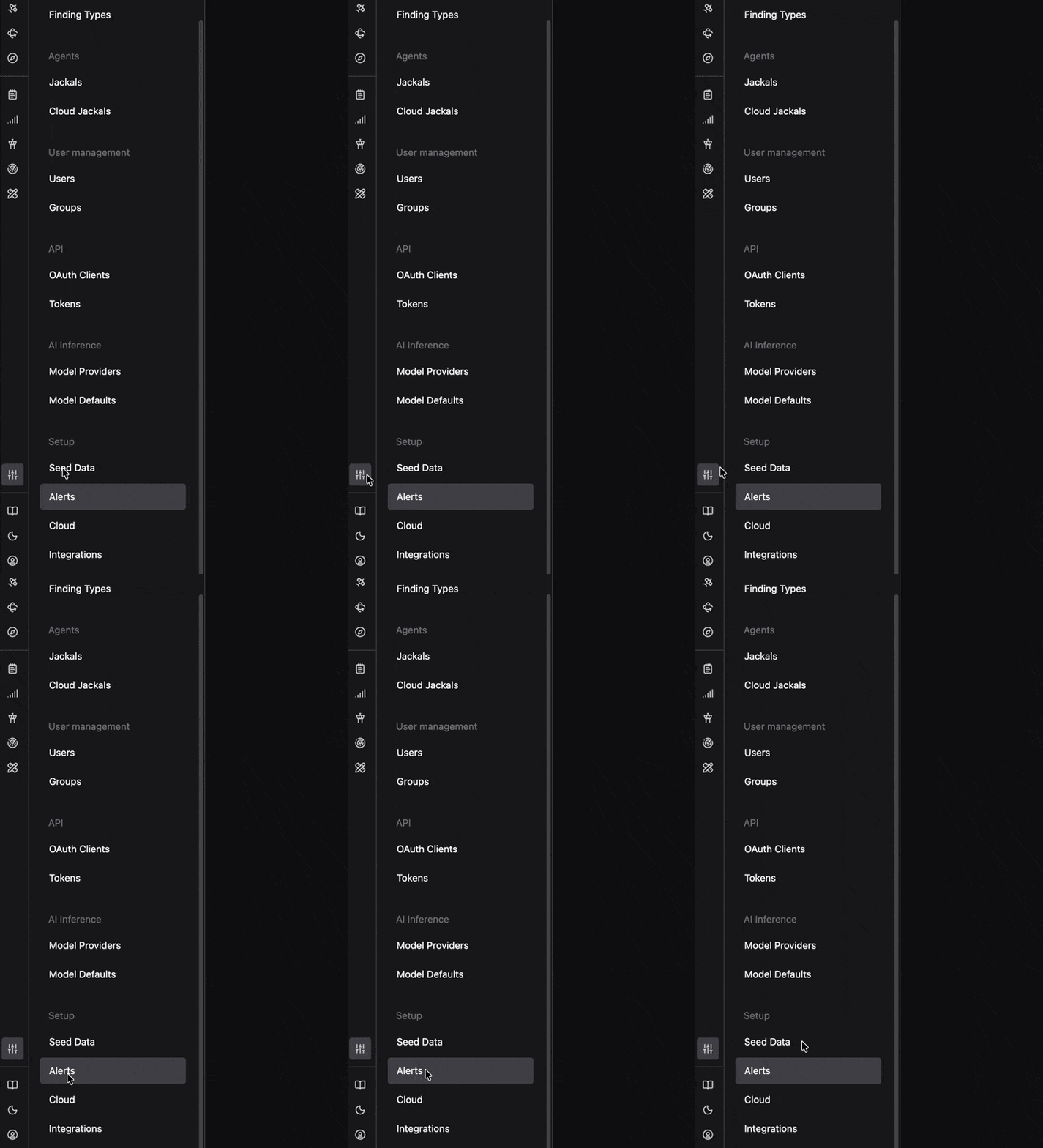
In the Admin panel, open Alerts under the Setup group. The page has two sections: External channels, where you configure destinations, and Alert rules, where you define what triggers an Alert. Until you connect a channel, the Alert rules section prompts you to add one first.
Choose a channel type
Connect at least one external channel, then add Alert rules that route to it. Each channel type has its own setup:
Create an Alert rule
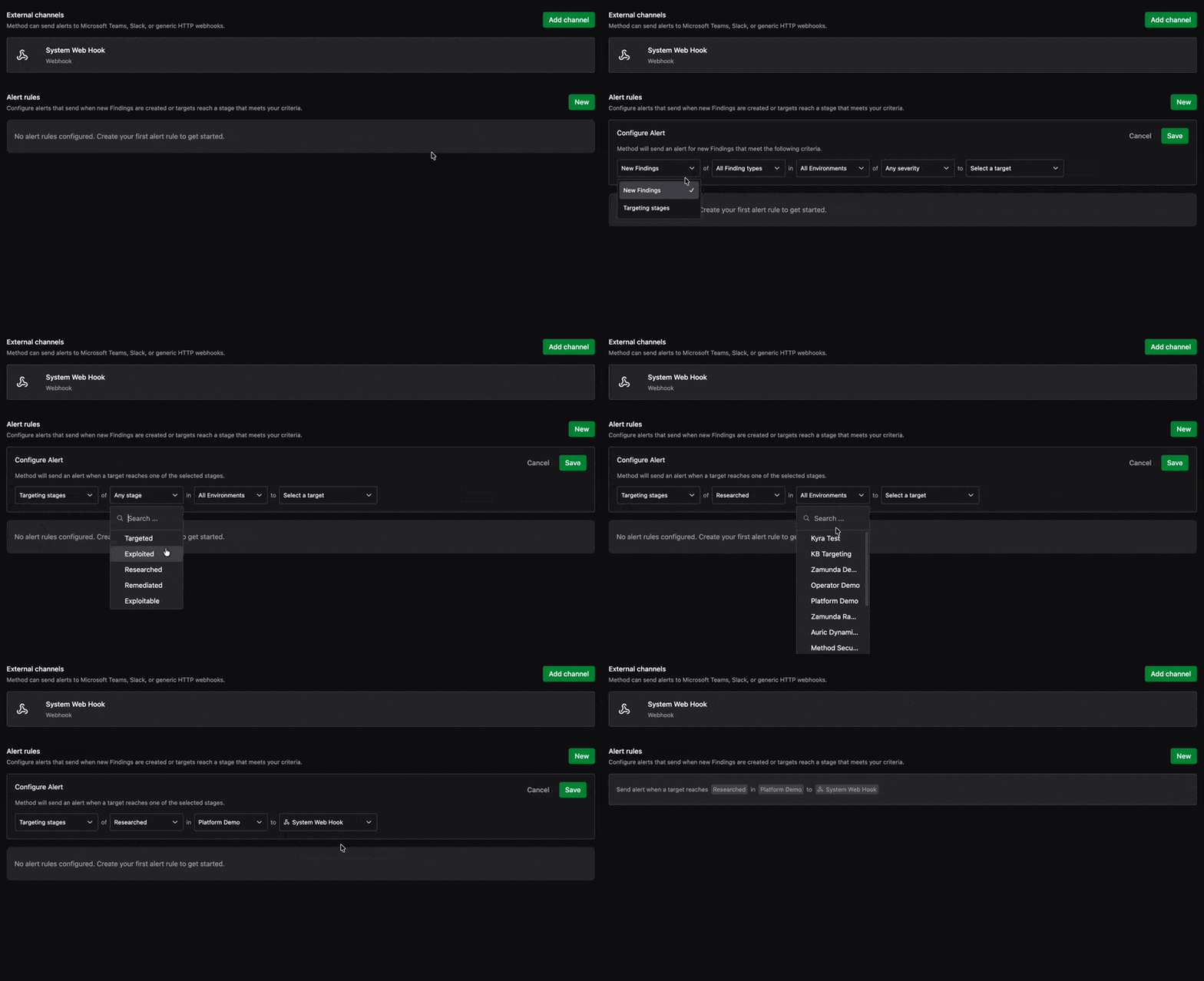
Once a channel is connected, go to Alert rules and click New. In Configure Alert, pick the event the rule fires on, set its criteria, and click Save. Method supports two event types.
Targeting stages
Fire an Alert when a Target reaches a stage:
- Select a stage (Targeted, Researched, Compromised, or Remediated), several stages, or all stages.
- Select an Environment, several Environments, or all Environments.
- Select the channel that receives the Alert.

New Findings
Fire an Alert when a new Finding is created:
- Select a Finding type, several Finding types, or all Finding types.
- Select an Environment, several Environments, or all Environments.
- Select a severity, or receive all severities.
- Select the channel that receives the Alert.
