
Send Alerts to Microsoft Teams

A Microsoft Teams channel sends Method’s Alerts into Teams as adaptive cards, and Method formats each Alert for Teams. Delivery goes through an incoming webhook you create in Teams and paste into Method.

For the shared Alerts model and how to create Alert rules, see Set up Alerts.


Add a Microsoft Teams channel

1

Open Alerts and add a channel

In the Admin panel, open Alerts under the Setup group. Under External channels, click Add channel and set the channel type to Microsoft Teams.
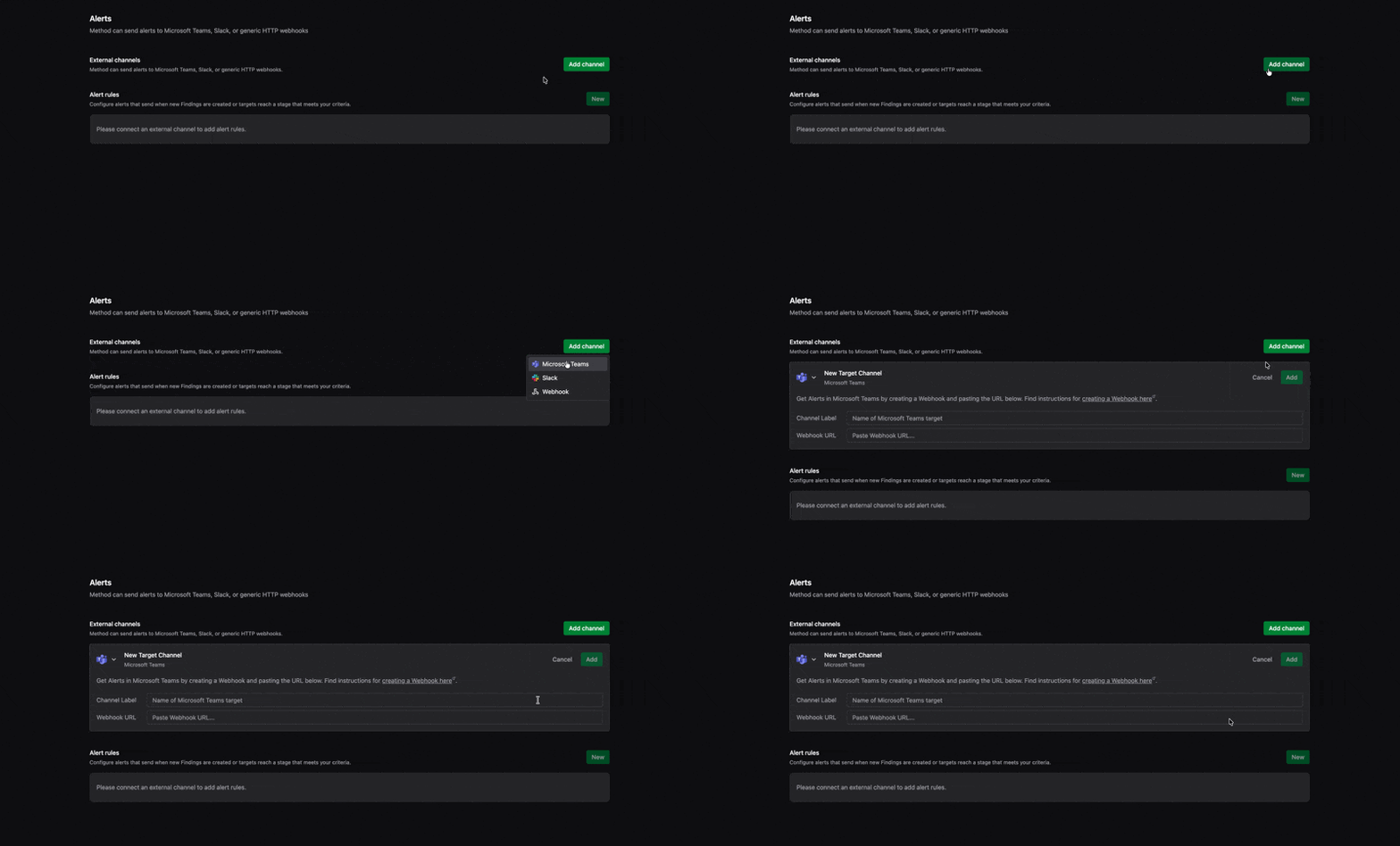
Choosing Microsoft Teams from the Add channel type dropdown on the Alerts page
Selecting the Microsoft Teams channel type
2

Create an incoming webhook in Teams

In Microsoft Teams, create an incoming webhook for the channel you want Alerts in, then copy its URL. Method delivers Alerts to Teams through this incoming webhook.

3

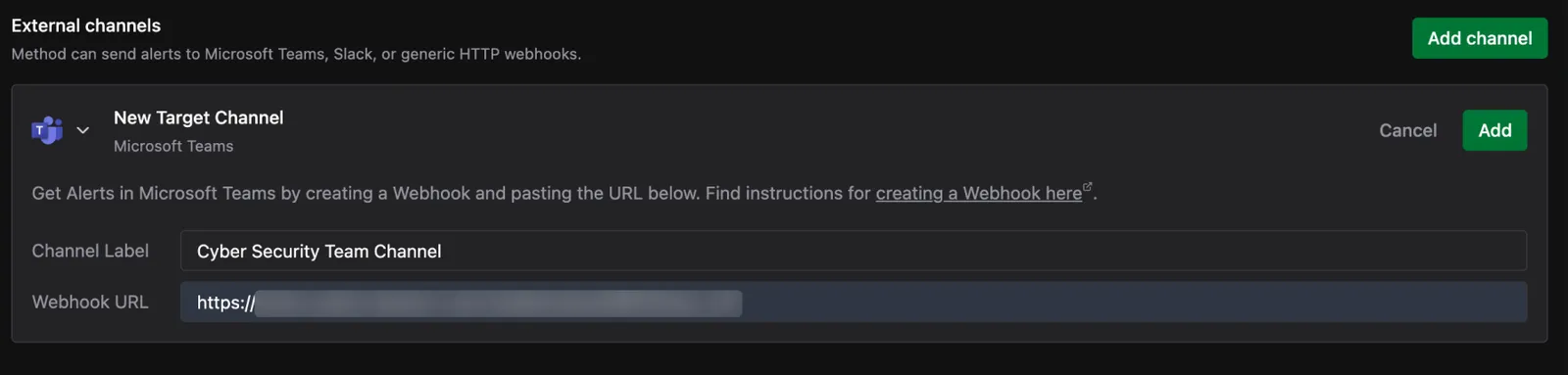
Enter the channel details

Fill in the two fields:

  • Channel Label: a display name for this destination in the External channels list, such as Cyber Security Team Channel.
  • Webhook URL: the incoming webhook URL you copied from Microsoft Teams.
New Target Channel form set to Microsoft Teams, with a Channel Label of Cyber Security Team Channel and a Webhook URL field, above a link to Microsoft's webhook instructions
The Microsoft Teams channel form
4

Save the channel

Click Add. The channel appears in the External channels list, ready to receive Alerts.

External channels list showing the Cyber Security Team Channel Microsoft Teams channel connected, with an Edit control
The connected Microsoft Teams channel

Once the channel is connected, create an Alert rule to route events to it.