

Create an Object Set
Object Sets let you group related Objects so you can organize and monitor parts of your Ontology as a unit. This guide shows you how to create, save, and manage Object Sets from Explorer.
Static and Live Object Sets
Method offers two types of Object Sets, each suited to a different use case.
- Static Object Set: A hand-curated list of specific Objects. You select each Object explicitly, and the membership stays fixed until you change it. Use a Static Object Set when you already know which Objects matter, like a list of critical domains or business-critical Web Applications you want to track separately from the rest of an Environment.
- Live Object Set: A saved Explorer query. Method re-runs the saved filters whenever the Object Set is opened, so its contents always reflect the latest matching Objects. Use a Live Object Set when you want to keep tabs on any Object that matches a particular configuration over time, like every SaaS Application that lacks a TLS configuration.
You create and manage both types in Explorer.
View existing Object Sets
In Explorer, switch to the Object Sets tab to see every Object Set in your Environment.

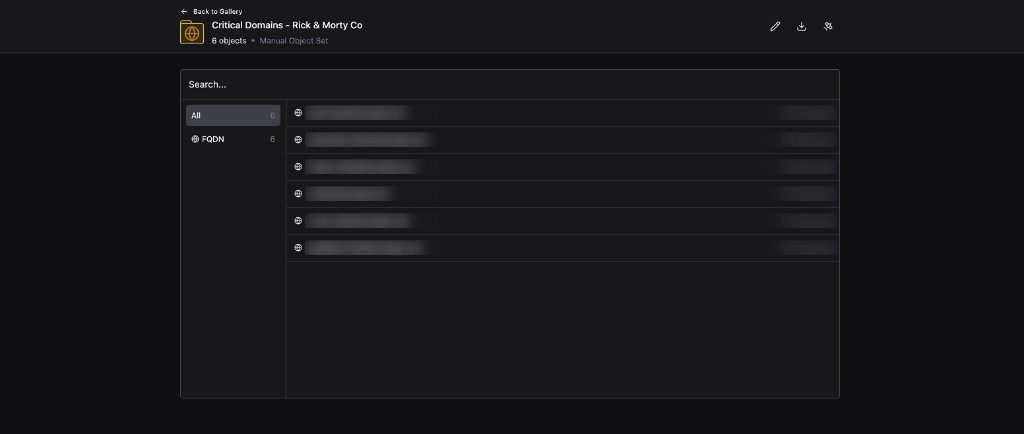
Click into any Object Set to open its detail view. The detail view lists the Objects currently in the set, breaks them down by Object Type in the left sidebar, and indicates whether the set is Manual (Static) or Live.
Create a Static Object Set
A Static Object Set captures a fixed list of Objects you pick by hand.
-
Open the Objects tab in Explorer and apply filters to surface the Objects you want to include. See Filter data for help building queries.
-
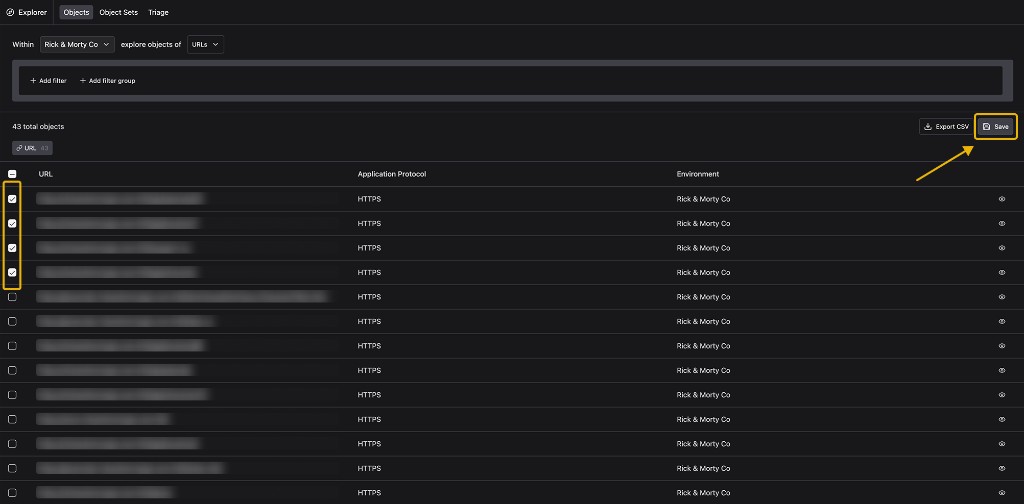
In the results table, use the checkboxes on the left to select each Object you want to add.
-
Click Save in the top-right corner of the results.
-
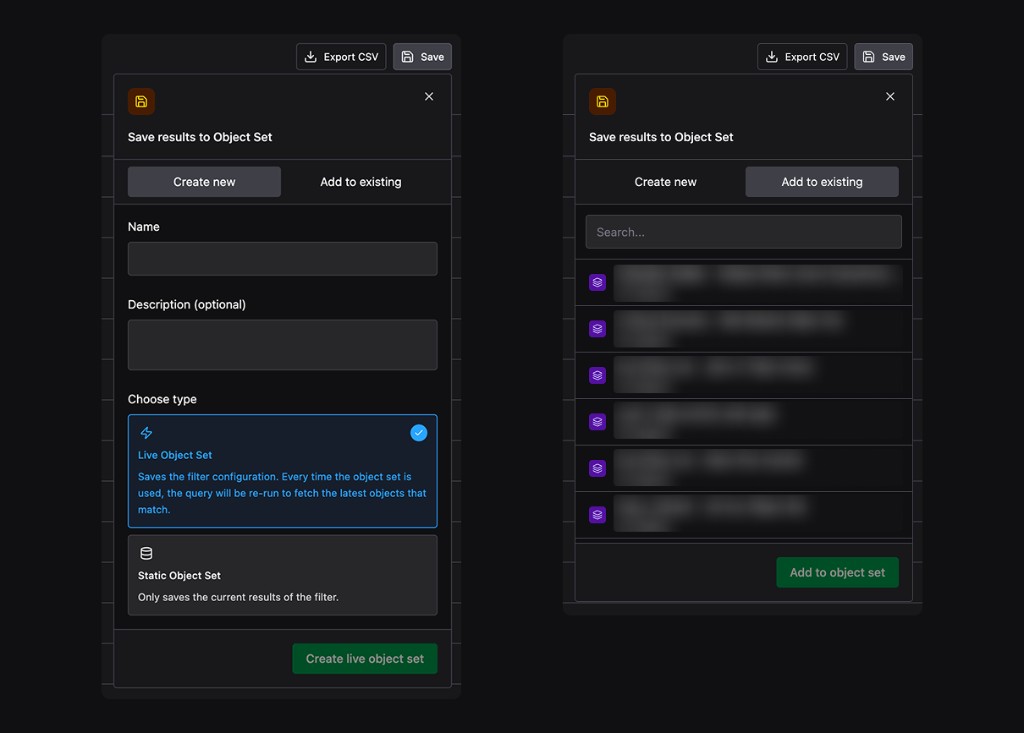
In the Save results to Object Set modal, keep the Create new tab selected and choose Static Object Set under Choose type. Give the set a name and an optional description.
-
Click Create static object set to save.
The new Object Set now appears under the Object Sets tab. Its membership stays fixed until you add or remove Objects yourself.
Create a Live Object Set
A Live Object Set saves an Explorer query so the set always reflects the latest matching Objects.
-
Open the Objects tab and build the filter or filter group that defines the Objects you want to track. See Filter data for filtering details.
-
Click Save in the top-right corner.. You don’t need to select any items from the list of results. Saving without a selection tells Method to save the filter configuration rather than a fixed list of Objects.
-
In the Save results to Object Set modal, keep the Create new tab selected. Live Object Set is selected by default under Choose type. Give the set a name and an optional description.
-
Click Create live object set to save.
The next time you or anyone else opens the Object Set, Method re-runs the saved filters and shows the current matching Objects.
Add to an existing Object Set
You can also extend an Object Set you already created with new Objects.
-
In the Objects tab, apply filters and select the Objects you want to add using the checkboxes.
-
Click Save, then switch to the Add to existing tab in the Save modal.
-
Search for the Object Set you want to extend, select it, and click Add to object set.
For background on Objects, the Ontology, and how Object Sets fit in, see Objects.