

Take Operation notes
Document findings, reference Objects, and generate shareable reports during your Operations.
Create and edit Operation Notes
Open the left panel in your Operation and click + to create a new note. Add a title, tag it as Operation Notes or AAR (After Action Report), and start writing. Notes support full markdown rendering, including headers, lists, and code blocks.
Reference Objects in Operation Notes
Add Objects found within your Operation to your notes using two methods: mentions and one-click add.
Mention Objects
Type @ to mention Objects found in your Operation. This opens a menu where you can filter by Object type and select the specific Object you want to reference.
When mentioning an Object, you have two options:
- Insert as mention: Creates a clickable link that opens the Object within Method
- Insert as block: Creates an immutable text block containing information about the Object
One-click add
Quickly add content to your Operation Notes:
- Open any panel (Objects, Findings, Executions) that contains the information you want to add
- Hover over the item you want to reference
- Click the icon that appears while the Notepad is open
This appends the item at your last cursor position.
Open Operation Notes
Access Operation Notes from two locations:
- Within an Operation: Open the sidebar in the left-hand panel to view and edit notes for the current Operation.
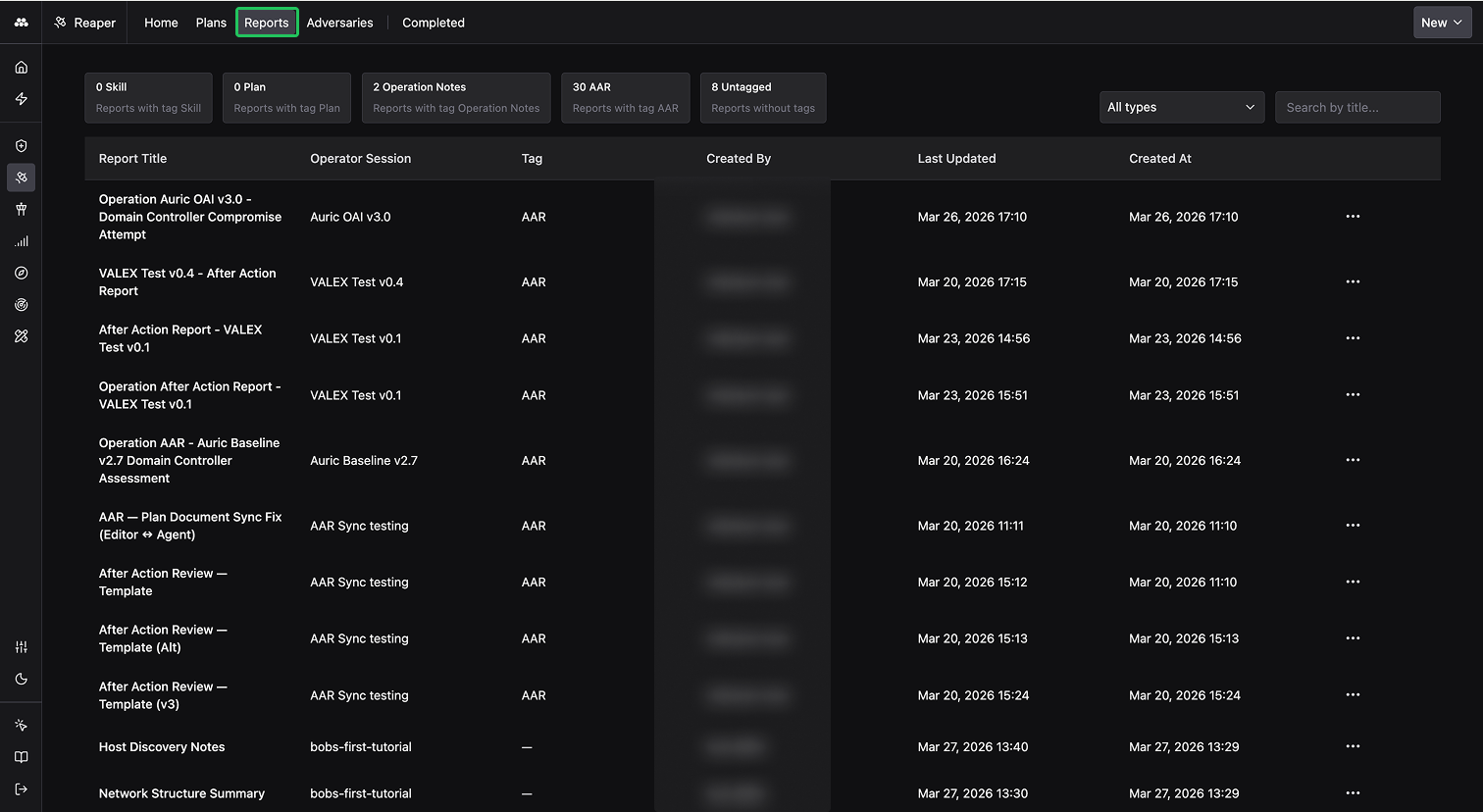
- From the Operations Reports tab: View saved notes across all Operations.
Save and export Operation Notes
Operation Notes are unsaved drafts by default. Click the Save button in the top-right corner of the editor to persist your notes. Saved notes become visible in the Operations Reports tab to all members of your organization.
Notes require a title or body content before they can be saved.
To share notes externally, download them as a PDF:
- Within an Operation: Click the download icon in the notepad header
- From the Operations Reports tab: Open the ellipses menu and select the download option