

Enabling and disabling auto-running Finding Validation Agents
When Method discovers a new Finding, it can automatically launch a Finding Validation Agent to investigate. Finding Validation Agents use hands-on tooling to validate whether a Finding truly exists, assess its real-world severity, mark false positives, close Findings, or adjust severity up or down. This guide covers how to enable or disable these auto-run Finding Validation Agents at three levels of granularity.
For background on Agents and how they work, see AI Agents. To create a new Finding Validation Agent, see Create an Agent.
How auto-run Finding Validation Agents work
Each Finding type in Method can have one or more default auto-trigger Agents assigned to it. When a Finding of that type is discovered in any environment, the assigned Agents launch automatically and begin investigating.
For example, a “Cloud Bucket with Open Access” Finding type might have a “Cloud Bucket with Open Access Investigation” Agent assigned. When Method detects a cloud bucket with open access, the Agent launches, probes the bucket with real-world tooling, and returns a detailed report: whether the exposure is confirmed, how severe it is, and what the recommended remediation looks like.
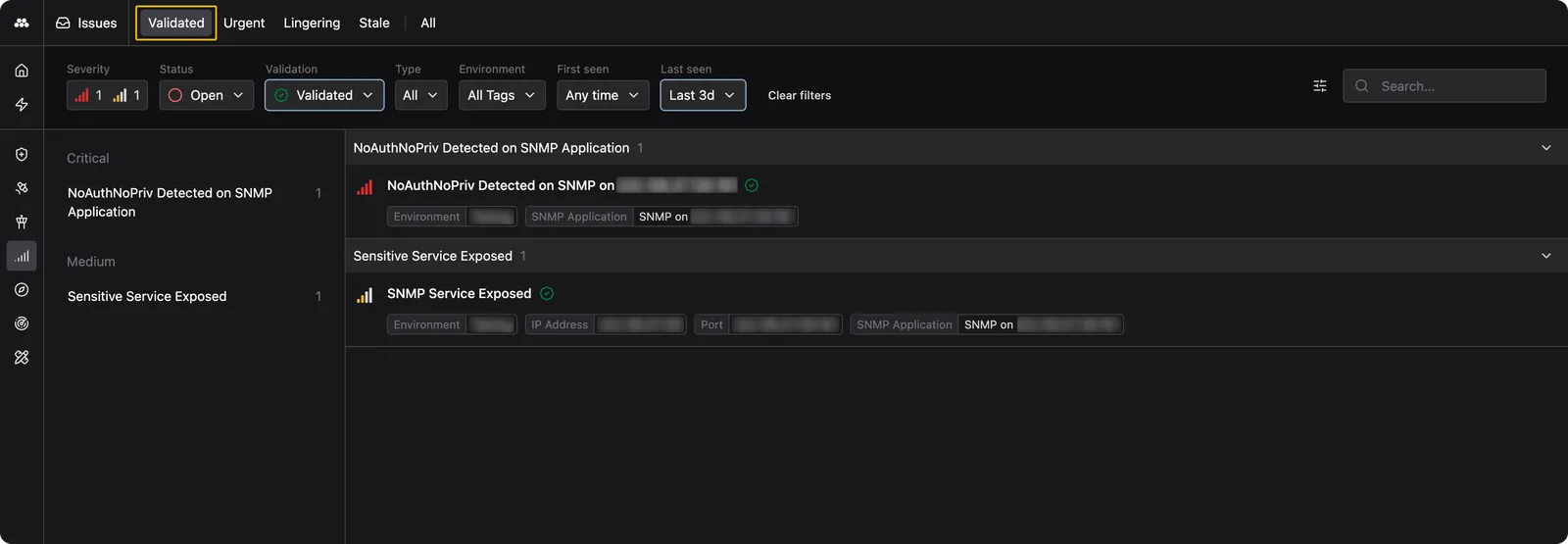
After a Finding Validation Agent completes its investigation, Findings that are confirmed appear in the Validated tab of the Findings app with a green checkmark.
Method provides three levels of control over auto-run behavior:
- Platform level enables or disables auto-trigger Agents for a Finding type across all environments
- Environment tag level overrides the platform default for all environments that share a tag
- Environment level overrides both the platform default and any tag-level setting for a specific environment
More specific overrides always take precedence: environment overrides beat tag overrides, and tag overrides beat the platform default.
Open the Finding type configuration
-
From the left sidebar, open the Administration app.
-
Under Findings, select Finding Types.
-
Search for or select the Finding type you want to configure. The detail panel opens on the right.
-
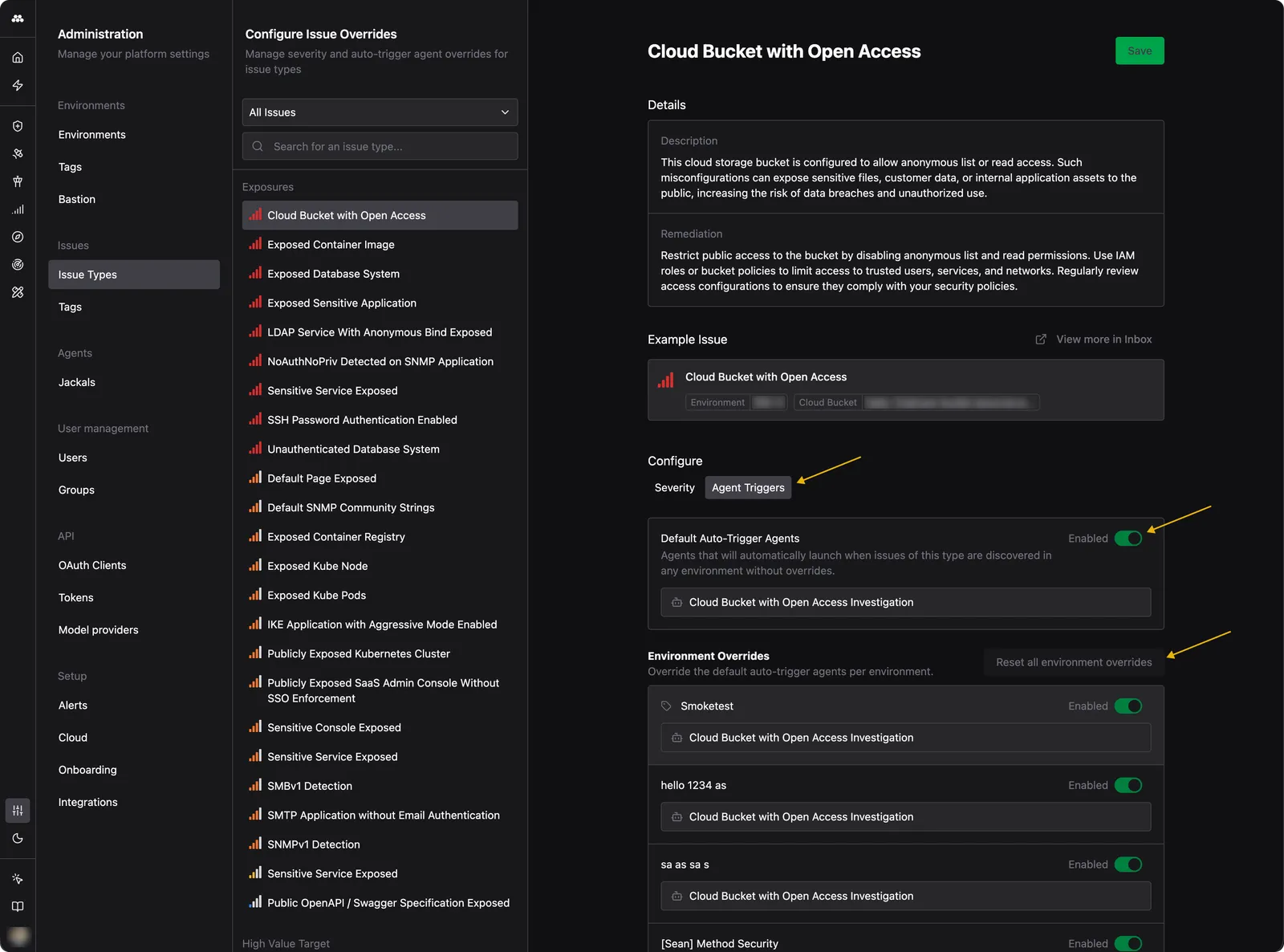
In the Configure section, switch to the Agent Triggers tab.
Enable or disable at the platform level
The Default Auto-Trigger Agents section controls which Agents run automatically for this Finding type across all environments that do not have overrides.
- Toggle the Enabled switch on to allow the listed Agents to auto-run when this Finding type is discovered.
- Toggle it off to prevent any Agents from launching automatically for this Finding type.
Click Save to apply your changes.
Override for a specific environment
The Environment Overrides section lists each environment in your organization. You can override the platform default on a per-environment basis.
-
Locate the environment you want to configure.
-
Toggle the Enabled switch for that environment to turn auto-run on or off, independent of the platform default.
-
Click Save to apply your changes.
This is useful when you want Agents to auto-run in production but not in development, or when a specific environment requires different behavior than the rest of your infrastructure.
Reset environment overrides
To remove all environment-level overrides and return every environment to the platform default:
-
Click Reset all environment overrides in the top-right corner of the Environment Overrides section.
-
Click Save to apply the reset.
After the reset, all environments follow the platform-level auto-trigger setting for this Finding type.
What happens when a Finding Validation Agent runs
When an auto-triggered Finding Validation Agent launches, it investigates the Finding using the tools and system prompt configured in the Agent’s definition. Depending on its findings, the Agent may:
- Validate the Finding, confirming it exists and marking it with a green checkmark in the Findings app
- Mark it as a false positive if the exposure cannot be confirmed
- Close the Finding if it has already been remediated
- Adjust severity up or down based on what the investigation reveals
You can review the Agent’s analysis by opening the Finding and viewing its linked Agent sessions.