

At Scale Adversary Emulation
This is the third and most autonomous stage of the Offensive Operations maturity ladder.
Selective Auto Assume Breach ran the engagement inside Operator with you driving every decision. This stage hands execution to an Operator AI agent emulating a specific Adversary, then runs the Operation in Full Auto inside the Plan, the Adversary profile, and the Rules of Engagement you approved going in.
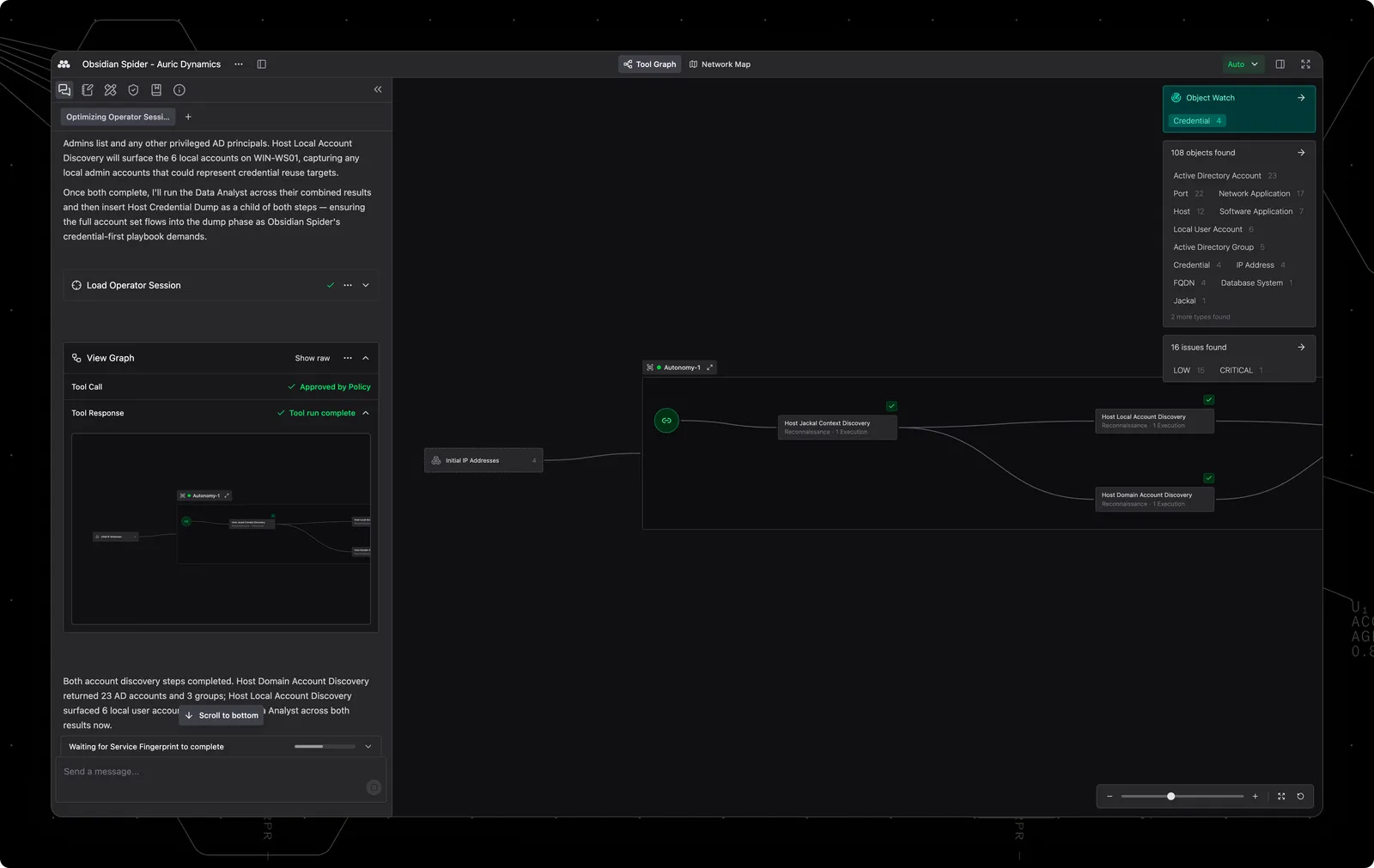
You can go full-auto or stay in the loop at every stage of the Operation, from planning to throughout execution. Before the Operation begins, you approve the AI-drafted Operation Plan and the Operation Setup, with RoE in your hands. Once execution is live, you can switch out of Full Auto into Copilot or Manual mode at any time and back.
Running Adversary Emulation at Scale as shown below will give you:
- An Operation Plan drafted from Adversary intelligence and Environment intelligence, iterated collaboratively with an AI agent until it matches your engagement’s objectives.
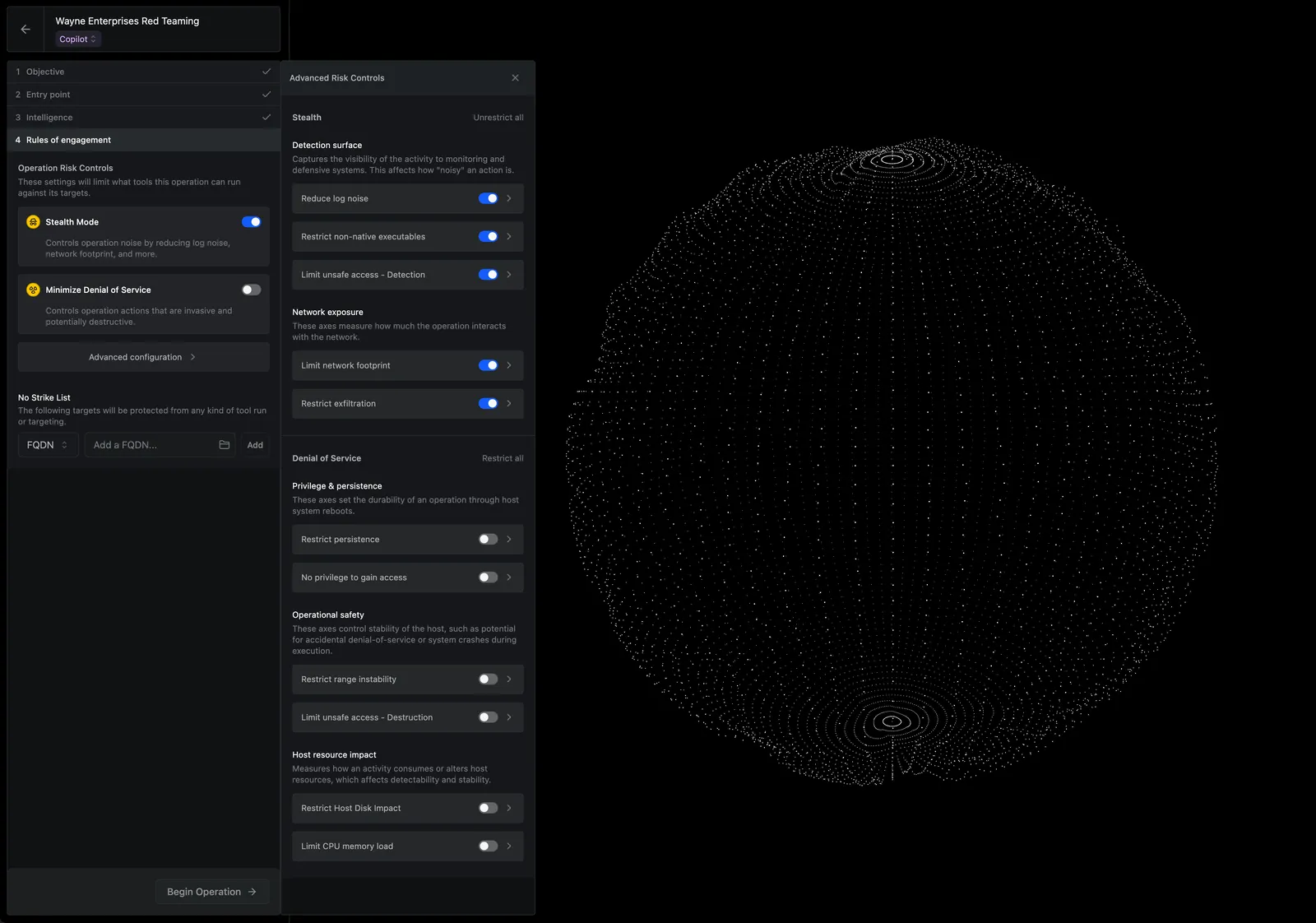
- An Operation Setup pre-filled from the approved Plan, with you reviewing the Objective, Entry point, Intelligence, RoE, and Object Watch before beginning.
- Full Auto execution by an Operator AI agent adopting the Adversary’s tactics, techniques, and behavioral patterns, bounded by the Plan and the RoE.
- Ability to switch mid-run between Full Auto, Copilot, and Manual so you can take direct control whenever a decision requires human operator judgment.
- The same Operator workspace surfaces (Tool Graph, Network Map, Copilot Chat, Reports) for visibility into what the agent did and why, and a Report drafted by AI.
Setup
Create an Adversary
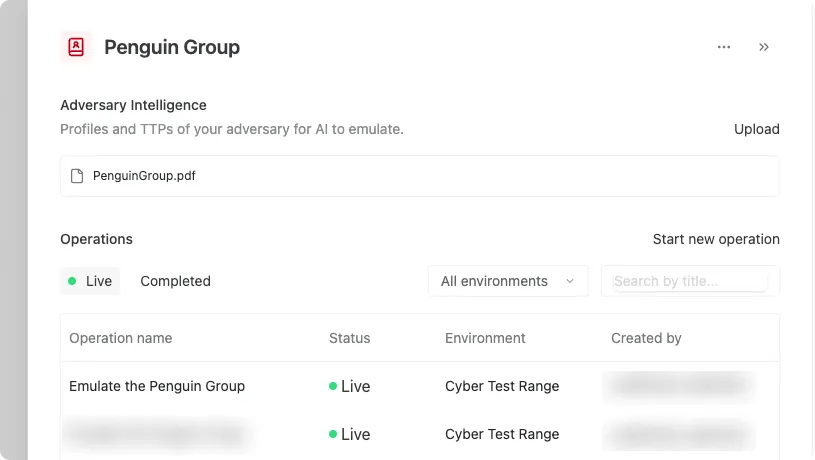
An Adversary is a custom threat profile built from intelligence you upload. When attached to an Operation, the Operator AI main agent adopts the Adversary’s tactics, techniques, and behavioral patterns instead of running as the default offensive engineer.
From the Operations app, open the Adversaries tab and click New Adversary. Upload your intelligence report (PDF), give the Adversary a name, and click Create. Method extracts the TTPs and builds a profile the platform can use. See Create an Adversary for the full walkthrough.
Draft an Operation Plan with the Adversary
Open the Adversary and click Create plan with Adversary. Method opens a collaborative drafting view: the AI agent reads the Adversary intel, the Environment intelligence already in the Platform, and any objectives you provide, then proposes an Operation Plan.
Iterate with the agent until the Plan reflects the engagement you want to run. Adjust the objective, narrow or widen the scope, add constraints, or push back on a phase you would not run in production. The agent revises the Plan in place.
Plans live on the Operation Plans tab of the Operations app once saved, so you can reopen and revise them between runs.
Approve the Operation Setup
When you kick off the Operation from a Plan, the agent fills out the New Operation form for you: Objective from the Plan, Entry point from the Environment context, Adversary attached as Intelligence, Object Watch populated from the Plan’s high-value targets.
Review every field before approving. Double-check the Rules of Engagement in particular: Full Auto execution means the agent acts on its own once the Operation begins, and the RoE is the constraint that keeps it inside the engagement you signed off on.
Click Begin Operation to start the run.
Run the Operation in Full Auto
The Operation opens in Operator and begins executing in Full Auto. The main agent works through the Plan phase by phase: it calls the Pathfinder for the next chain of Tools, the Quartermaster to configure each one, and the Data Analyst to triage results. Tool runs and Object discoveries land on the Tool Graph as they happen.
Switch out of Full Auto into Copilot or Manual at any time using the mode selector in the workspace. Switch back to Full Auto when you are ready for the agent to resume execution.
Inside an Operation
A Full Auto Operation looks similar to a Selective Auto one in the workspace, except the Adversary agent is driving data and environment analysis, tactical decisions, and tool configuration and executions. The Tool Graph fills in, the Network Map updates as discovery progresses, and Copilot Chat stays available for questions.
The Adversary emulation agent
The main agent driving execution is Operator AI with the selected Adversary profile. Instead of running as the default offensive engineer, it adopts the Adversary’s TTPs from the uploaded intelligence and operates the way that threat actor would against your Environment.
The agent works in a continuous loop: read the current Tool Graph and Ontology, plan the next phase from the Operation Plan, delegate Tool selection and configuration to the Quartermaster, run the Tool, analyze results through the Data Analyst, and decide what to do next. The Pathfinder produces the three-to-five-Tool chain for each phase; the main agent stitches phases together to deliver on the Plan’s objective.
The agent is bounded by three things at all times: the approved Operation Plan (non-deterministic, serves as a general guide), the Adversary profile it is emulating (non-deterministic, but with TTPs extracted that inform Tool use and strategy), and the Rules of Engagement you set during Operation Setup (strictly deterministic, assuming no trust in the AI driving the Operation).
Mode switching mid-run
You can change who is driving execution at any time without ending the Operation:
- Full Auto: the agent executes Tools on its own, inside the Plan and the RoE.
- Copilot: the agent proposes the next Tool insertion; you approve or decline each one before it runs.
- Manual: no AI-driven Tool insertions. You drive directly, and Copilot Chat is still available for analysis and questions.
Switch into Copilot when the run hits something that deserves your judgment (a finding that opens an unexpected path, an Object Watch alert, a Tool whose risk profile changed in context). Switch into Manual to drive a specific action yourself. Switch back to Full Auto when you are ready to let the agent continue.
Plan revisions mid-run
The Operation Plan is the reference the agent works against throughout the run. Every action the agent takes traces back to a phase or objective in the Plan, and the Plan is visible in the left panel alongside the Operation’s RoE and Adversary intelligence.
Revise the Plan mid-run if the engagement direction needs to change. The agent picks up the revision on its next planning cycle and reroutes from there.
Day-to-day usage
Adversary emulation at scale is a recurring practice more than a one-off engagement. A typical cadence looks like this:
- Run a given Adversary against an Environment on a regular schedule. Daily or weekly runs of the same Adversary build a baseline you can read trends from.
- Compare runs over time. A Plan that newly succeeds (or newly fails) on a phase can be informative about how your Environments are evolving.
- Use the Report as the deliverable. AI drafts the Report from the Operation’s activity: the Tool Graph, accepted Findings, the Adversary’s TTPs that were exercised, and the Plan’s objectives. You edit and approve before it ships.
- Layer in new Adversaries as intelligence arrives. Upload new intel to existing Adversary profiles or stand up a new Adversary for an emerging threat. New Plans can reuse the same Environment and RoE patterns you have already tuned.
- Increase frequency of runs over time. As you build reps with the system, add more Adversaries, kick off more Emulation runs, and hand off more to the autonomy and RoE while focusing on their findings.