

Enabling and disabling auto-running Issue Agents
Enabling and disabling auto-running Issue Agents
When Method discovers a new Issue, it can automatically launch an Issue Agent to investigate. Issue Agents use hands-on tooling to validate whether an Issue truly exists, assess its real-world severity, mark false positives, close Issues, or adjust severity up or down. This guide covers how to enable or disable these auto-run Issue Agents at three levels of granularity.
For background on Agents and how they work, see AI Agents. To create a new Issue Agent, see Create an Agent.
How auto-run Issue Agents work
Each Issue type in Method can have one or more default auto-trigger Agents assigned to it. When an Issue of that type is discovered in any environment, the assigned Agents launch automatically and begin investigating.
For example, a “Cloud Bucket with Open Access” Issue type might have a “Cloud Bucket with Open Access Investigation” Agent assigned. When Method detects a cloud bucket with open access, the Agent launches, probes the bucket with real-world tooling, and returns a detailed report: whether the exposure is confirmed, how severe it is, and what the recommended remediation looks like.
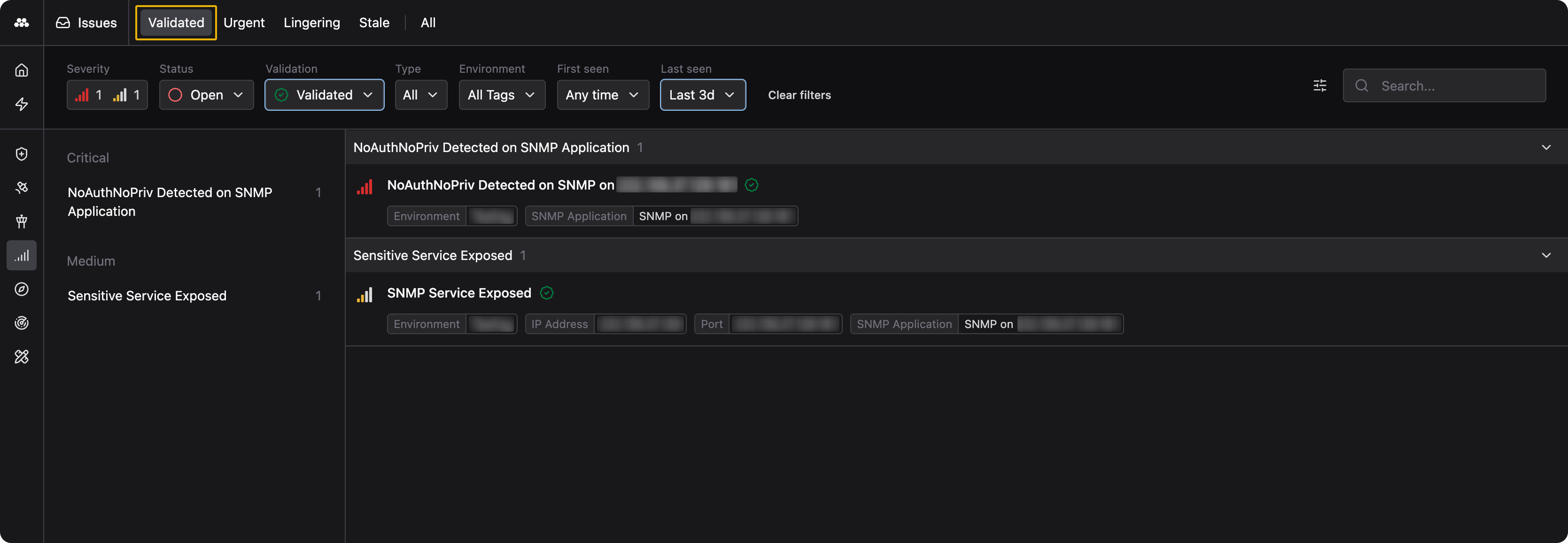
After an Issue Agent completes its investigation, Issues that are confirmed appear in the Validated tab of the Issues app with a green checkmark.
Method provides three levels of control over auto-run behavior:
- Platform level enables or disables auto-trigger Agents for an Issue type across all environments
- Environment tag level overrides the platform default for all environments that share a tag
- Environment level overrides both the platform default and any tag-level setting for a specific environment
More specific overrides always take precedence: environment overrides beat tag overrides, and tag overrides beat the platform default.
Open the Issue type configuration
-
From the left sidebar, open the Administration app.
-
Under Issues, select Issue Types.
-
Search for or select the Issue type you want to configure. The detail panel opens on the right.
-
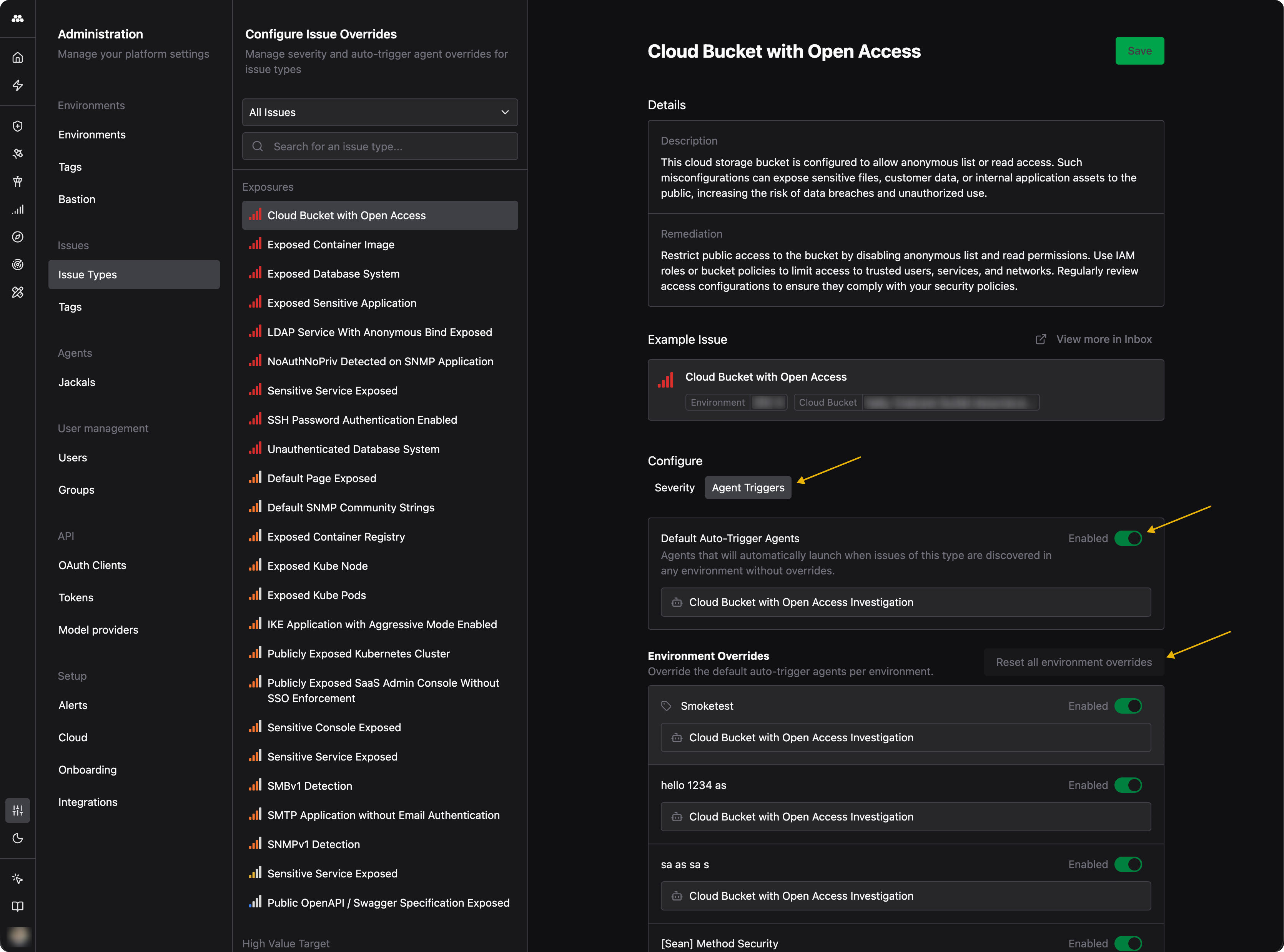
In the Configure section, switch to the Agent Triggers tab.
Enable or disable at the platform level
The Default Auto-Trigger Agents section controls which Agents run automatically for this Issue type across all environments that do not have overrides.
- Toggle the Enabled switch on to allow the listed Agents to auto-run when this Issue type is discovered.
- Toggle it off to prevent any Agents from launching automatically for this Issue type.
Click Save to apply your changes.
Override for a specific environment
The Environment Overrides section lists each environment in your organization. You can override the platform default on a per-environment basis.
-
Locate the environment you want to configure.
-
Toggle the Enabled switch for that environment to turn auto-run on or off, independent of the platform default.
-
Click Save to apply your changes.
This is useful when you want Agents to auto-run in production but not in development, or when a specific environment requires different behavior than the rest of your infrastructure.
Reset environment overrides
To remove all environment-level overrides and return every environment to the platform default:
-
Click Reset all environment overrides in the top-right corner of the Environment Overrides section.
-
Click Save to apply the reset.
After the reset, all environments follow the platform-level auto-trigger setting for this Issue type.
What happens when an Issue Agent runs
When an auto-triggered Issue Agent launches, it investigates the Issue using the tools and system prompt configured in the Agent’s definition. Depending on its findings, the Agent may:
- Validate the Issue, confirming it exists and marking it with a green checkmark in the Issues app
- Mark it as a false positive if the exposure cannot be confirmed
- Close the Issue if it has already been remediated
- Adjust severity up or down based on what the investigation reveals
You can review the Agent’s findings by opening the Issue and viewing its linked Agent sessions.