

Override default Issue severities
Customize how Issues are prioritized by overriding default severities at the global or environment level.
Navigate to Issue Types
Open the Administration app from the left sidebar and select Issue Types under the Issues section. This opens the Configure Issue Overrides view, where you can search for any Issue Type by name or filter by severity.
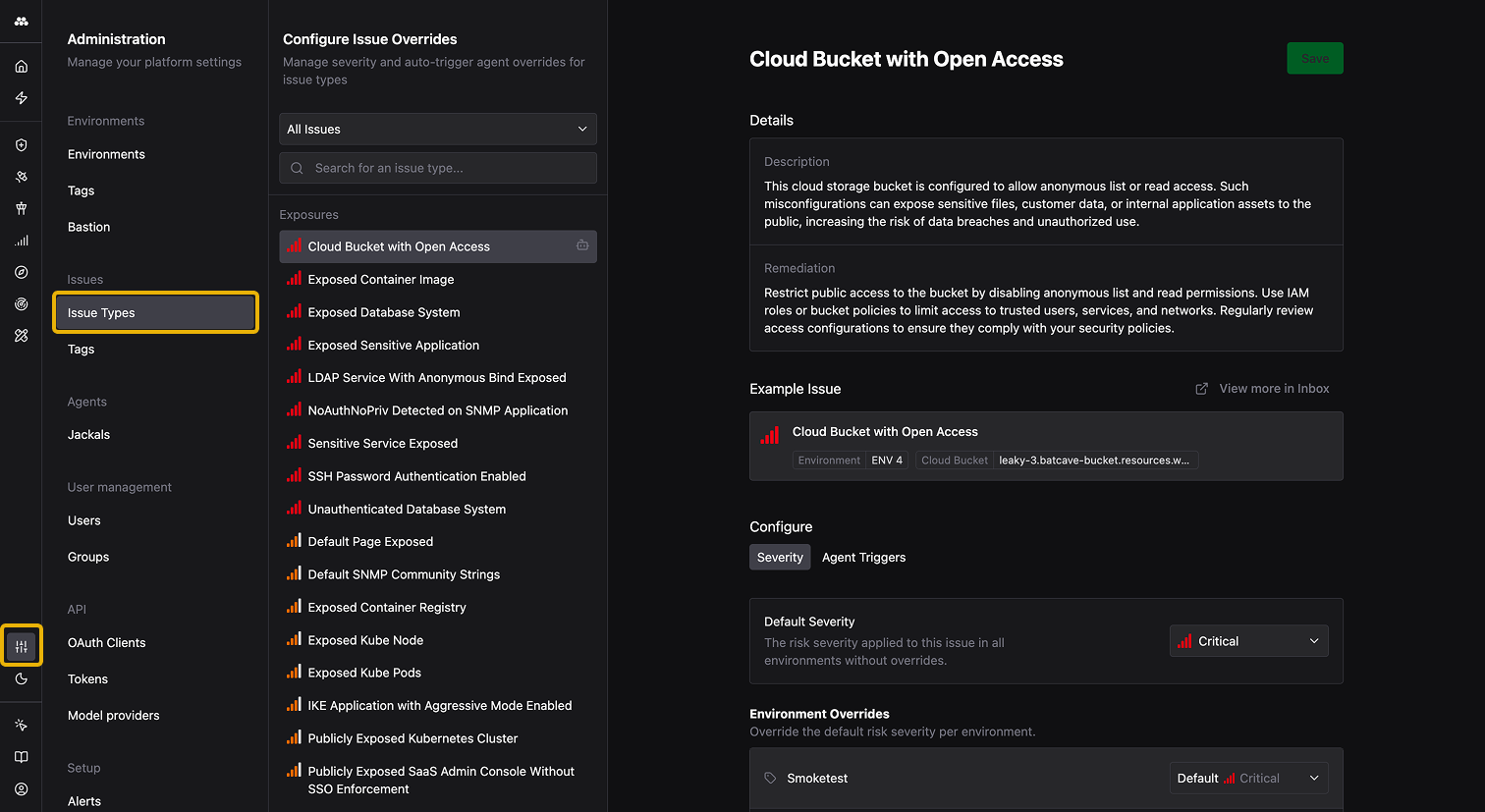
Override default severity
Click into an Issue Type to view its details: a description of the finding, remediation guidance, and an example Issue. The Configure section at the bottom contains two tabs: Severity for overriding the default risk level, and Agent Triggers for configuring auto-run Agents.
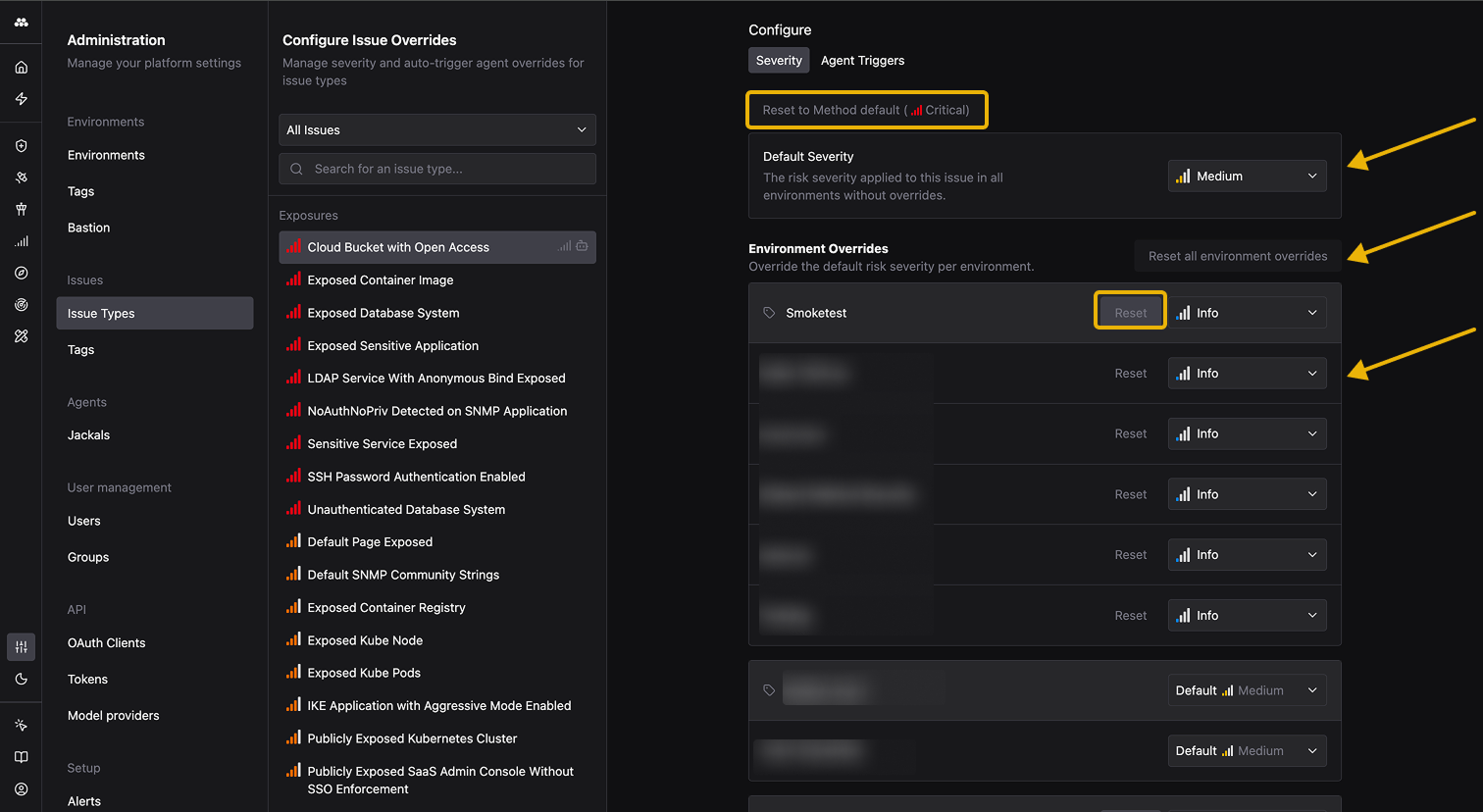
The Severity tab controls the risk level assigned to new Issues of this type. It has three levels of control:
- Default Severity: Applies across all Environments unless a more specific override exists
- Tag-level Overrides: Applies to tagged groups of Environments, overriding the default
- Environment Overrides: Applies to a specific Environment, overriding both the default and any tag-level setting
More specific overrides always take precedence: Environment overrides beat tag overrides, and tag overrides beat the default.
To revert an override, click Reset next to the individual Environment or tag group you want to clear. To reset everything back to the Method default severity, use the top-level Reset button.
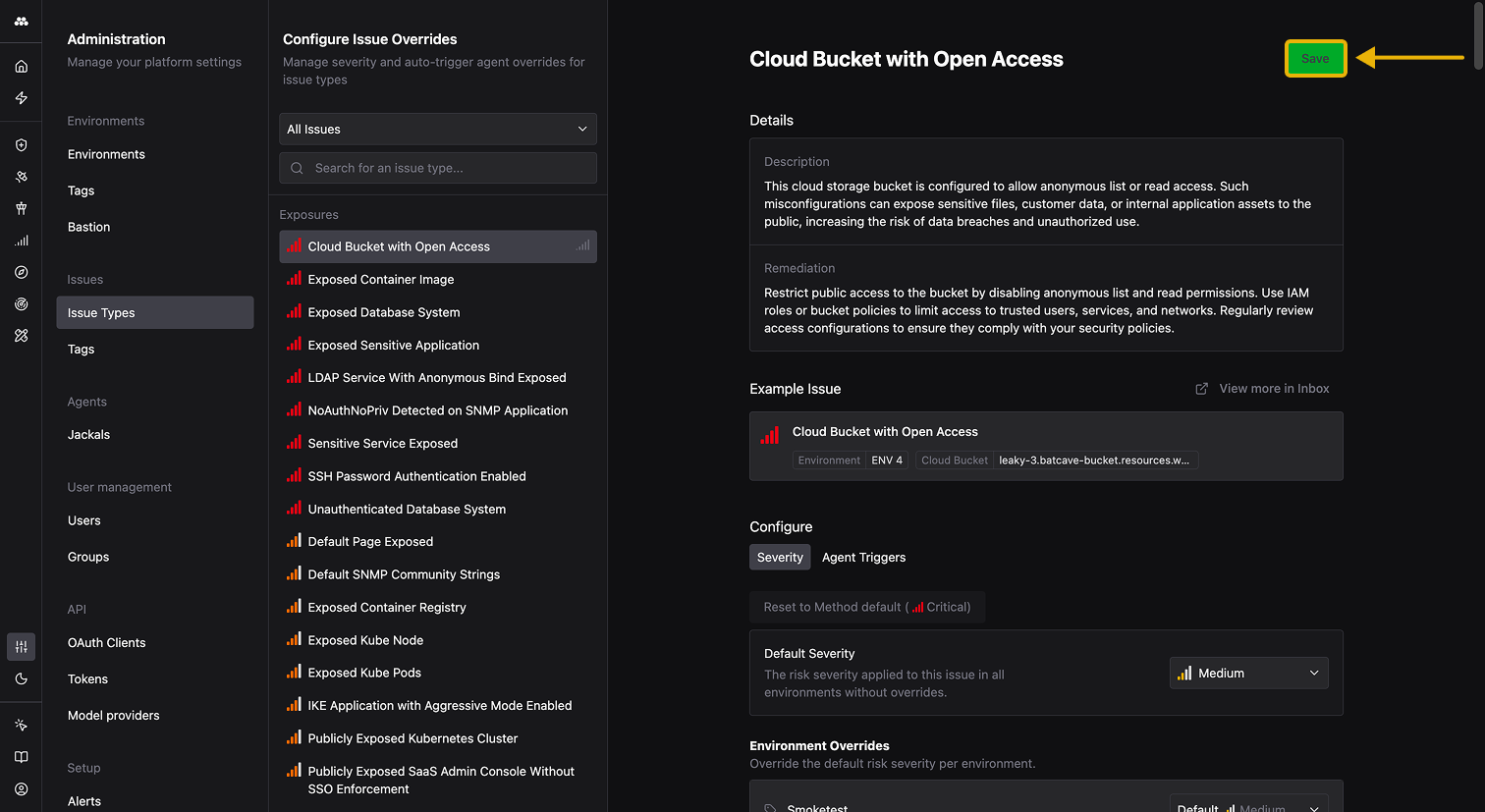
Your changes do not take effect until you click Save in the top-right corner of the page.
Severity overrides only affect newly discovered Issues. Existing open Issues keep their current severity until a Task run discovers the Issue again.
To configure which Agents launch automatically when Issues are discovered, see Enable auto-running Issue Agents.