

Create a new Environment
This guide walks you through creating a new Environment in Method. Environments represent the networks, domains, and infrastructure you want to defend. You can create one from the Administration app or from the quick-action menu in the left navigation.
Create an Environment
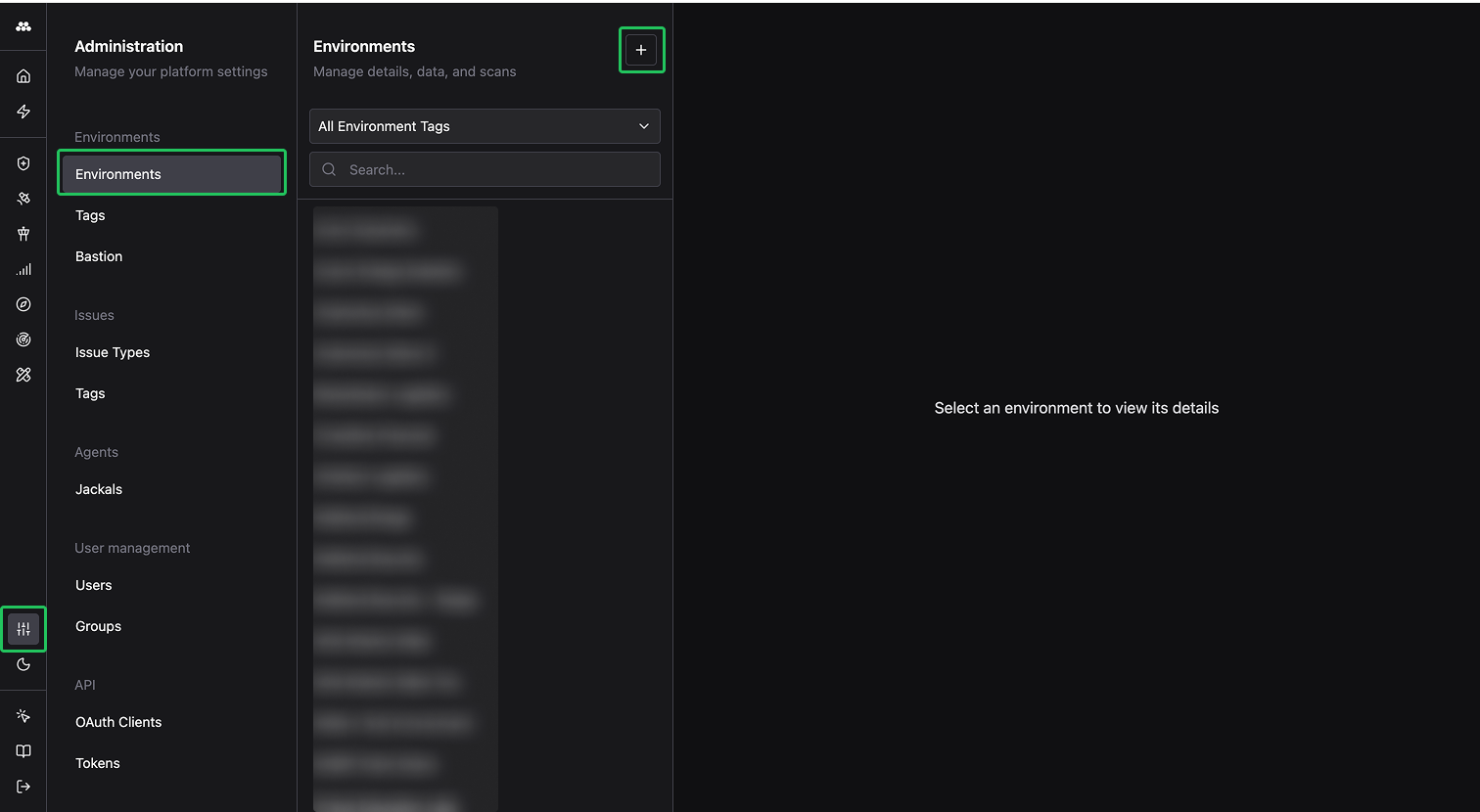
From the left sidebar, click the Administration icon, select the Environments tab, and click the + button in the top-right corner of the Environments panel.
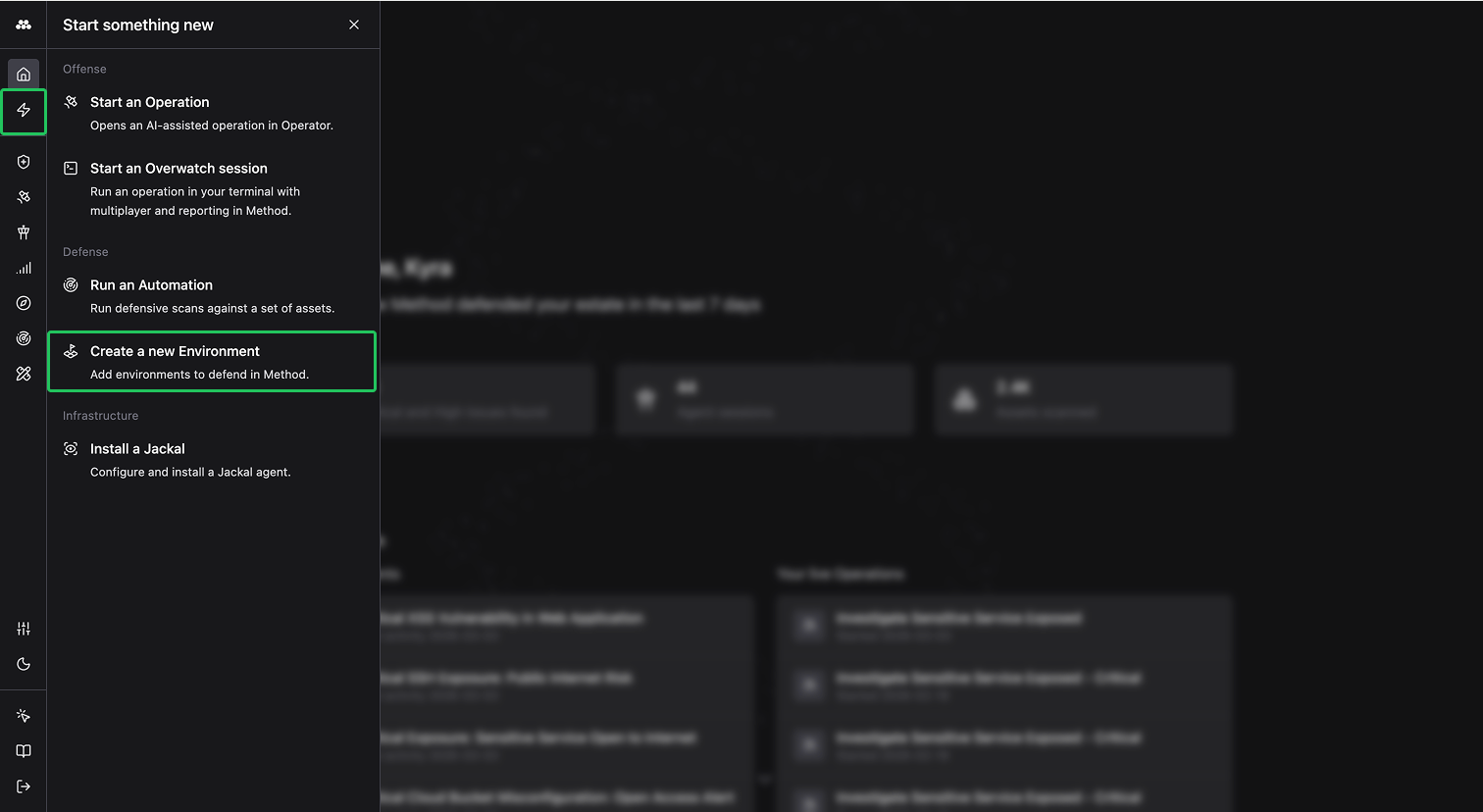
Alternatively, click the lightning bolt icon in the left sidebar and select Create a new Environment.
Review existing Environments
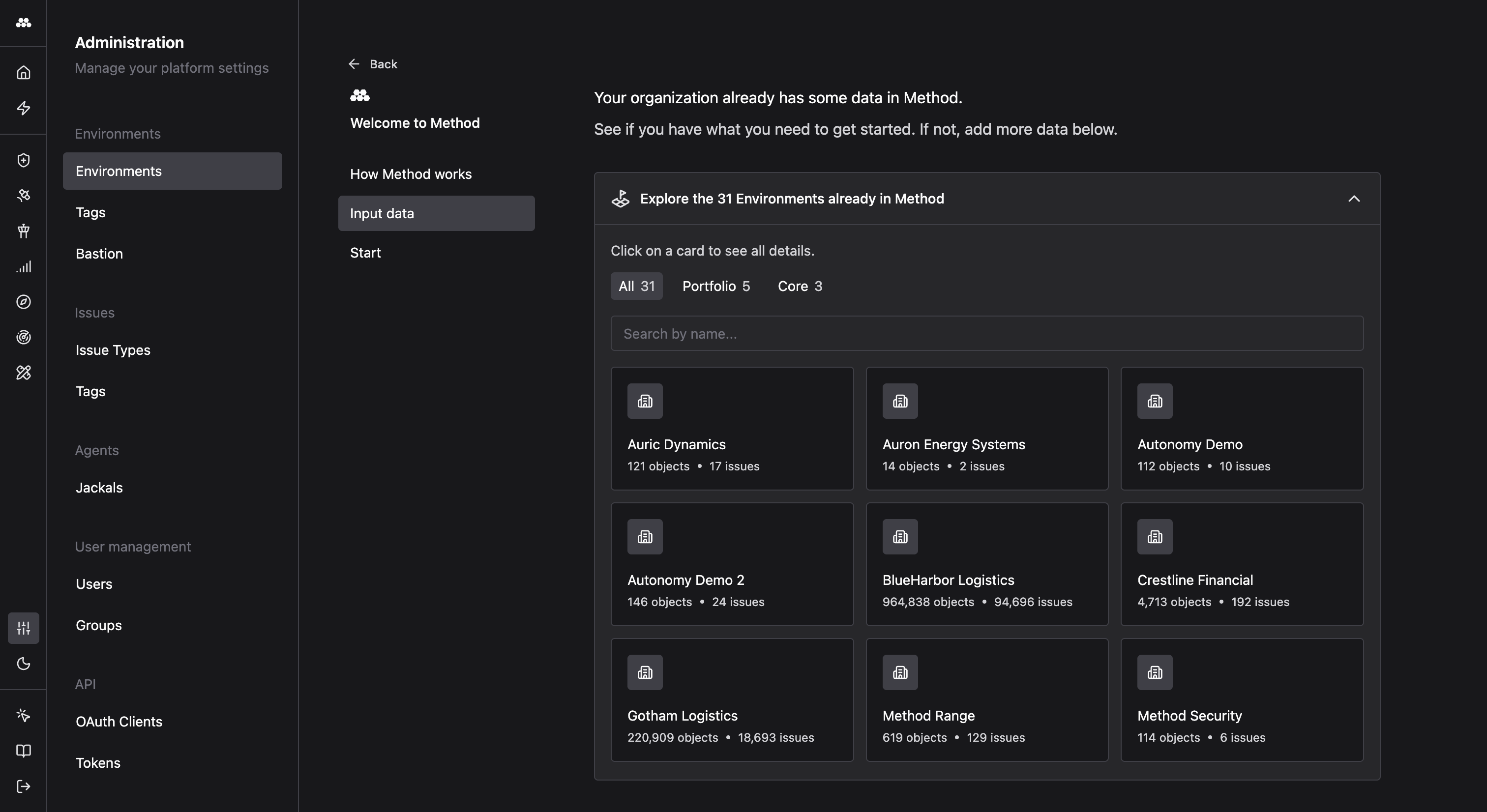
Before adding a new Environment, you can review what already exists by browsing a searchable grid of every Environment in your organization. Type a name into the search bar to find a specific Environment, or click any card to view its details.
Define your Environment settings
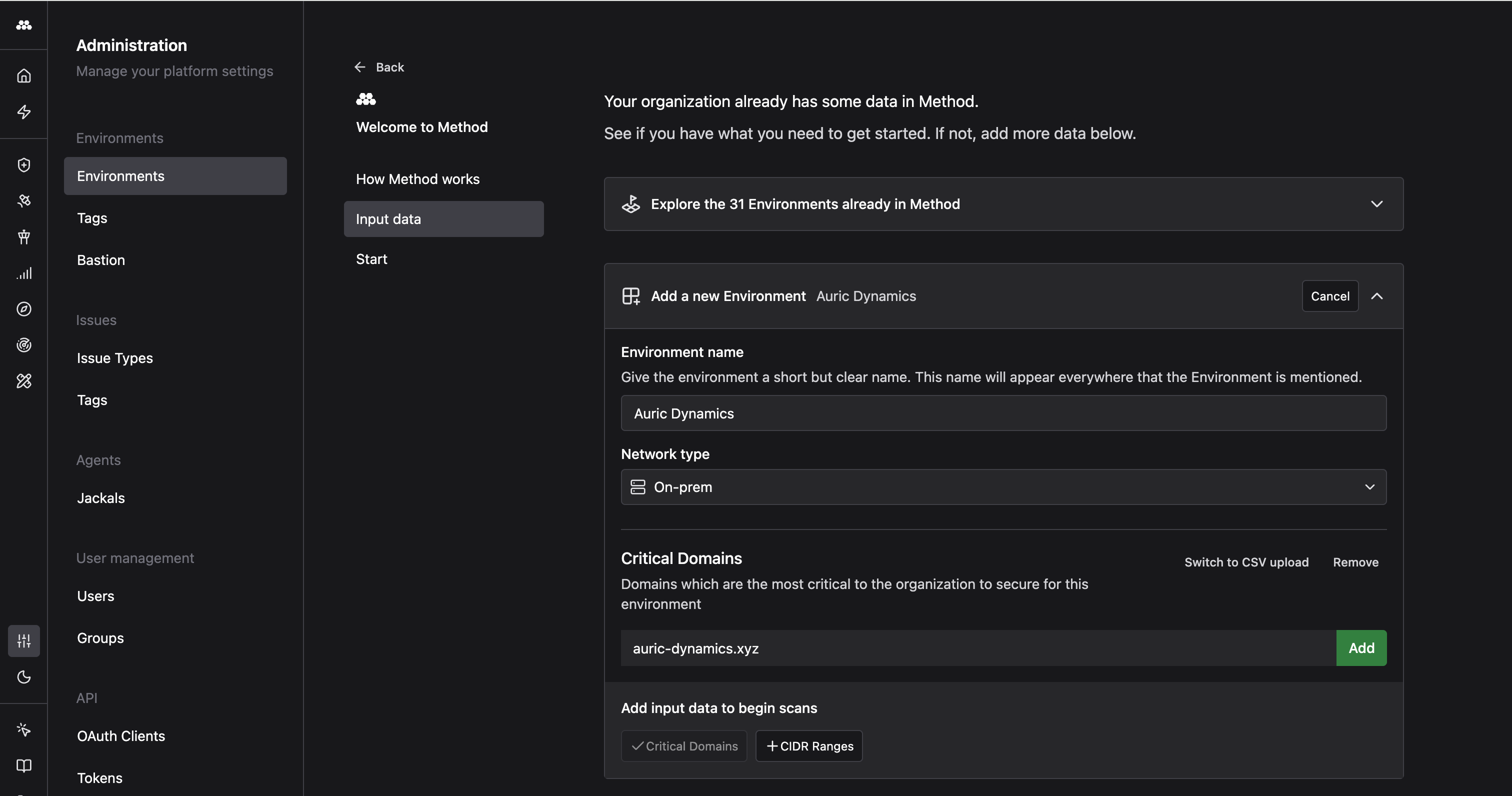
Under the Add a new Environment section, fill in the following fields:
- Environment name: The name that identifies this Environment across the platform, including environment selectors, Finding filters, and Operation entry points.
- Network type: The connectivity model for this Environment. Choose On-prem, Cloud, or Hybrid to match your infrastructure.
- Input data: Add the starting inputs that seed your initial scans. You can provide Critical Domains, CIDR Ranges, or both. Type a value and click Add to include it, or click Switch to CSV upload to bulk-import entries from a file.
After configuring your Environment, you can preview the inputs you provided, add another Environment, or begin onboarding.
Revisit your Environment details
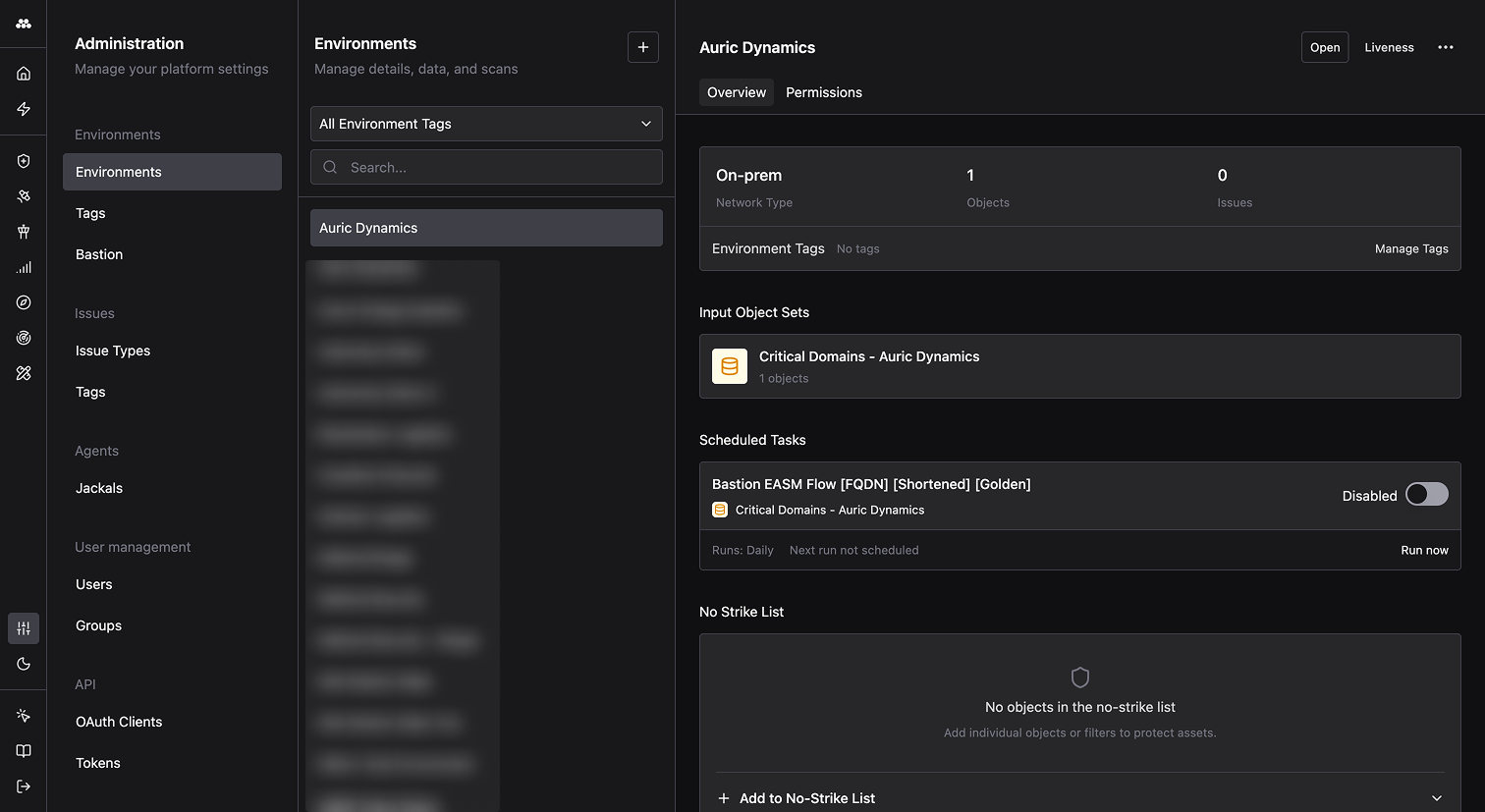
To review or manage your Environment after creation, navigate to the Administration app and select it from the list. The detail page gives you a summary of the Environment’s configuration, input data, scheduled scans, and any no-strike objects you have in place.
Create a Tutorials Environment
If you are running through the Method guides, we recommend creating a dedicated Environment to keep your tutorial data separate from production data.
Follow the steps above and name your Environment <yourname>-first-tutorial. Use any domain you like as a Critical Domain (for example, wayneindustries.xyz). This Environment will serve as the target for subsequent guides, including running your first Operation and creating a Task.