Run your first Operation
This guide walks you through launching your first Operation for an internet-based investigation. Operations can be investigative or offensive in nature. The steps below focus on an investigative workflow to get you started.
Prepare your Environment
We recommend creating a dedicated Environment for this and other tutorials to keep your tutorial data separate from production data. See how to do so by following the Create an Environment guide.
Start an Operation
From the left sidebar, click Reaper to open the Reaper homepage.
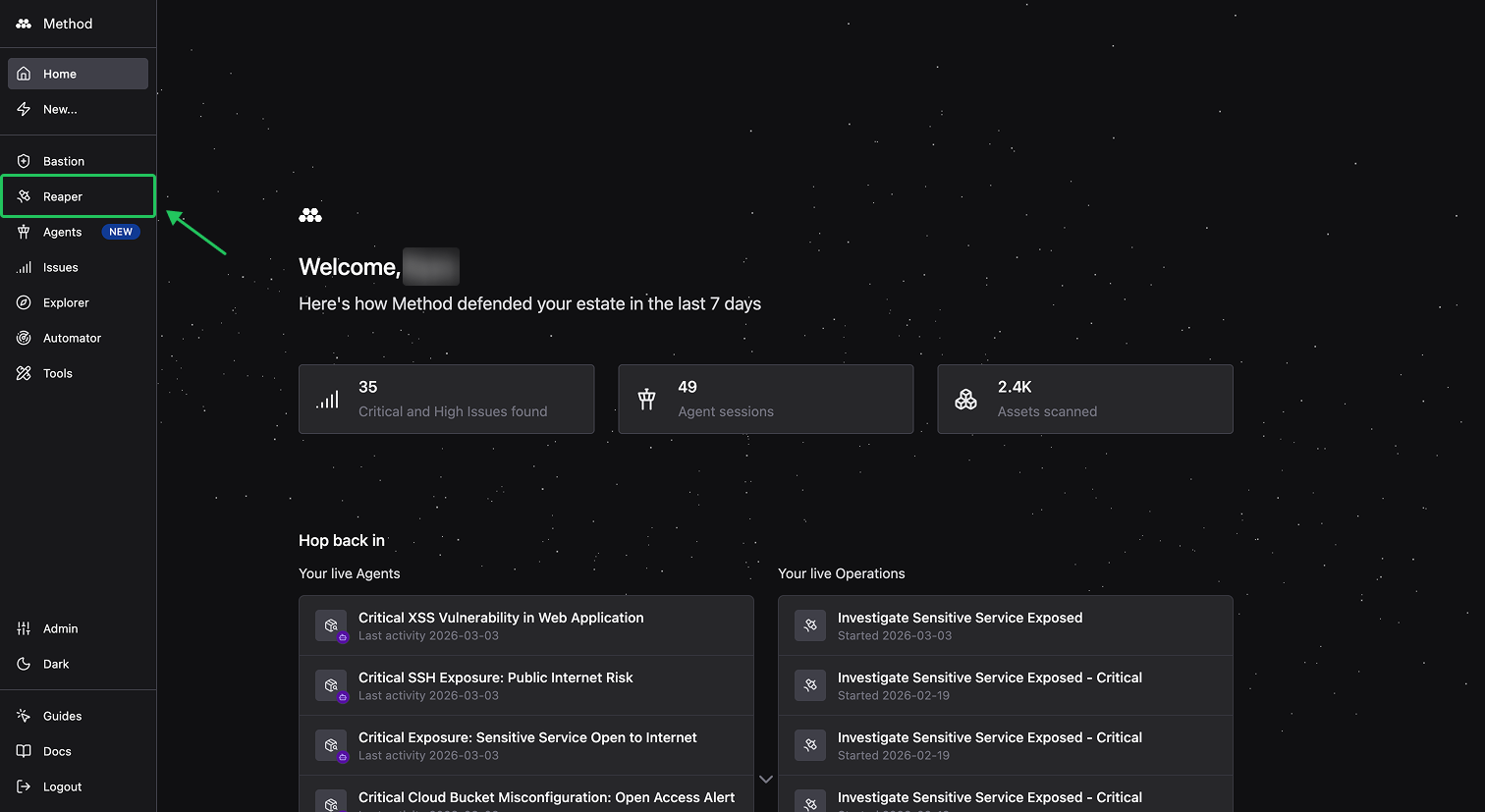
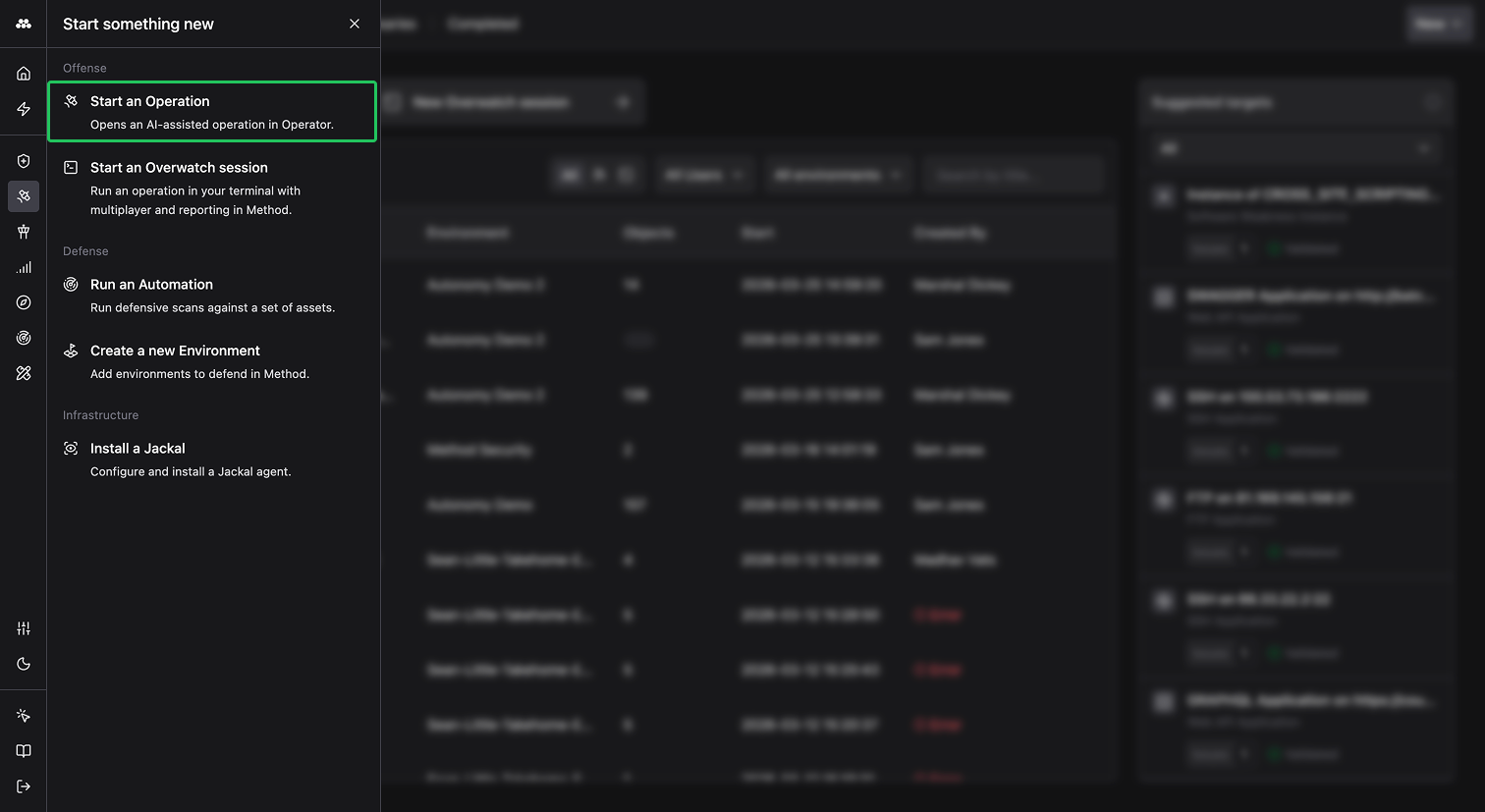
Alternatively, click the lightning bolt icon in the left sidebar and select Start an Operation.
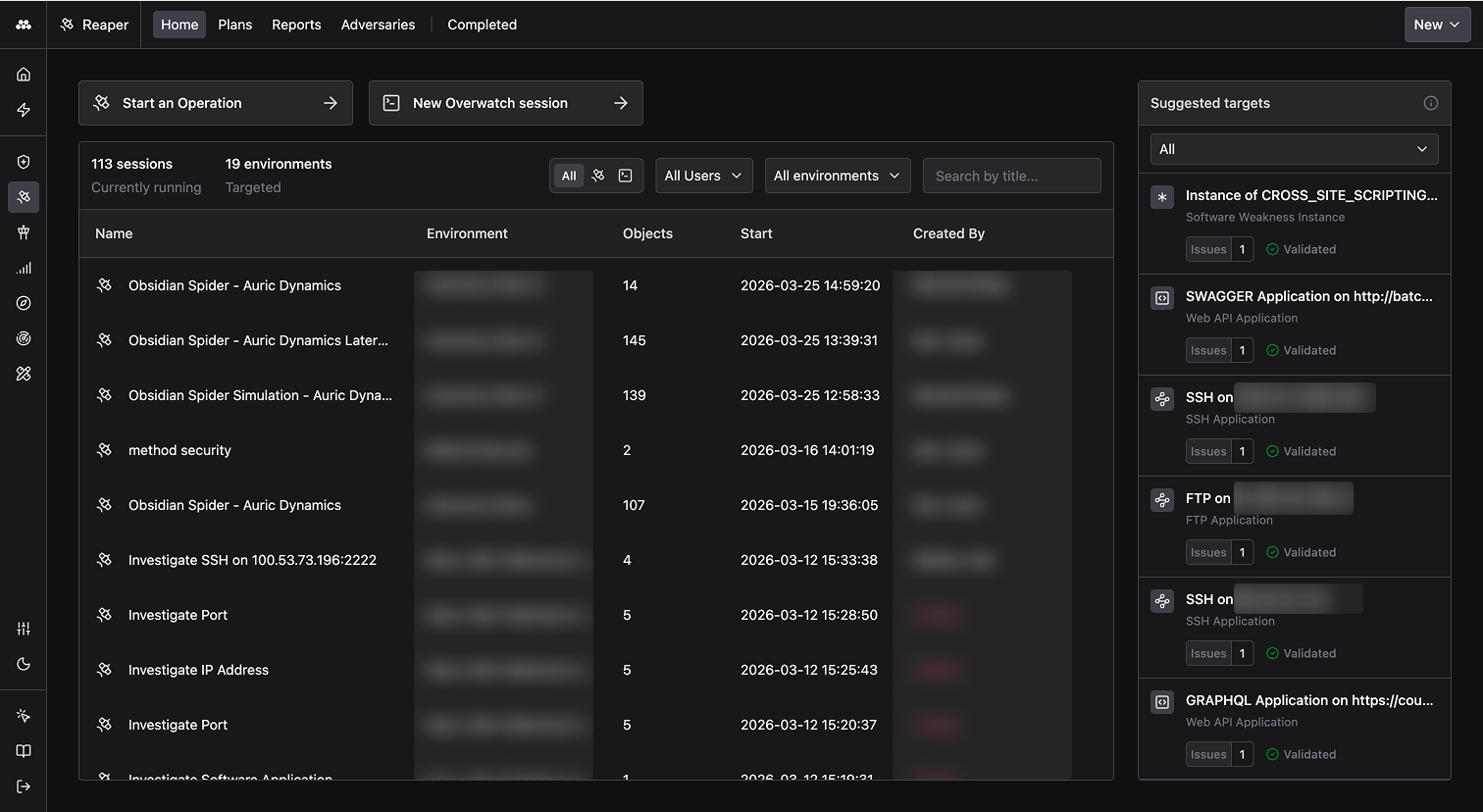
From the Reaper homepage, you can view all active Operations across your organization. Click any row to jump into a live Operation, or filter by user and Environment to find a specific session. Use the tabs to browse Operation Plans, Reports generated in the platform, Adversaries, and Completed Operations.
The Suggested targets panel on the right surfaces validated targets from Method Agents, so you can start an Operator session with a pre-selected starting point.
Begin a new Operation
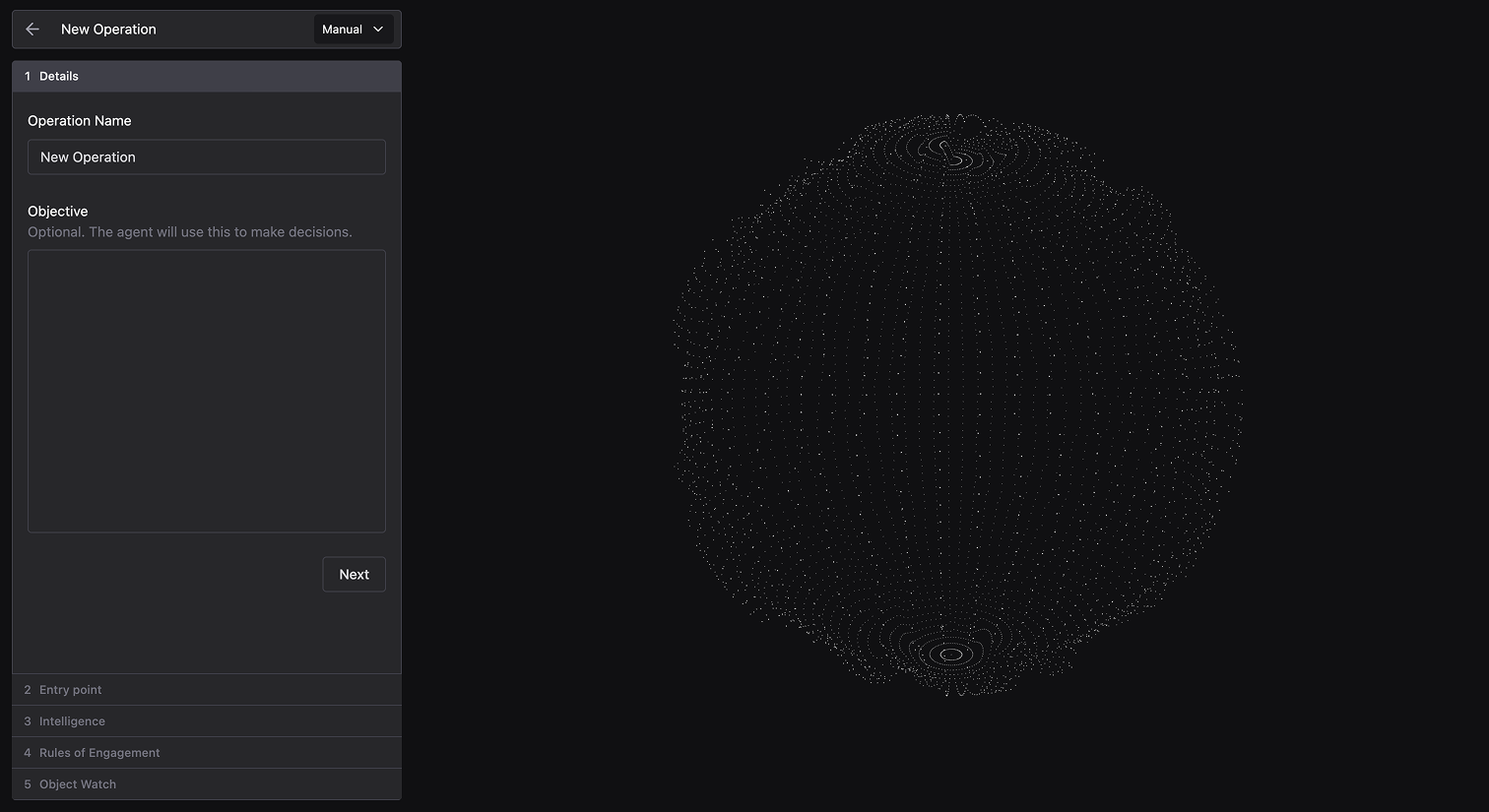
Click New in the top-right corner of the Reaper homepage to open a fresh Operator workspace.
Configure your Operation
The following example walks through an internet-based reconnaissance and investigation of several web services.
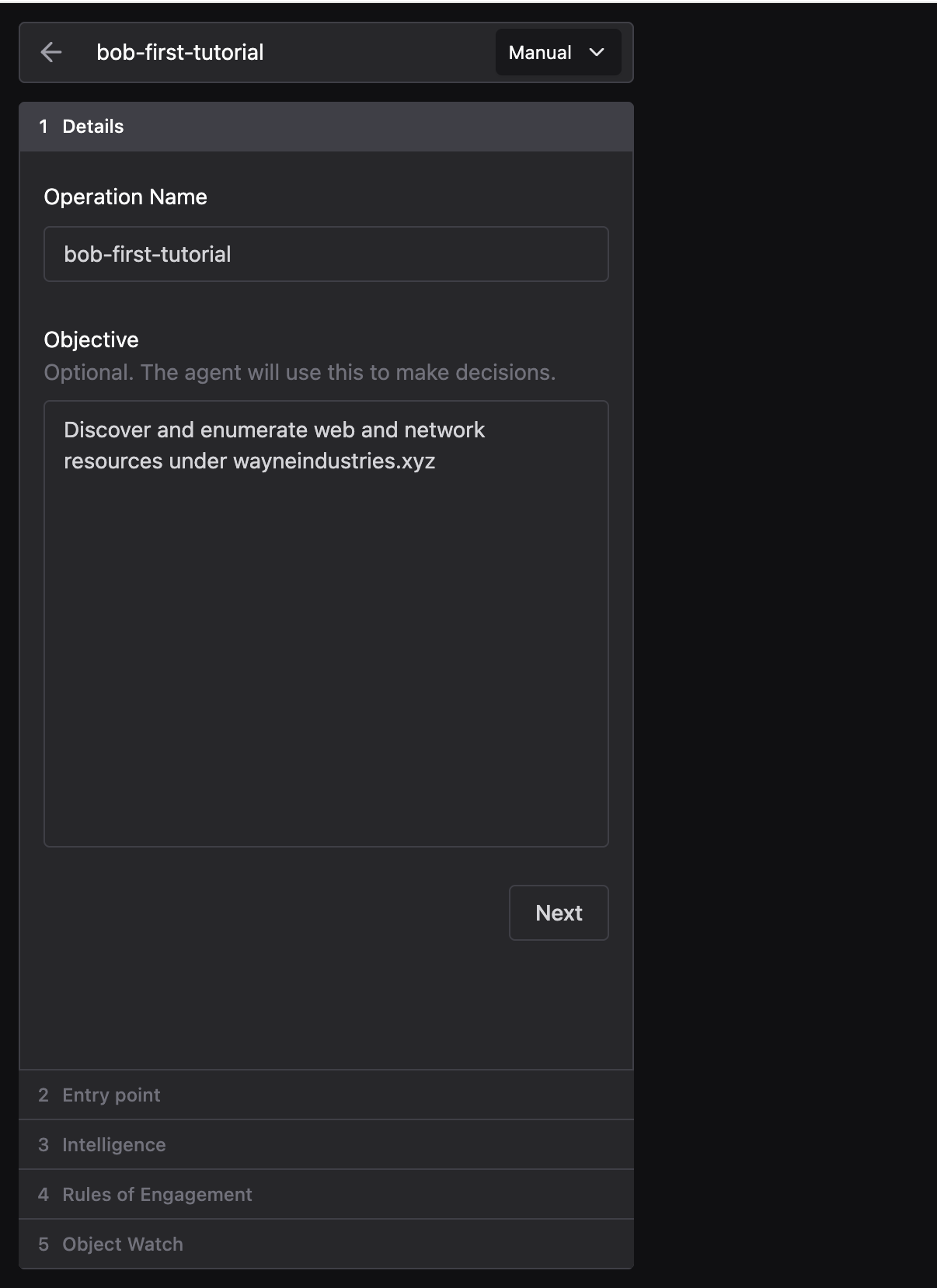
- Name your Operation:
<yourname>-first-tutorial - Provide an Objective:
Discover and enumerate web and network resources under wayneindustries.xyz
-
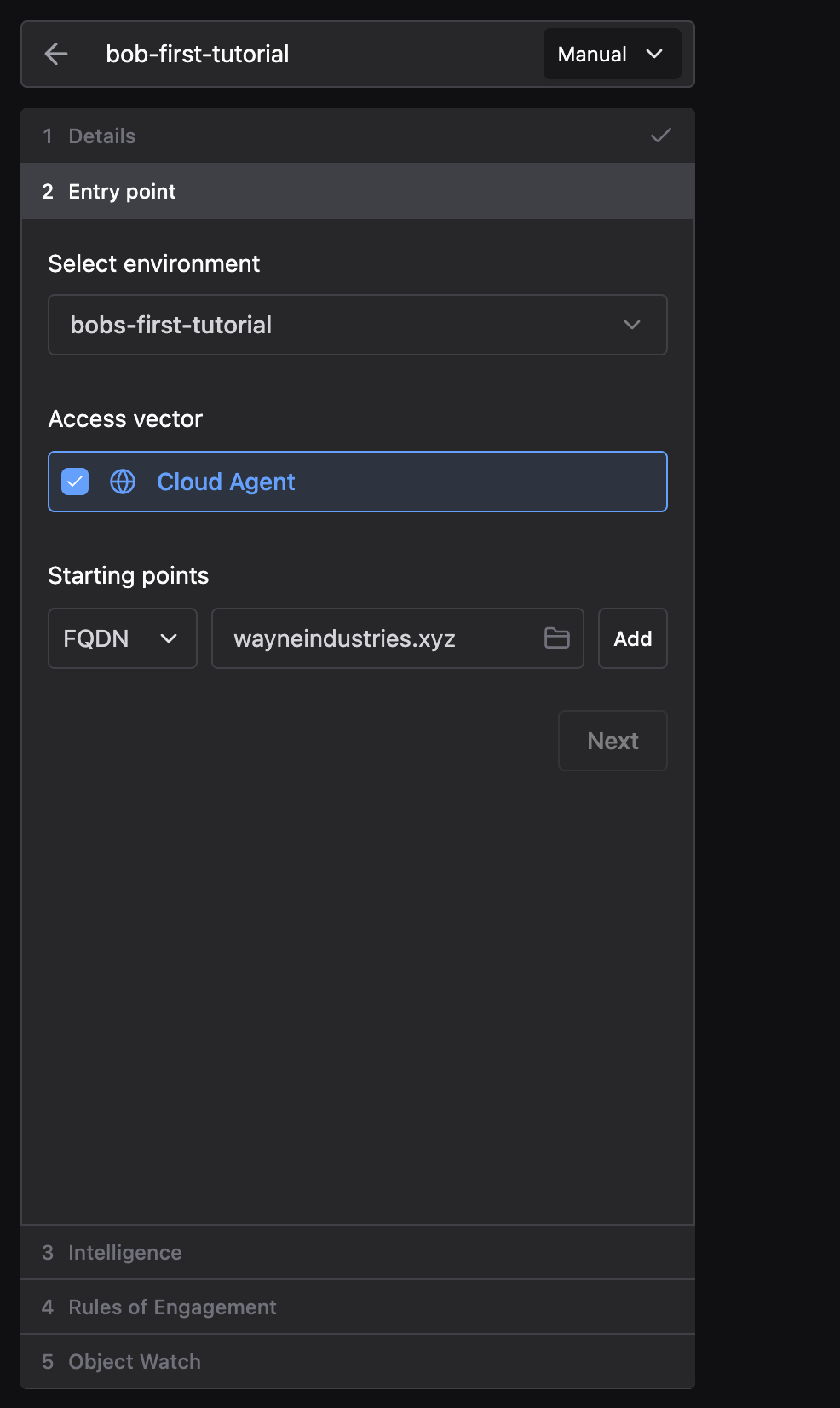
Specify the Entry point:
a. Environment:
<yourname>-first-tutorialb. Access vector: Cloud Agent c. Starting points: withFQDNselected, addwayneindustries.xyz
-
Skip the Intelligence, Rules of Engagement, and Object Watch sections.
-
Click Begin Operation.
Run your first Tools
- Run the Passive Subdomain Discovery Tool to enumerate
wayneindustries.xyz’s subdomains. Select it from the search box and click Run.
-
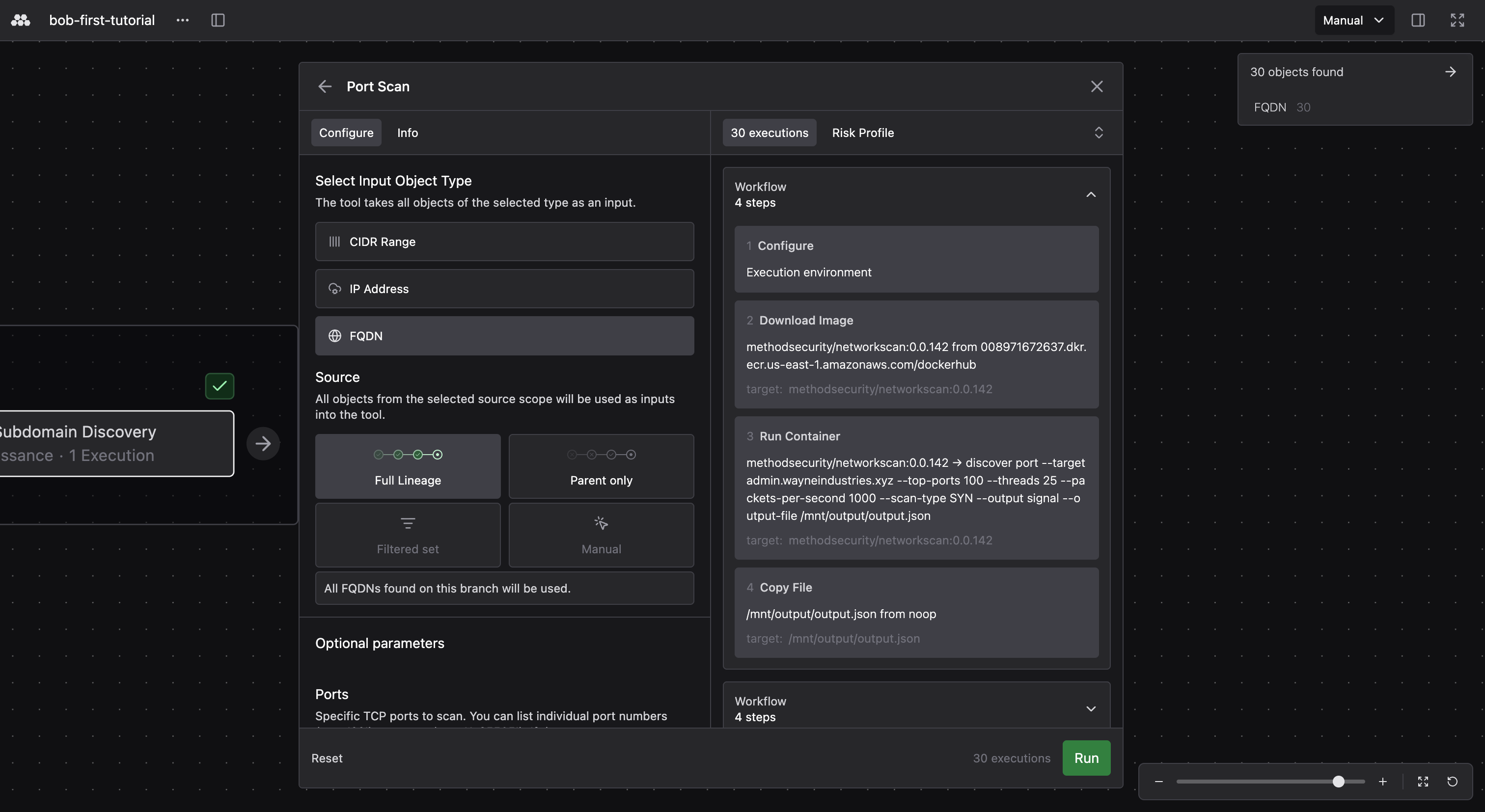
Next, run a Port Scan against the discovered subdomains.
Before executing, configure the Tool by selecting the input Object type (CIDR Range, IP Address, or FQDN), choosing a source for input Objects (Full Lineage, Parent only, Filtered set, or Manual), and setting optional parameters like specific ports to scan.
The execution count shows how many times the Tool will run based on your selected inputs, so you can verify the scope before clicking Run.
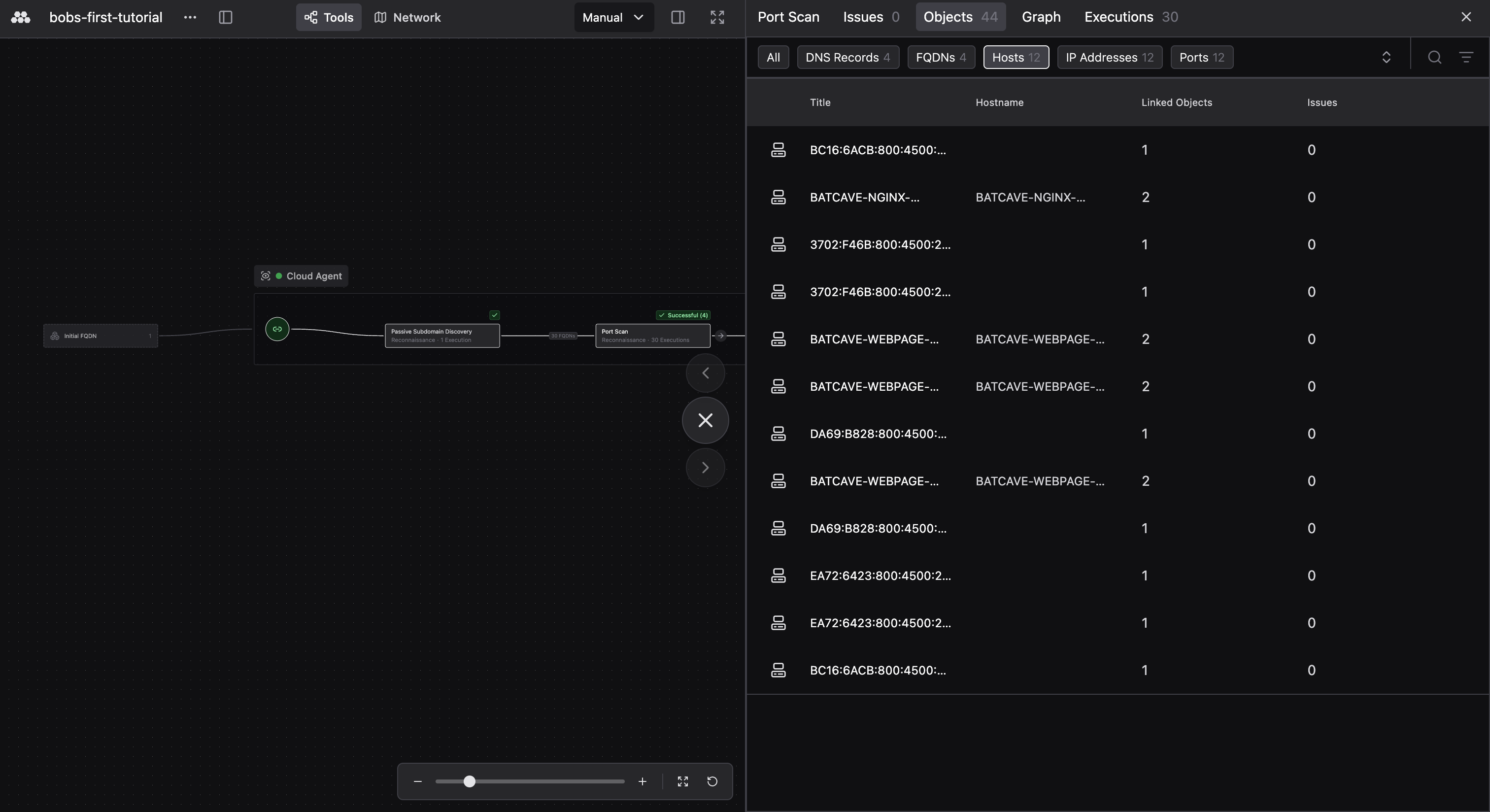
- Once a Tool completes, click the node to review the Objects created, any Issues surfaced, and the knowledge graph. You can also inspect raw execution details if you want to dig deeper.
- Continue by picking your next Tool. Click the arrow on any completed node and select Choose next tool. Configure parameters if needed, then click Run. Repeat this cycle to build out your Operation graph and expand your investigation.
Next steps
This tutorial covered the basics of running an investigative Operation in Operator. Continue the Operation against these cloud-hosted resources, start a new one against new targets (for example, a new FQDN, IP, or CIDR), or deploy a Jackal and launch an Operation from an installed access vector.

