

Filter, investigate, and close Findings
Filter, investigate, and close Findings using Explorer, the Object graph, and Agents.
The Findings app
The Findings app is your central view for triaging security findings. By default, it shows open, Validated Findings from the last 3 days.
A Validated Finding is one that AI Agents have confirmed as a real finding. This lets you focus on verified results rather than sorting through unverified noise.
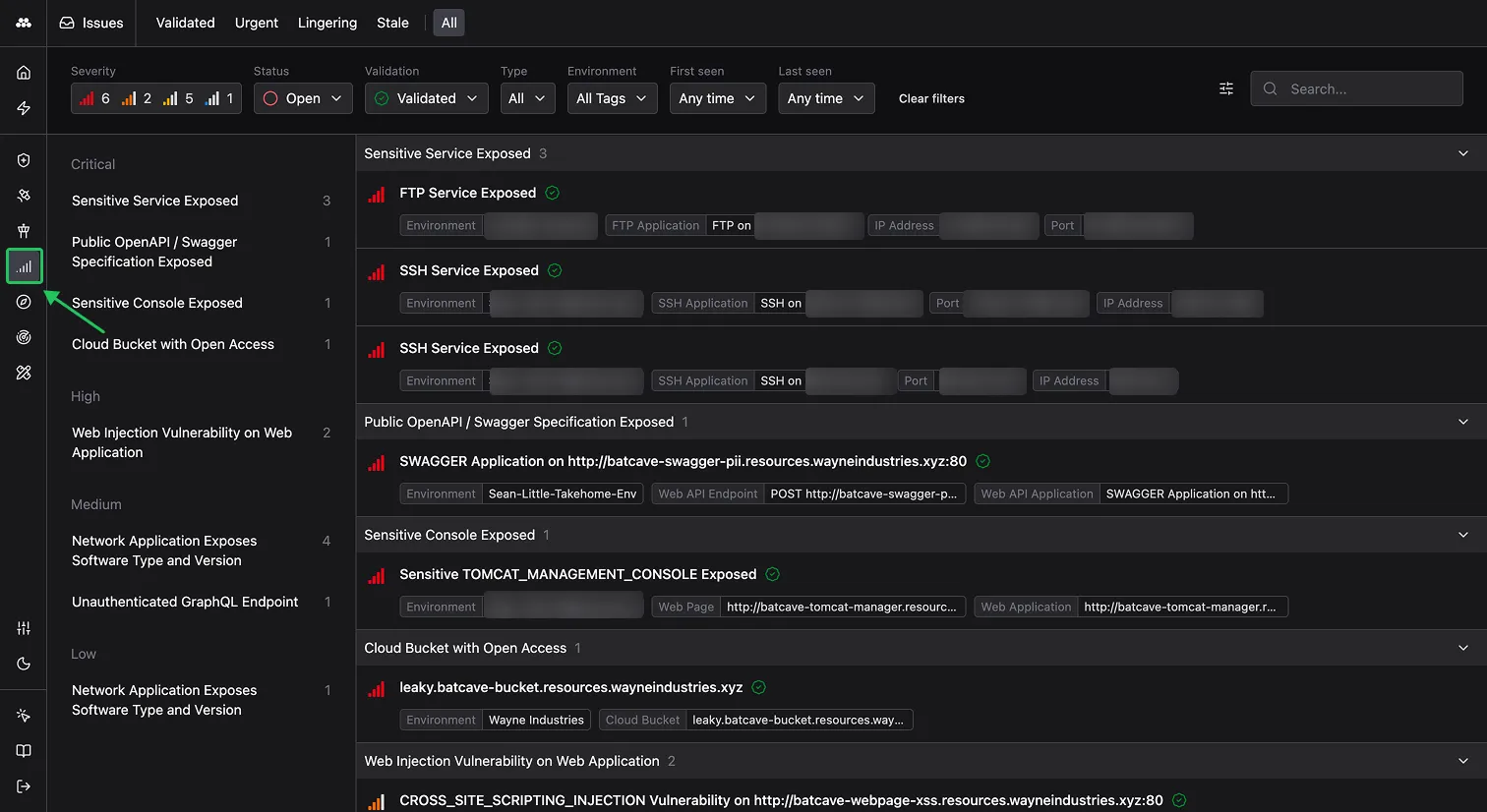
Use the tabs across the top to switch between Validated, Urgent, Lingering, Stale, or All Findings. The filter bar lets you further narrow results by:
- Severity: Critical, High, Medium, Low, or Info
- Status: Open or Closed
- Validation: Validated, Unvalidated, or All
- Type: Filter by specific Finding type tags
- Environment: Scope to a particular Environment or tagged group of Environments
- First seen / Last seen: Filter by time range
The left sidebar groups Findings by Finding type within each severity level, making it easy to spot patterns across your environments.
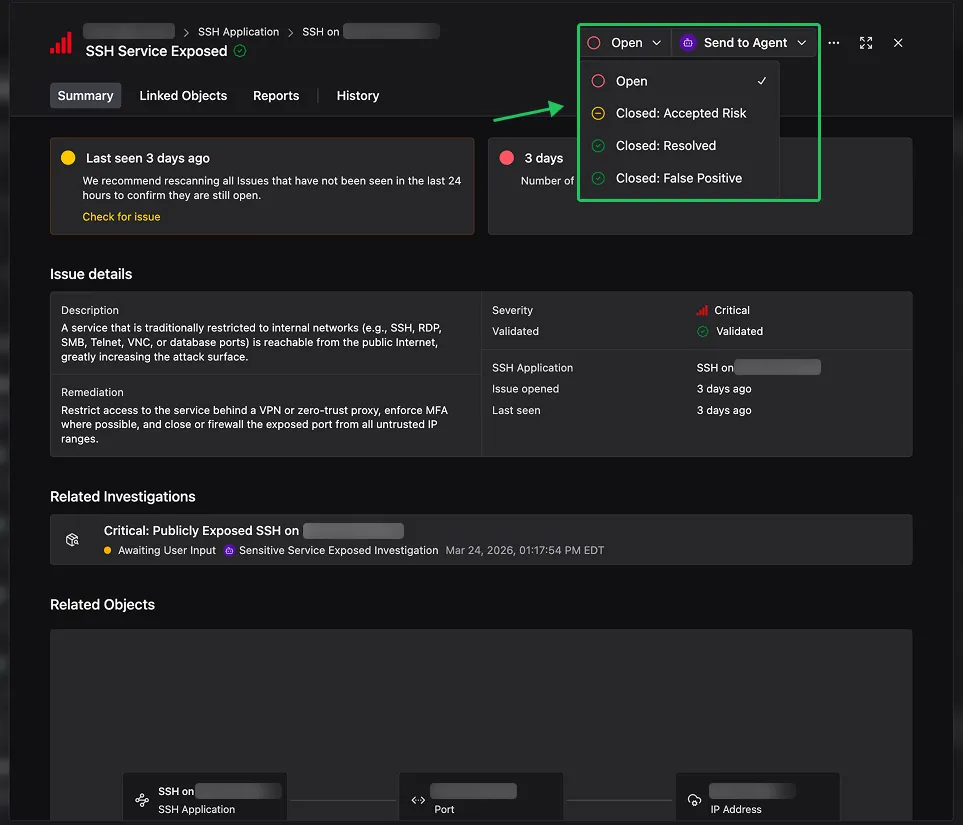
Change a Finding’s status using the drop-down menu at the top-right corner of any Finding.
Advanced filtering in Explorer
Apply more advanced filters and filter groups to explore Findings across your environments using Explorer. See Filter data for details.
Investigate a Finding
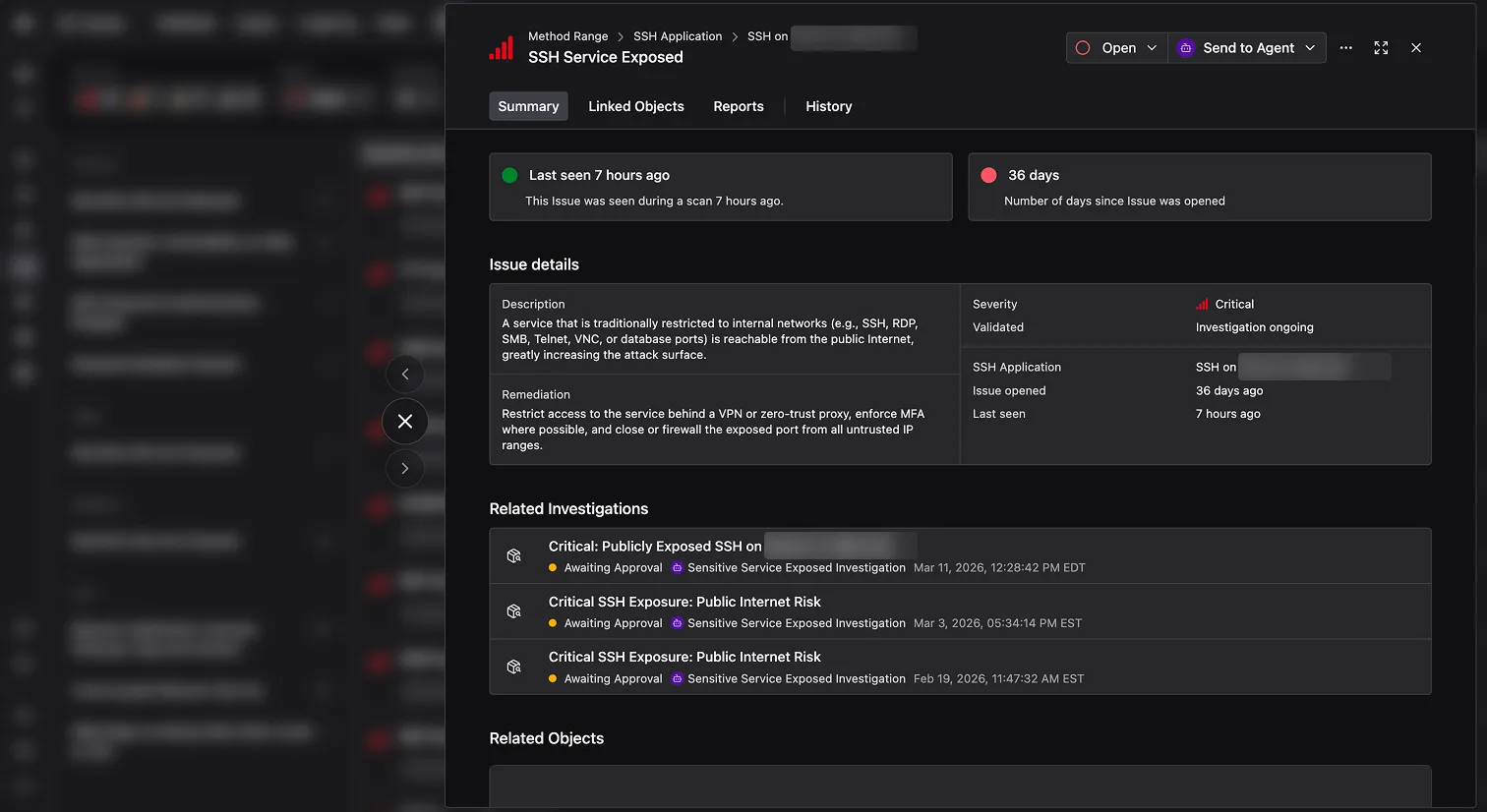
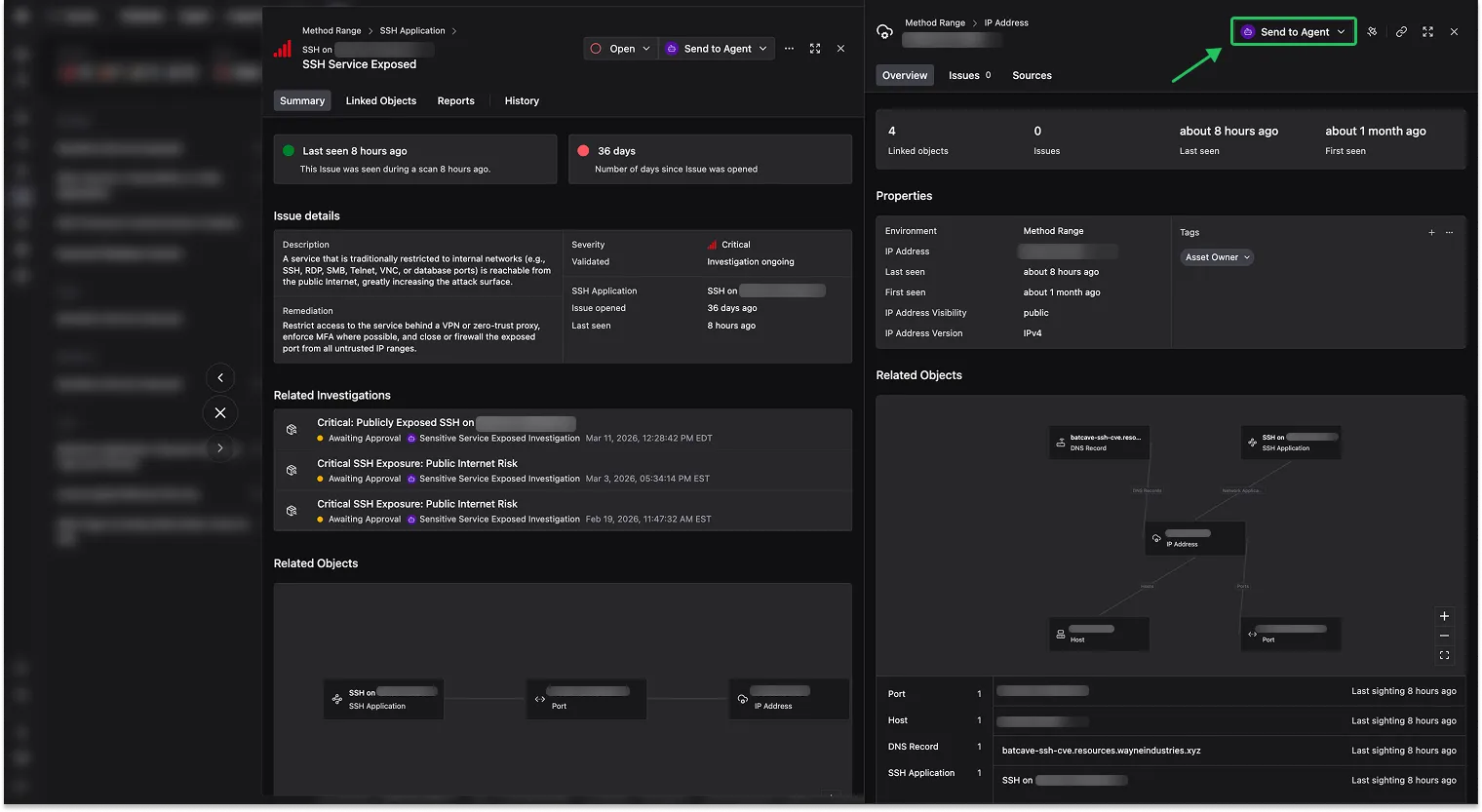
Click into any Finding to open its detail panel. The Summary tab gives you a full picture at a glance:
- Last seen and age: When the Finding was last observed and how long it has been open
- Finding details: A description of the finding, its severity, validation status, the impacted Object, and remediation guidance
- Related Investigations: Past and ongoing Agent investigations tied to this Finding
- Related Objects: The Objects connected to the finding
Use the tabs to explore further: Linked Objects to see the full asset graph, Reports to generate exportable documentation, and History to track status changes over time.
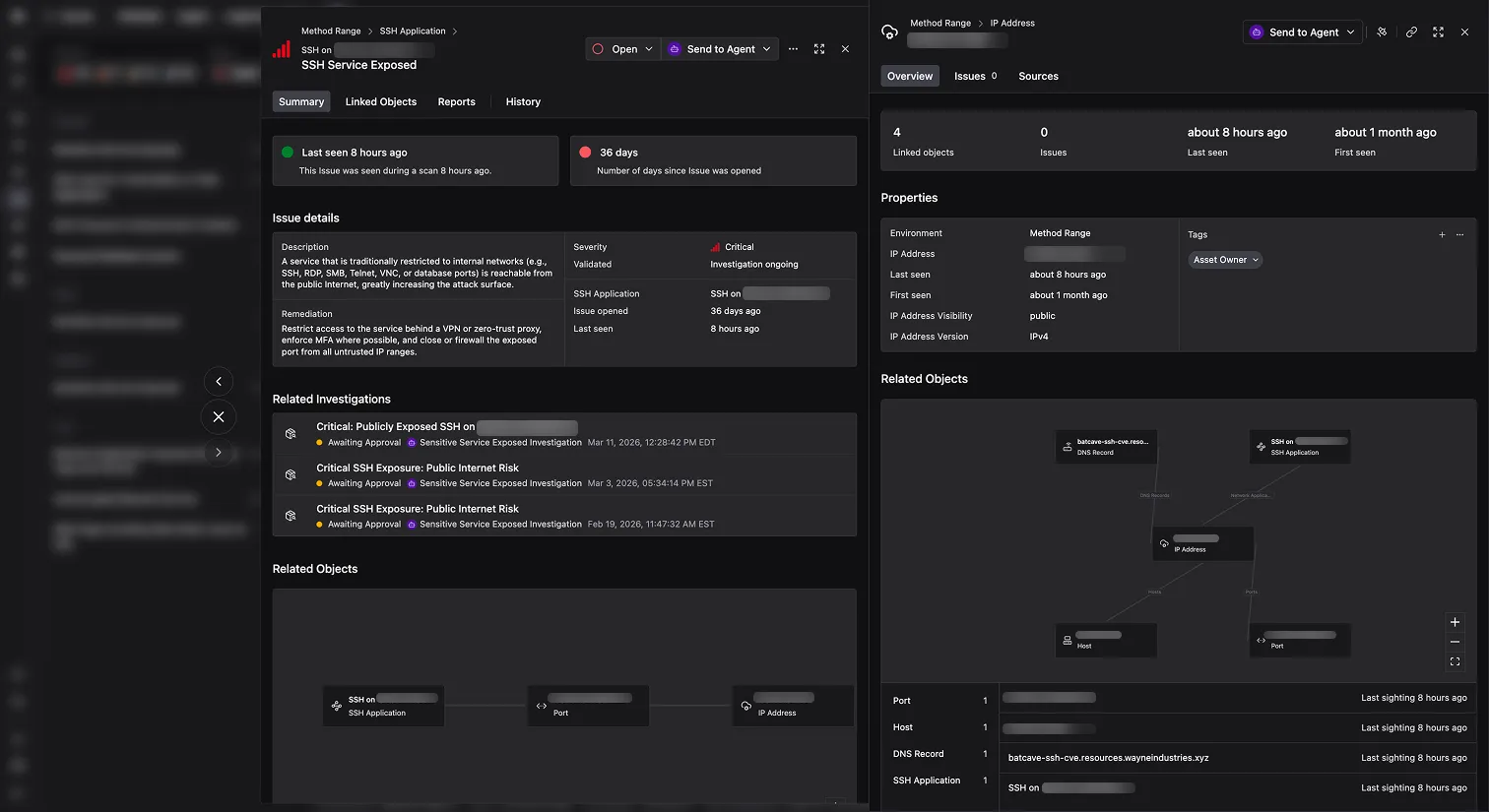
The Related Objects graph visualizes how a Finding’s impacted asset connects to other Objects in the Ontology. Labeled edges show the relationships between Objects, such as an SSH Application running on a Host at a specific IP Address. Use the graph to understand blast radius, trace exposure chains, and identify affected dependencies.
Investigate Findings with Agents
From any Finding, click Send to Agent to kick off an Agent investigation. Select an Agent and optionally provide additional context to guide its analysis. The Agent will investigate the Finding, then report back with findings, validation, and recommended next steps.
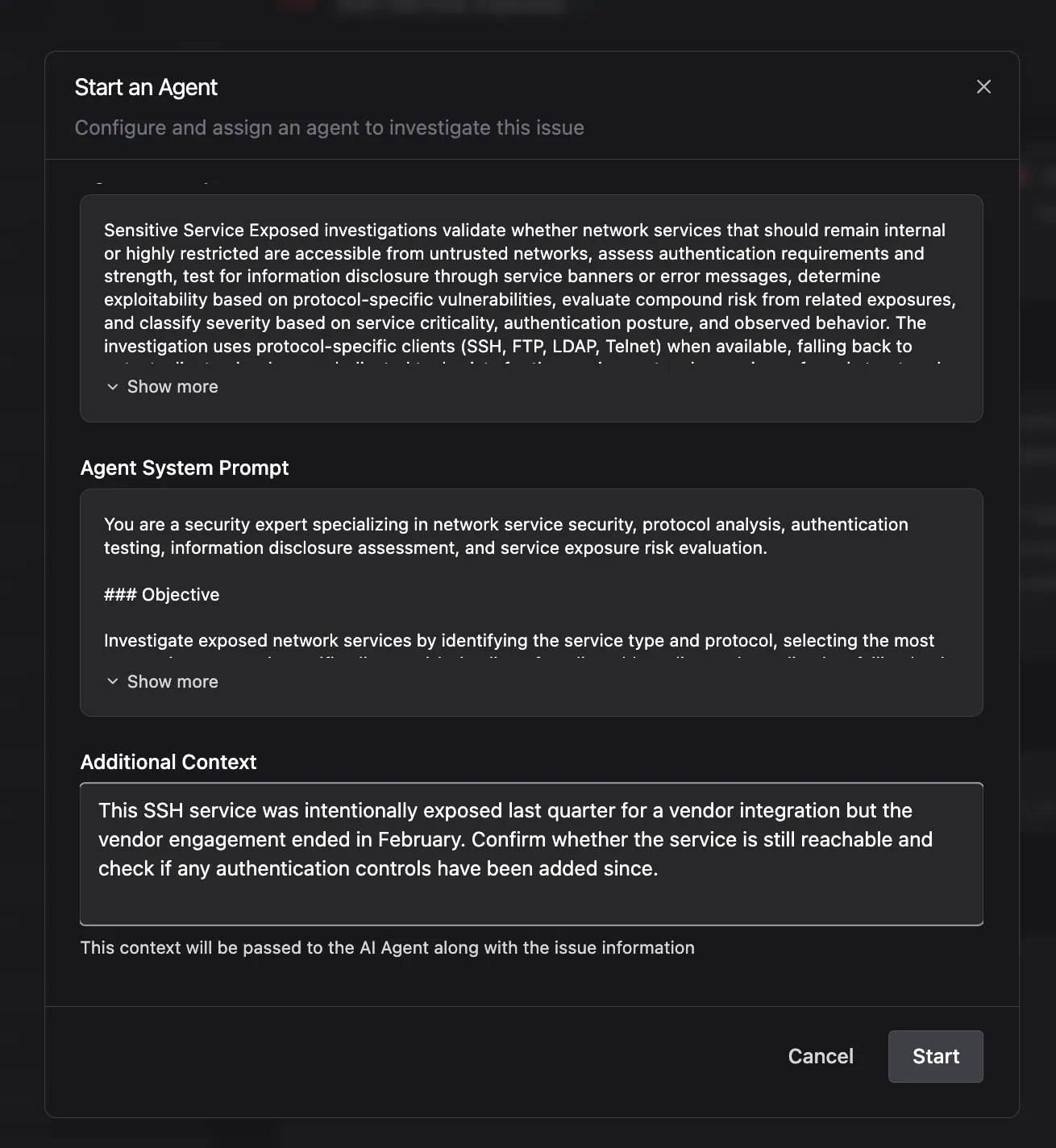
Once started, the Agent begins its investigation. Policies govern what each Agent can do: a Tool call may be automatically approved, denied, or held for your approval depending on the rules you configure. Monitor progress in real time from the Agent Fleet app.
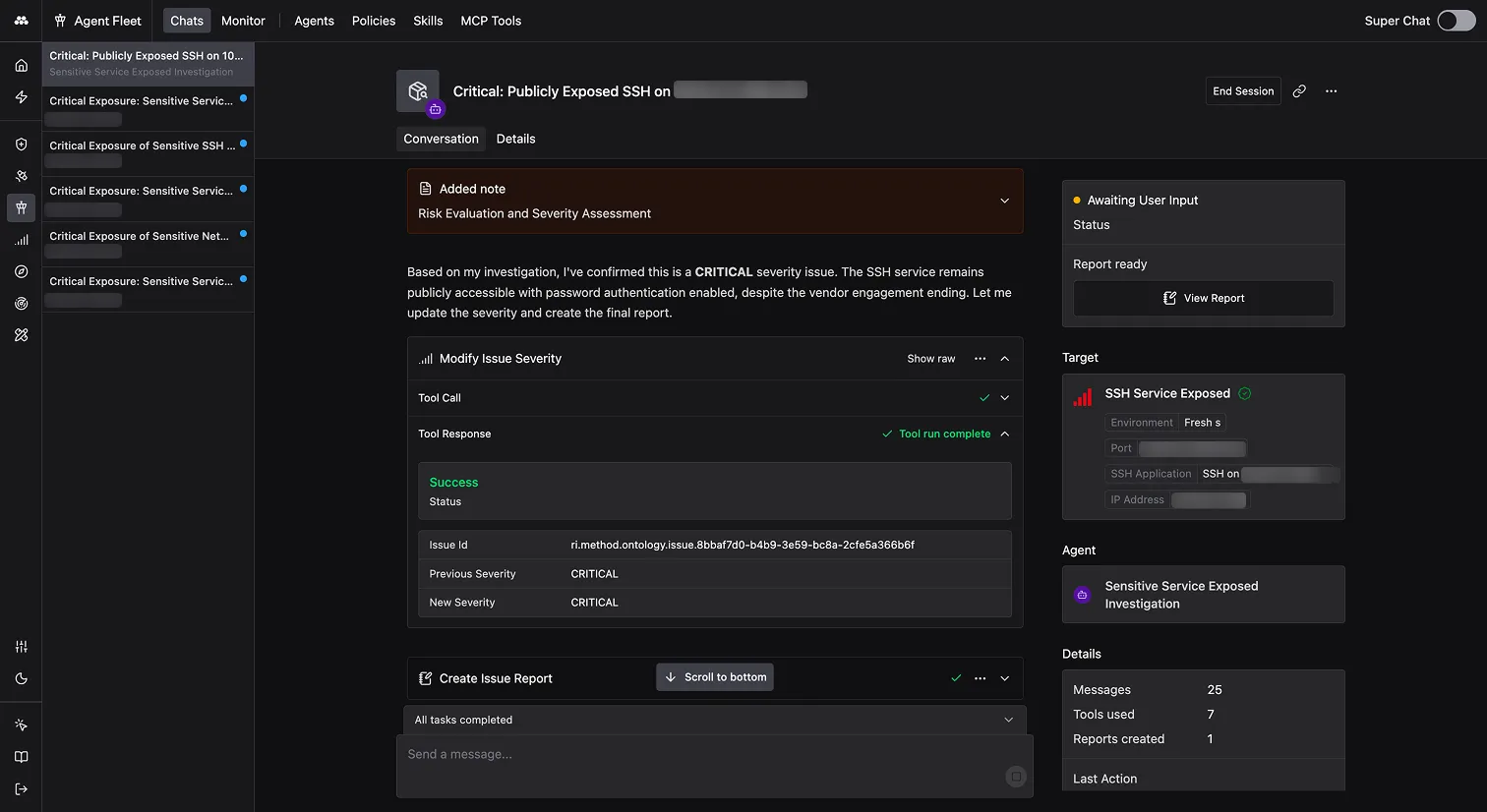
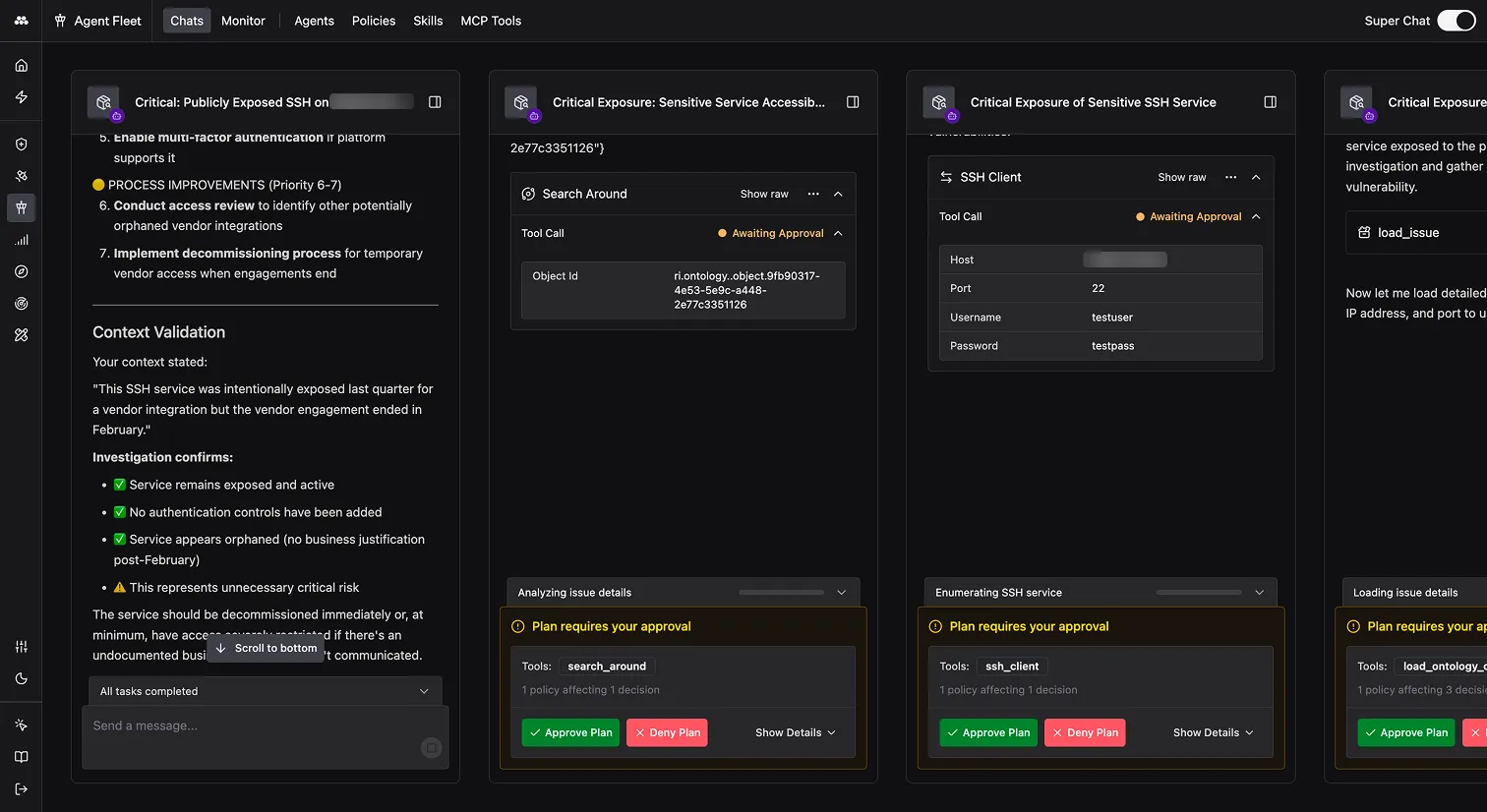
For more on creating and configuring Agents, see Create an Agent.