

Add a model provider
This guide walks through adding a new Model Provider and making its models available across the platform. It focuses on the OpenAI Compatible path because it is the most flexible. The same steps apply to OpenAI, Anthropic, Azure AI Foundry, and Vertex AI with minor field-name differences.
For background on what Model Providers and Model Defaults are, see AI Inference.
Before you start
Gather the following from the provider you plan to connect:
- The base URL for the API (the one you would put in an OpenAI SDK
base_url). - A credential: an API key, bearer token, or Google service account JSON.
- The exact Model IDs you want to expose (for example,
gpt-4o-miniorllama-3.3-70b-instruct). These must match what the endpoint accepts.
You need admin access to the Administration app on Method.
Steps
Open the new provider form
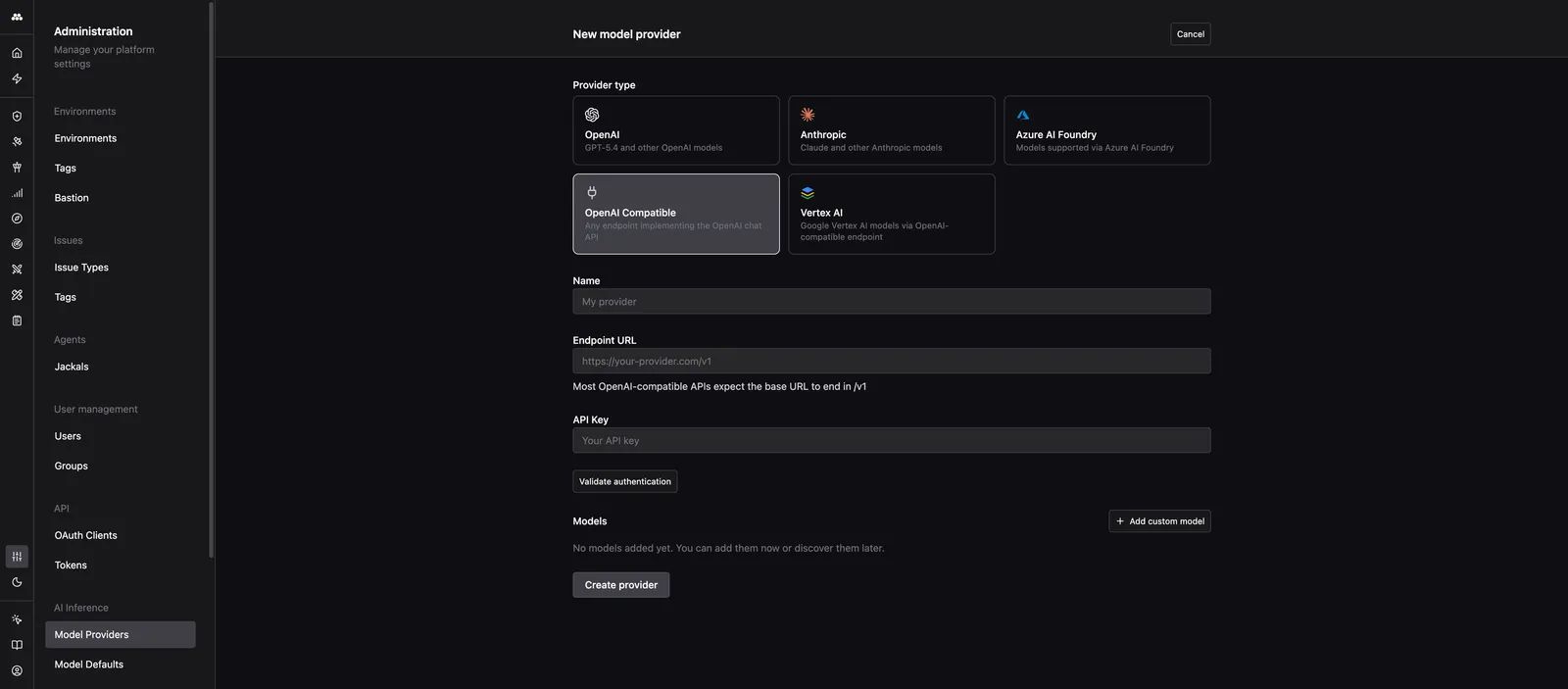
Navigate to Admin > Model Providers, then click the + icon next to “Model providers” in the left column.
Pick a provider type
Select the tile that matches your endpoint:
- OpenAI for api.openai.com.
- Anthropic for api.anthropic.com.
- Azure AI Foundry for Azure-hosted deployments.
- OpenAI Compatible for self-hosted models, gateways, and anything else exposing the OpenAI chat API.
- Vertex AI for Google Vertex AI through its OpenAI-compatible endpoint.
The rest of this guide uses OpenAI Compatible. Other types have the same core fields with minor naming differences.
Name the provider
Enter a recognizable name in the Name field (for example, Internal LLM Gateway). The name appears everywhere a user picks a model, so make it unambiguous.
Set the Endpoint URL
Paste the base URL into Endpoint URL.
Most OpenAI-compatible APIs expect the base URL to end in /v1. If your provider documents a URL like https://example.com/api, the correct value here is usually https://example.com/api/v1. The form shows this as helper text under the field. If you are unsure, do not guess: save the URL you have, then use Validate authentication in the next step. A wrong path is the most common cause of a 404 on the first call.
Examples:
https://api.groq.com/openai/v1https://api.together.xyz/v1https://llm-gateway.internal.example.com/v1
Paste the API key and validate
Paste the credential into API Key.
Click Validate authentication. Method sends a small request to the endpoint using the credential you provided.
- On success, the button reports a confirmation and you can proceed.
- On failure, check three things in order: the URL (most often missing
/v1), the key (wrong value or missing permissions), and the network path (the endpoint must be reachable from Method).
Always validate before you save. It takes two seconds and saves you from chasing errors from downstream Agents later.
Add models
Click Add custom model to add a row. For each model, fill in:
- Model ID: the exact string the provider expects. This is copied into the
modelfield of every API call. A typo here causes the model to fail even though the provider connection is healthy. - Display name: the friendly label shown in Method UI.
- Type:
CHATfor conversational models,EMBEDDINGfor embedding models.
Expand Advanced settings on the row to set Context window (tokens) and Default max tokens if your model has non-standard limits. Leave them blank for Method to use sensible defaults.
Repeat for every model you want to expose. You can always add, rename, or disable models later.
Create the provider
Click Create provider. The provider appears in the left column with an “Enabled” badge and is immediately selectable across the platform.
Assign the new models to default slots (optional)
If you want Agents and Operator to use these models by default, go to Admin > Model Defaults and pick one of the new models for the Large, Medium, and Small slots.
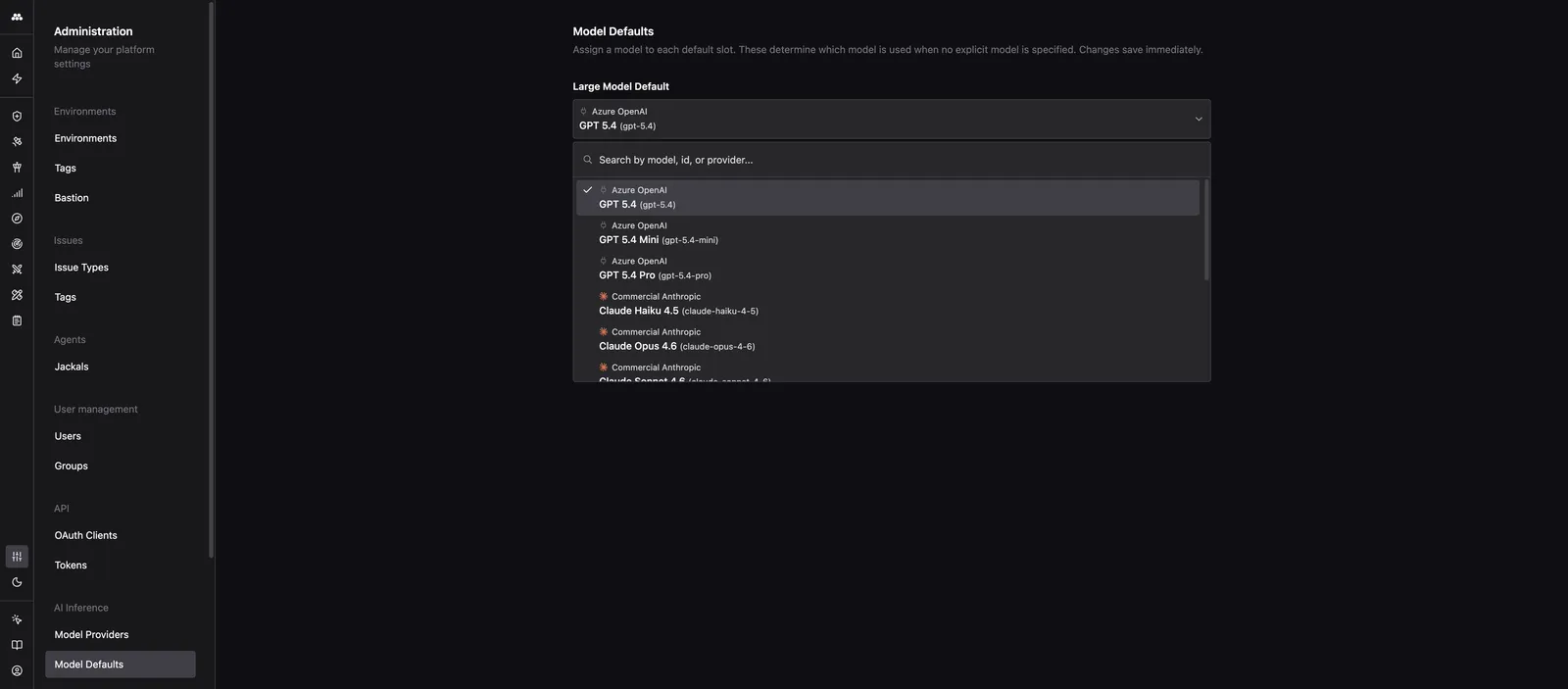
Changes save immediately. Every Agent or Task that asks for a size class starts using the new model on the next call. No redeploy required.
Common mistakes
- Endpoint missing
/v1: the most common cause of 404s on the first request. Fix by appending/v1to the URL and revalidating. - Wrong Model ID: causes the provider to return an error on every call. The Model ID must match the provider’s naming exactly. On Azure AI Foundry this is the deployment name, not the model family.
- Key without scope: some providers restrict keys to specific models or regions. Validate authentication succeeds, but calls fail later. Check the key’s permissions in the provider’s console.
- Forgetting to set defaults: creating a provider does not assign it to any default slot. Agents and Operator that request a size class will keep using whatever was assigned before. Set defaults explicitly on the Model Defaults page.
For the reference that describes each field and how Model Defaults are resolved, see AI Inference.