

Plan an Operation with AI
Planning with AI turns an Adversary and an Environment into a drafted Operation. You answer a short set of context questions, the AI proposes a plan, and Method fills in the New Operation form from it. You review every step before anything runs.
For background on Operations and how Operator executes them, see Operations.
There are two ways to reach an AI-drafted Operation. This guide covers planning from the Operations app, which walks the full planning conversation and every setup step. To draft a plan from an Adversary instead, as part of a wider emulation workflow, see At Scale Adversary Emulation.
Before you start
You need an Adversary and an Environment. If you have not built an Adversary yet, follow Create an Adversary to upload a threat intelligence report and turn it into a profile.
Plan and launch the Operation
Open Plan an Operation with AI
From the Operations app, click New in the top-right corner and select Plan an Operation with AI.
Set the Adversary, Environment, and context
Choose the Adversary you want to emulate and the Environment to run against. The Environment bounds which Objects the Operation can reach.
Use the additional context window at the bottom to steer the plan. Add the objective behind the engagement, the systems that matter most, or constraints the AI should respect. You can also lay out discrete steps you want the AI to take, and it builds them into the plan it drafts.
Answer the AI's context questions
The AI asks a short set of questions to sharpen the plan before drafting it. Answer them to steer scope, priorities, and what a successful Operation looks like.
The more specific your answers, the closer the drafted Operation lands to the engagement you intend to run. Vague answers produce a broad plan you will spend longer correcting in the steps below.
Saved plans live on the Operation Plans tab of the Operations app, so you can reopen and revise one between runs.
Review the Details
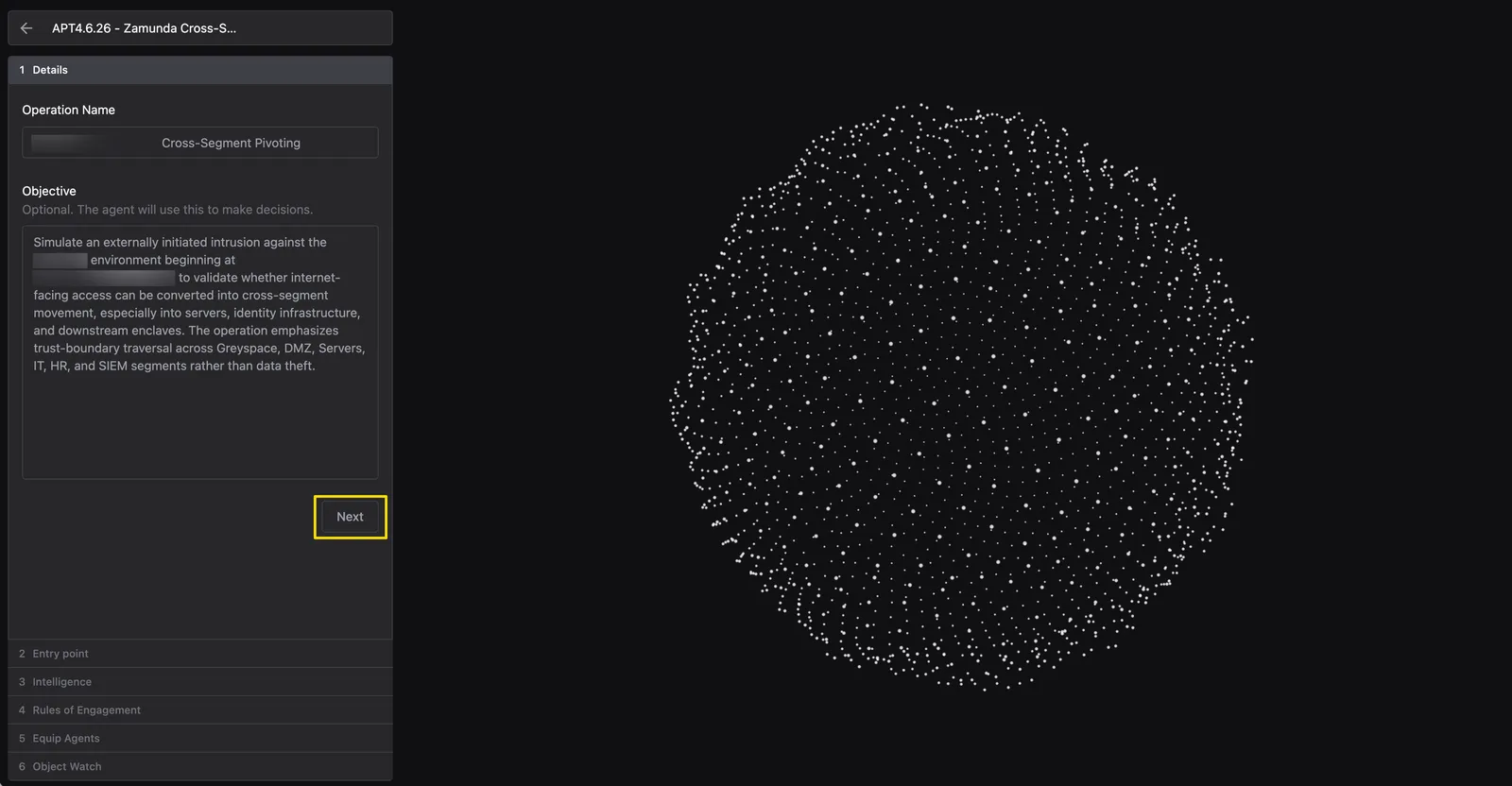
Method opens the New Operation form with the plan applied, in six steps: Details, Entry point, Intelligence, Rules of Engagement, Equip Agents, and Object Watch. Treat everything the plan wrote as a draft to review, not a decision already made.
On Details, confirm the Operation Name and read the Objective the plan wrote. The Objective is what Agents use to make decisions during the Operation, so it is worth editing until it describes the engagement you want tested.
Click Next.
Confirm the Entry point
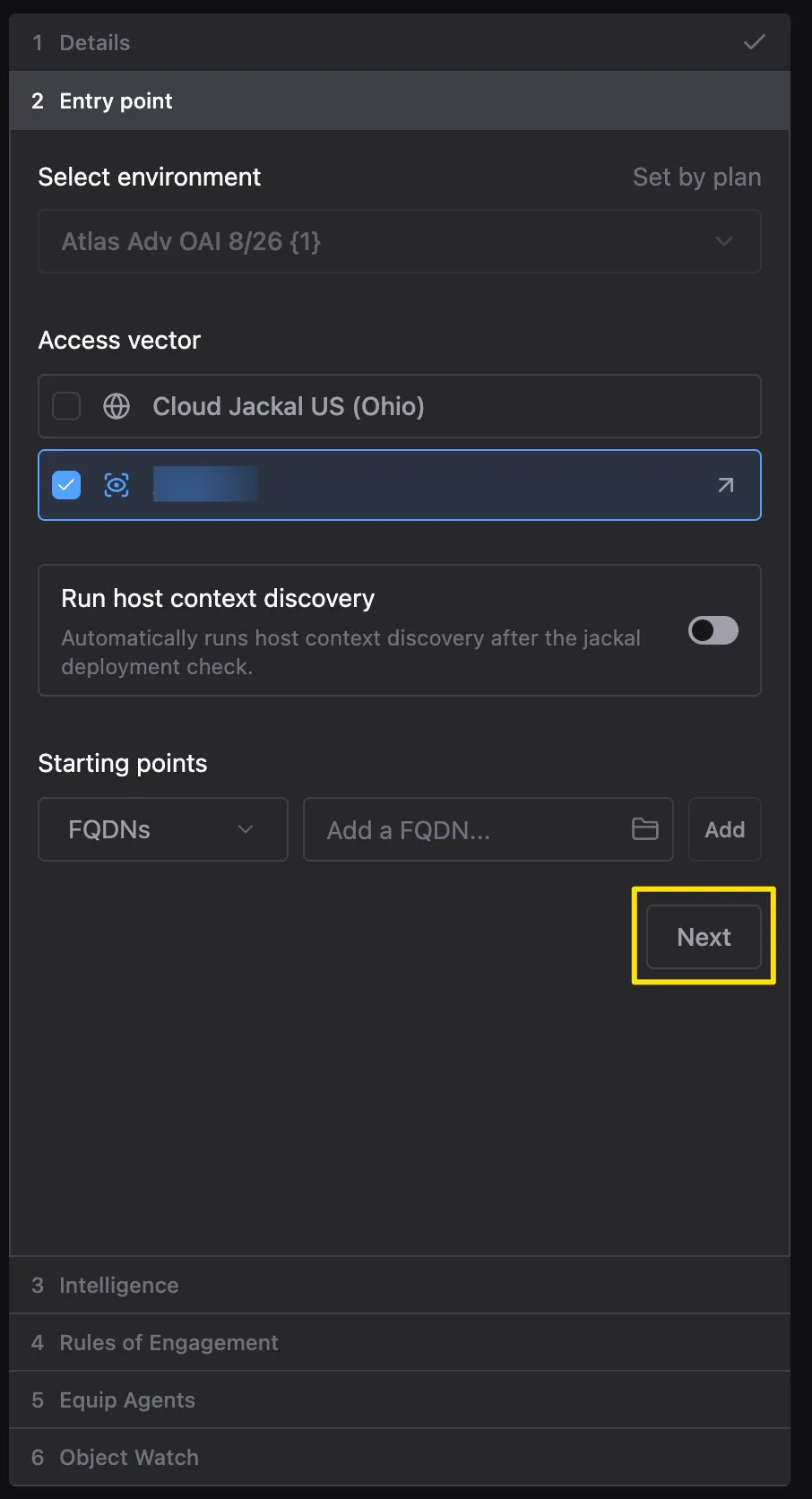
The Set by plan label marks a field the plan filled in, such as Select environment here. Choose the Access vector the Operation starts from, such as a Cloud Jackal or a Jackal you have installed in the target network.
Run host context discovery is off by default. Turn it on to collect host context automatically after the Jackal deployment check.
Under Starting points, pick an Object type, enter each asset the Operation begins from, and click Add. Click Next.
Attach Intelligence
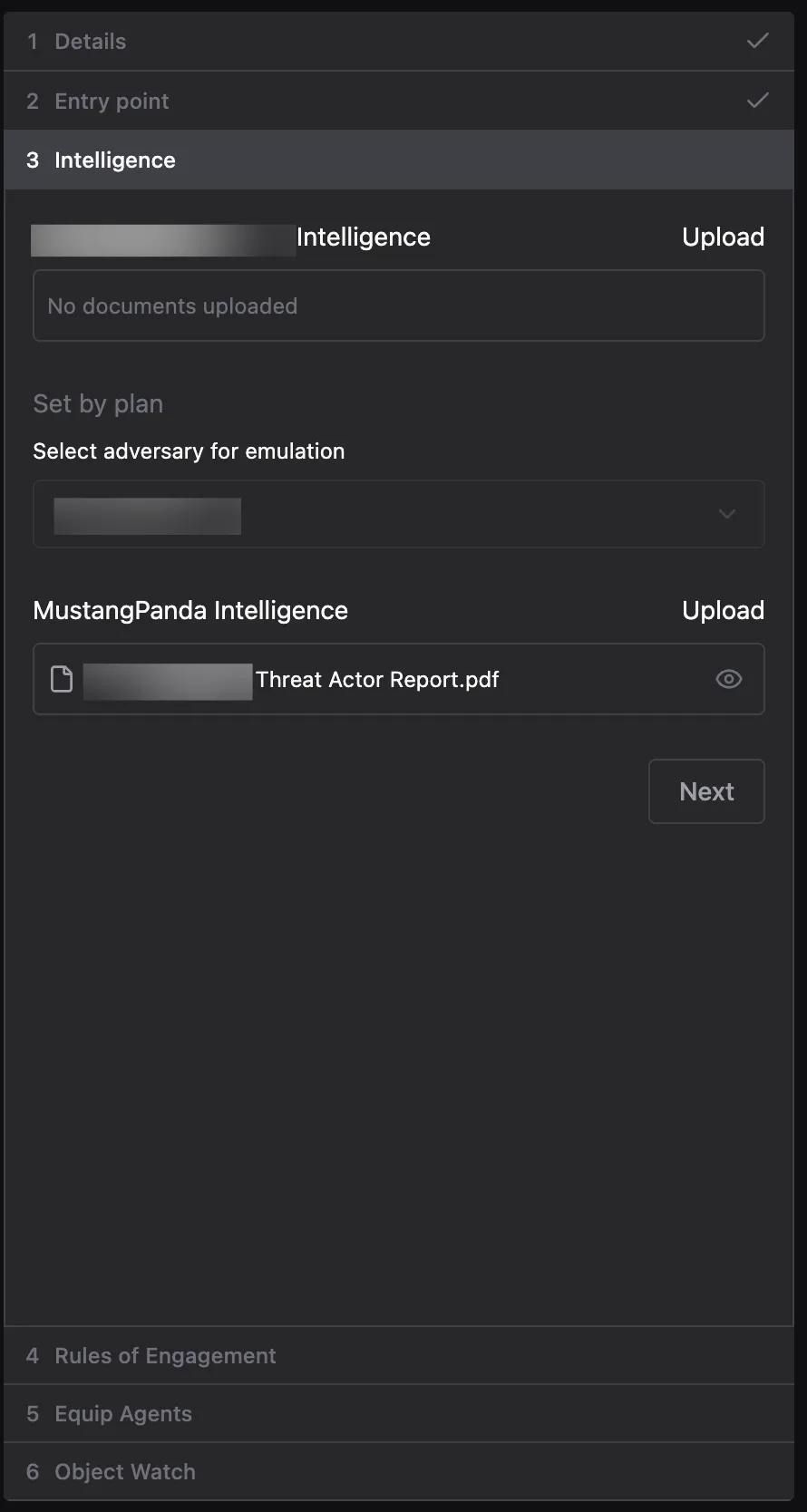
This step has two upload areas, each carrying the name of what it applies to. The first takes your Environment’s name. Upload documents there to give Agents written context about the target network, which they read when reasoning about what to do next.
The plan sets Select adversary for emulation. The second upload area takes that Adversary’s name and lists the intelligence already attached to it, so you can confirm Agents will emulate the threat actor you expect.
Click Next.
Set Rules of Engagement
Rules of Engagement bound what the Operation may do. Set them deliberately: they are the constraint that holds once Agents start acting on their own.
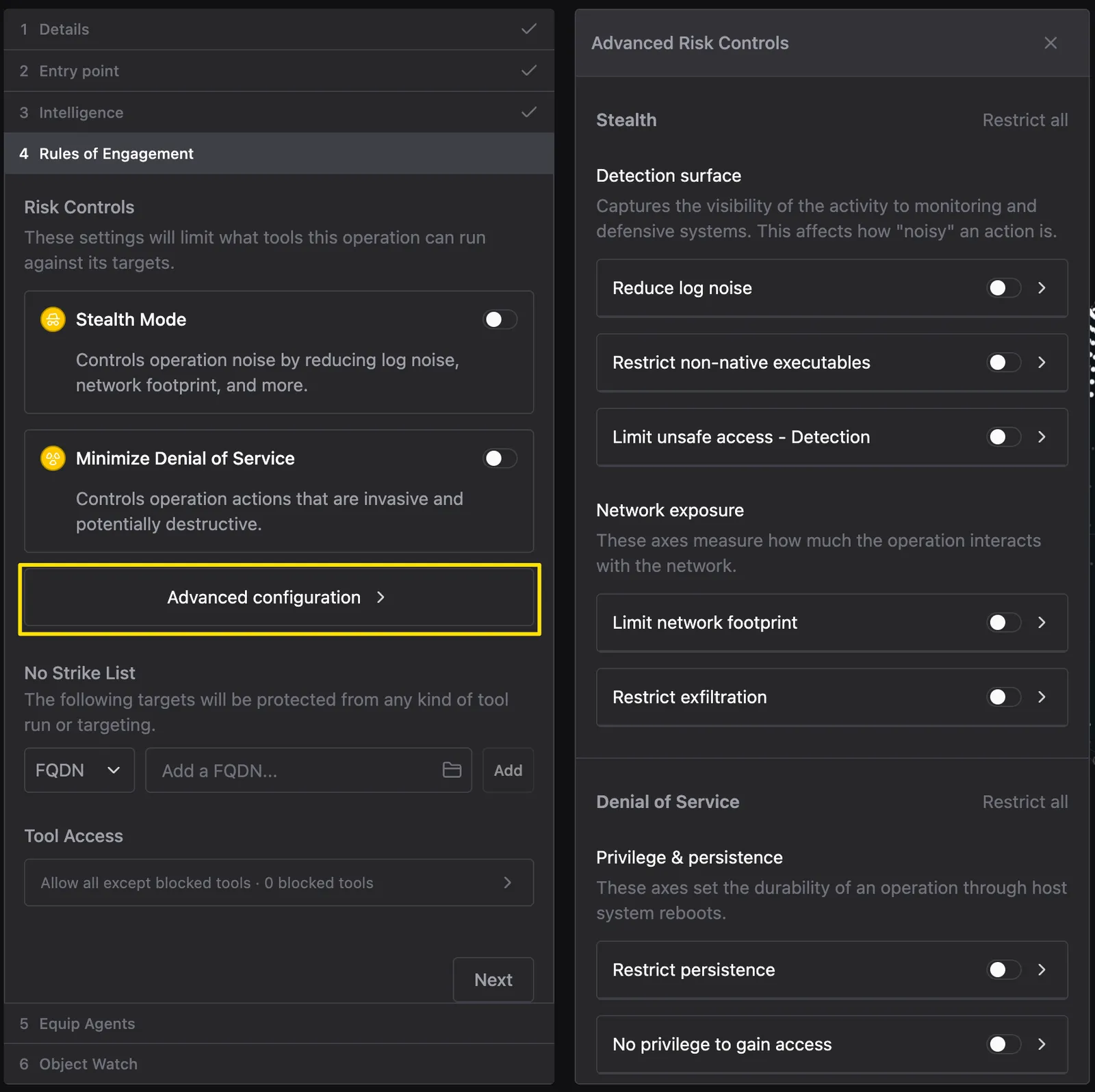
Risk Controls limit which Tools the Operation can run against its targets:
- Stealth Mode: reduces the noise an Operation makes, covering log noise and network footprint
- Minimize Denial of Service: restricts actions that are invasive or potentially destructive
Click Advanced configuration to open Advanced Risk Controls and set individual Risk Axes rather than the two summary toggles. Stealth covers detection surface (reduce log noise, restrict non-native executables, limit unsafe access) and network exposure (limit network footprint, restrict exfiltration). Denial of Service covers privilege and persistence, operational safety, and host resource impact. Use Restrict all on either group to lock it down in one click.
Below Risk Controls, add entries to the No Strike List to protect targets from any Tool run or targeting, and use Tool Access to block specific Tools. Click Next.
For background on Risk Axes and how Rules of Engagement bound autonomy across Method, see Rules of Engagement.
Equip Agents
Under How should agents assist?, choose how much autonomy Agents have during this Operation. You can change the mode later from the workspace header.
- Manual mode (shown as Manual): you drive. Agents make no Tool recommendations.
- Co-pilot mode (shown as Copilot): Agents propose Tool executions and wait for your approval on each one.
- Full Auto mode (shown as Auto): Agents execute on their own, inside the Rules of Engagement you set above.
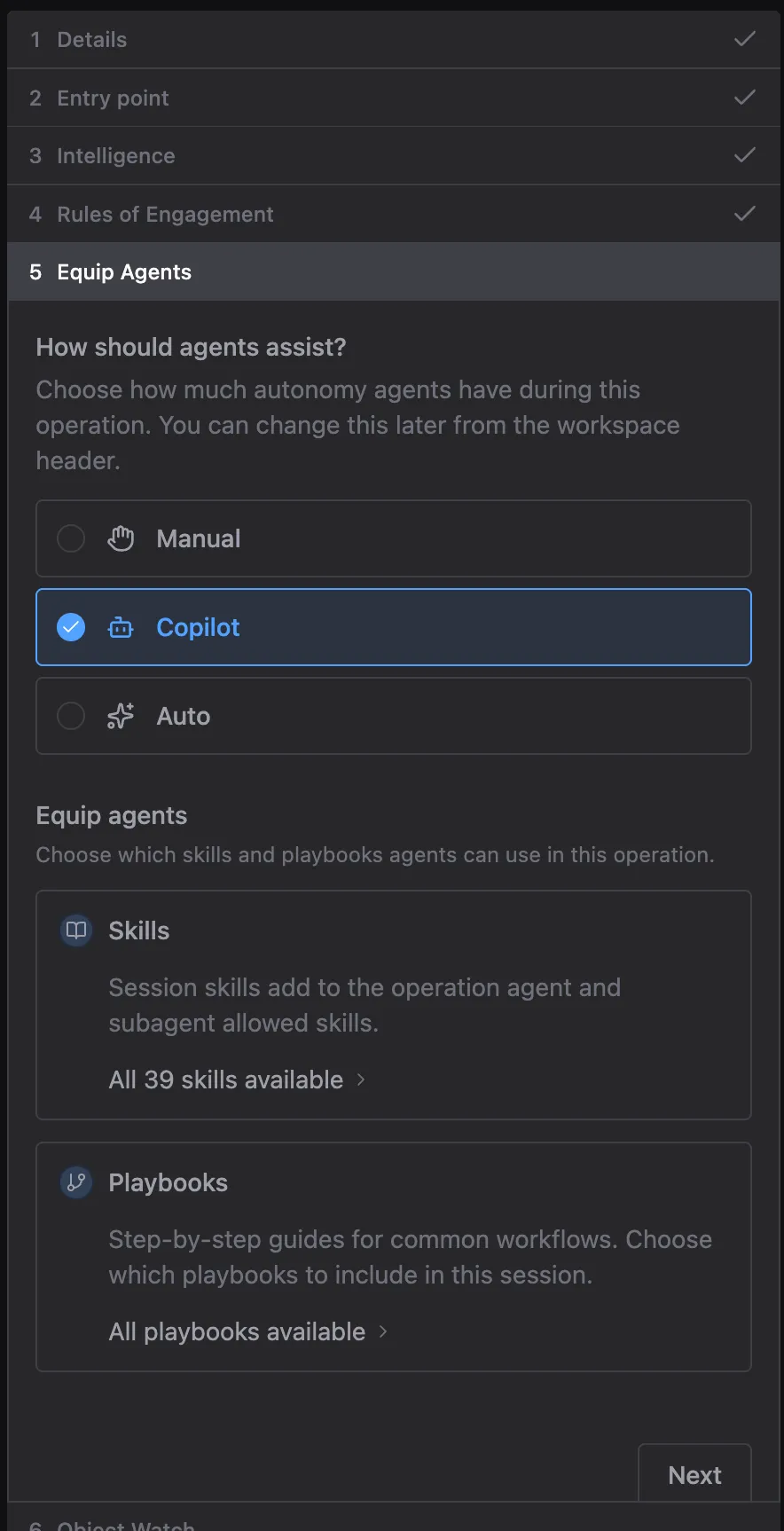
Under Equip agents, choose the Skills and Playbooks Agents can use.
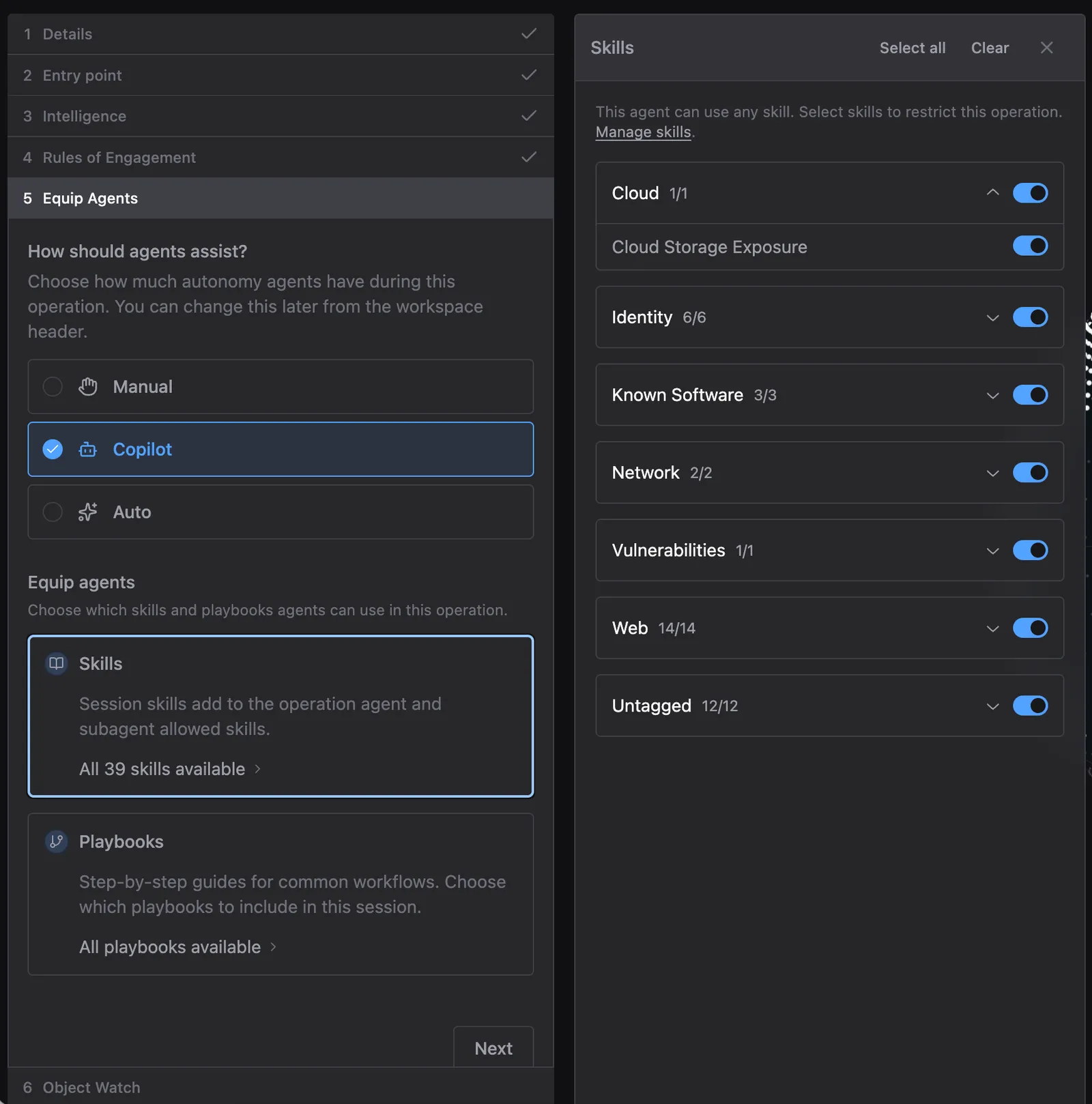
Click into the Skills card to restrict which Skills this Operation may draw on. Method groups Skills by category, and Agents can use any of them unless you narrow the selection.
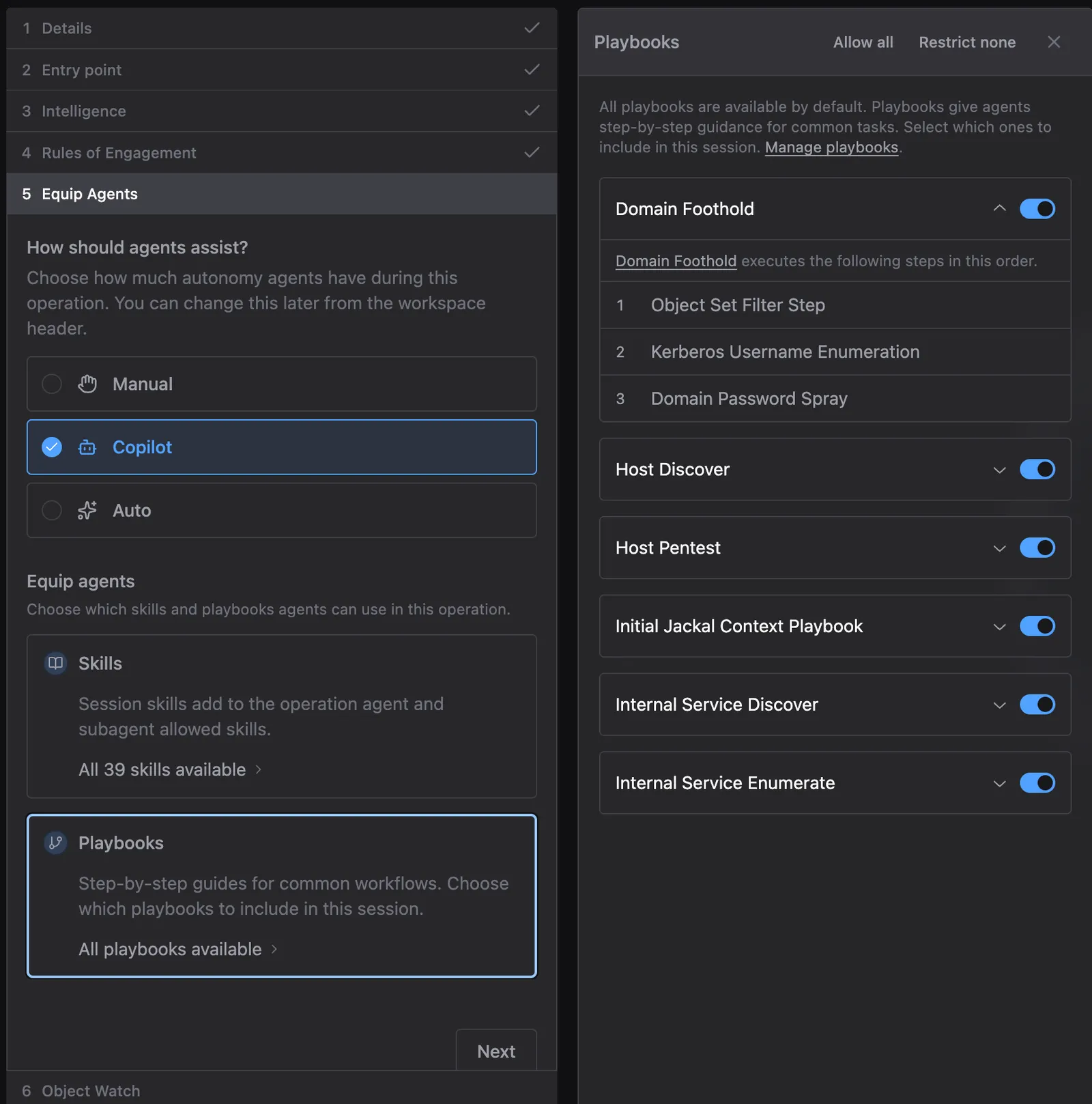
Click into the Playbooks card to choose which step-by-step workflows to include in the session. Expand any Playbook to see the steps it runs and in what order. All Playbooks are available by default.
Click Next.
Add Object Watch filters and begin
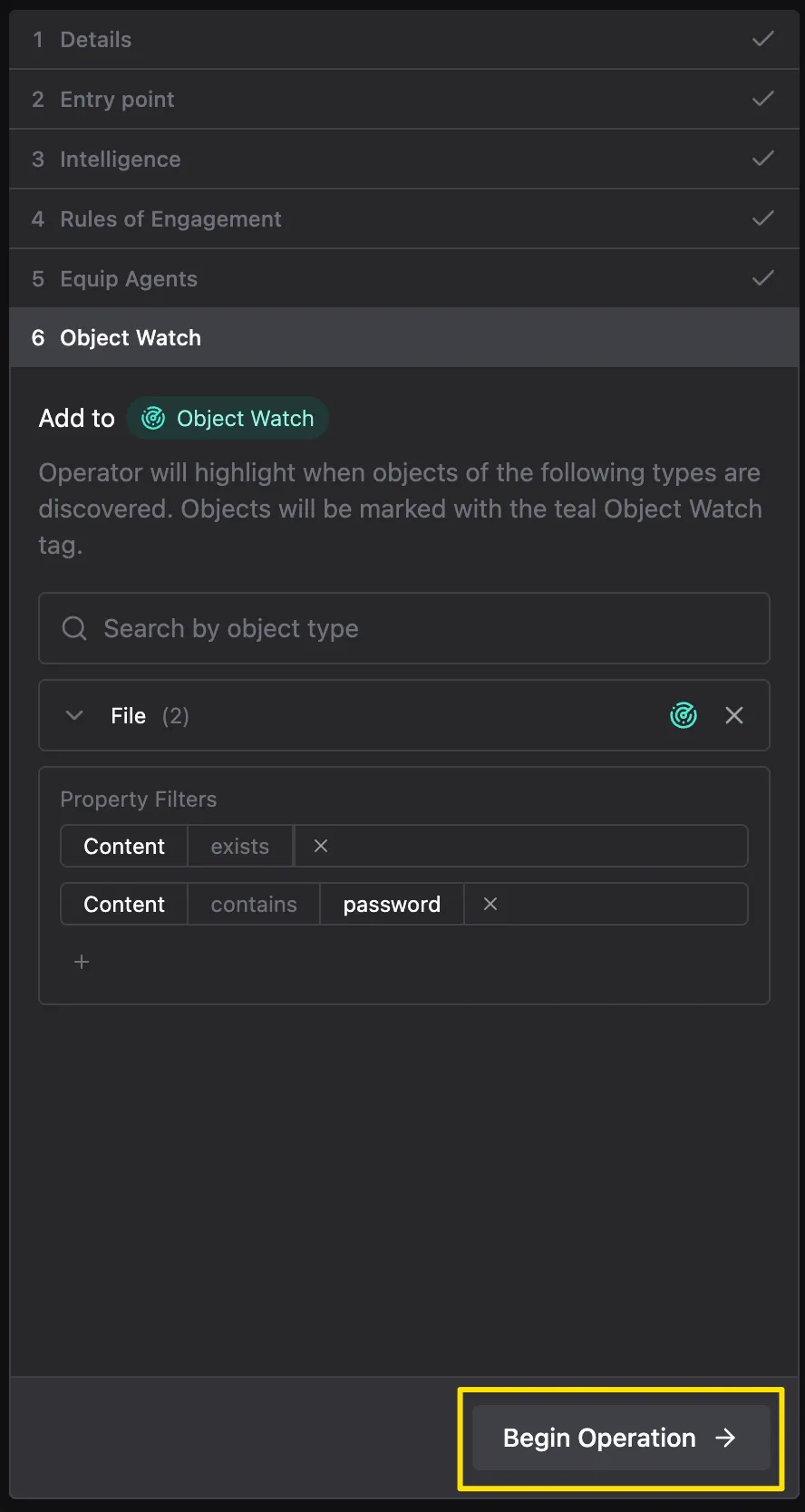
Use Object Watch to declare the Object types worth flagging. Operator highlights those Objects the moment it discovers them and marks them with the teal Object Watch tag, so they stand out in the Operation.
Search by Object type to add one, then narrow it with Property Filters. Filters let you watch for something specific rather than every Object of that type, such as files whose content contains a particular string.
When the six steps look right, click Begin Operation. Method opens the Operator workspace and the Operation starts under the mode and Rules of Engagement you confirmed.
Next steps
- Run your first Operation: configure an Operation yourself, without a plan
- At Scale Adversary Emulation: plan from an Adversary and run emulation across many Environments
- Take Operation notes: record findings and reference Objects as the Operation runs
- Operator AI: how Co-pilot and Full Auto modes reason during an Operation