

Create and publish a Tool
Bring Your Own Tool (BYOT) lets you turn scripts, command-line utilities, and custom workflows into reusable Tools in Method. Use the code editor to define the inputs, execution logic, and result processing, then validate and publish a version for operators and Agents to use.
You need access to Tool creation and the code editor in your Method instance. A Jackal is needed when you test execution, not when you create the workspace or write the Tool. Choose one that supports the capability you build.
For product context, see Tools. The Tool authoring FAQs cover execution compatibility, Rules of Engagement, existing toolkits, and runtime parameters.
Define your capability
Start with the action you want your Tool to perform and the result you want to make available in Method. You can build a new capability, bring an existing script or utility, or adapt an existing Tool.
The use cases and validation scenarios in this guide are examples only. You can follow this guide to build your own capability. Use inputs, commands, and expected results that fit your Tool.
Example capabilities
These examples illustrate what you can build:
Choose a Script Compiler for shell commands, a CLI Compiler for an executable and its arguments, or a Courier Compiler when you need direct control over workflow steps and their outcomes.
Define the inputs and options you want operators to control. Operators can change flags at run time only when you expose them as Tool parameters. Ontology Objects can be targets or provide supporting context, such as credentials and configuration.
Create a workspace
1. Open Tool creation
On the Tools page, open Create and choose Tool. If that option is unavailable, ask your Method administrator whether the code editor is enabled for your instance.
Choose how to start:
Create from scratch
Fork from existing tool
Select Create from scratch to create a repository with starter Compiler and Processor templates.
Enter a Name, choose a Family and Risk level, and describe the capability in Intent. Explain what the Tool does, when to use it, and what results it produces. Include the access it needs and any changes it makes to the systems it touches.
Select Create and open code editor.
2. Develop the capability
Work in the embedded code editor. The workspace contains the Tool definition and its Compiler and Processor code:
- Definition: Describe the capability, its inputs, and the results it produces.
- Compiler: Define how those inputs become commands or a workflow.
- Processor: Turn the execution output into Objects and relationships that Method can use.
You can edit the files yourself or use OpenCode. In the Method extension, Code with agents opens OpenCode in the terminal. Describe the behavior you want and provide representative inputs and output where available.
For a Tool with unstructured output, create an assistant with its prompt, instructions, and expected JSON output schema, then reference it in the Tool configuration. The Processor receives the extracted data alongside the original output and preprocessing status. Tools that already return the expected structured data can skip preprocessing.
Keep the intent and examples aligned with what the implementation does. If you forked a Tool, replace descriptions and assumptions that no longer apply.
Validate the Tool
Ask OpenCode to validate the completed definition, Compiler, and Processor using the connected Method development tools. Review each result:
Use samples that test the result your capability is meant to produce. For the DNS example, confirm that the Processor creates Objects for the queried domain’s addresses rather than the DNS server’s address. For evidence collection, confirm that the attachment belongs to the Host the file came from.
Include empty output and failure cases as well as a successful sample. Fix problems and repeat validation after changes.
You can also inspect Compiler output in the extension’s Tool Runner and Workflow map views. Compilation prepares a plan; it does not execute the Tool against your environment.
Publish your changes
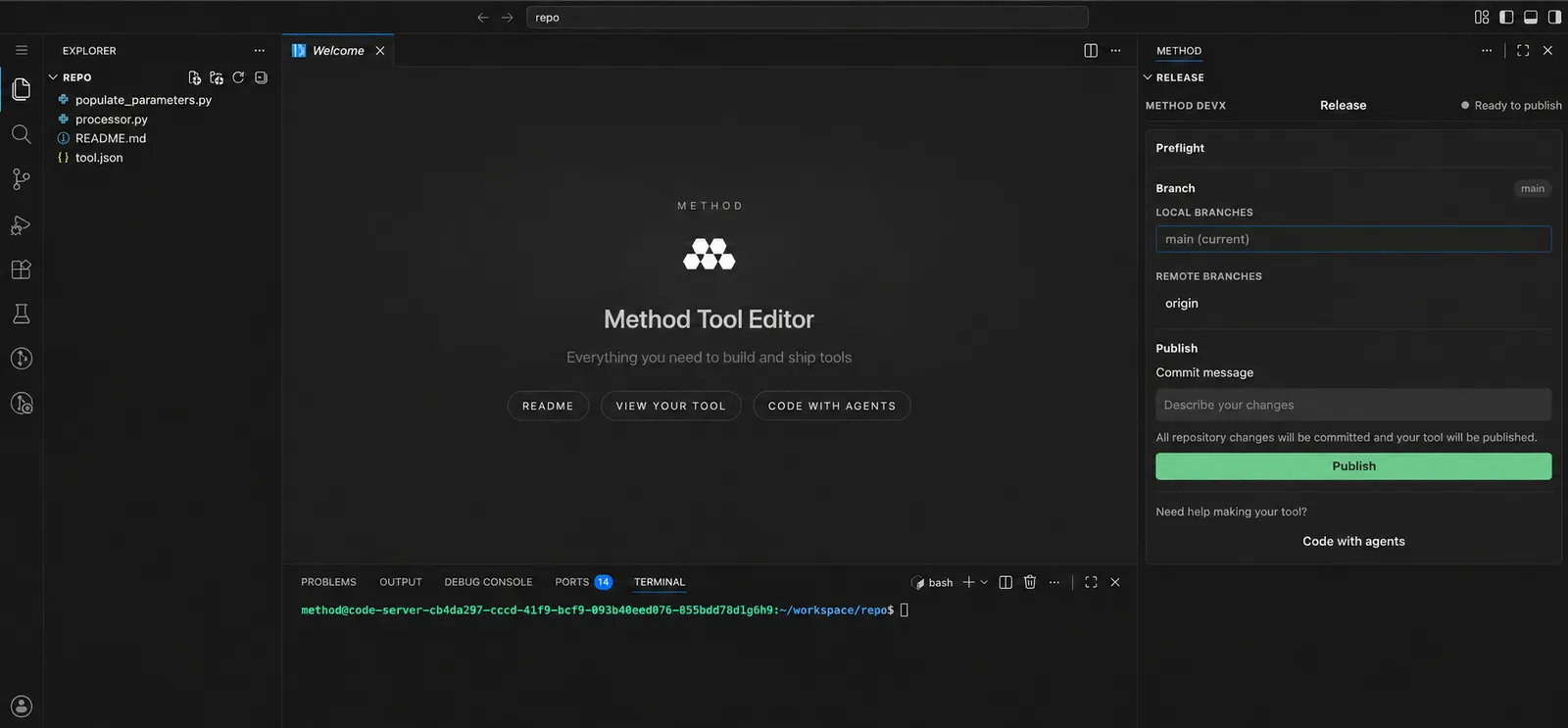
Open Release in the Method extension. Review the repository changes and confirm you are on main. If you worked on another branch, bring the changes you want to release into main first.
Enter a Commit message describing the changes, then select Publish. The action saves the files, commits all repository changes when needed, pushes main and a release tag, and publishes the Tool version. Review all pending changes before using it.
Wait for the publish result. If it fails, read the message before retrying: a commit or push may have completed even when publication did not.
Published versions retain their definitions. To change the behavior, edit, validate, and publish a new version.
Test your Tool in an Operation
After publishing a version, you can ask OpenCode to test your Tool in an Operation without leaving your development session.
Configure the Operation and Tool inputs in the Method extension’s Operation Run Configuration panel, then use Copy for OpenCode to paste the configuration into chat. Alternatively, provide the resource identifiers (RIDs) and parameter values directly in chat.
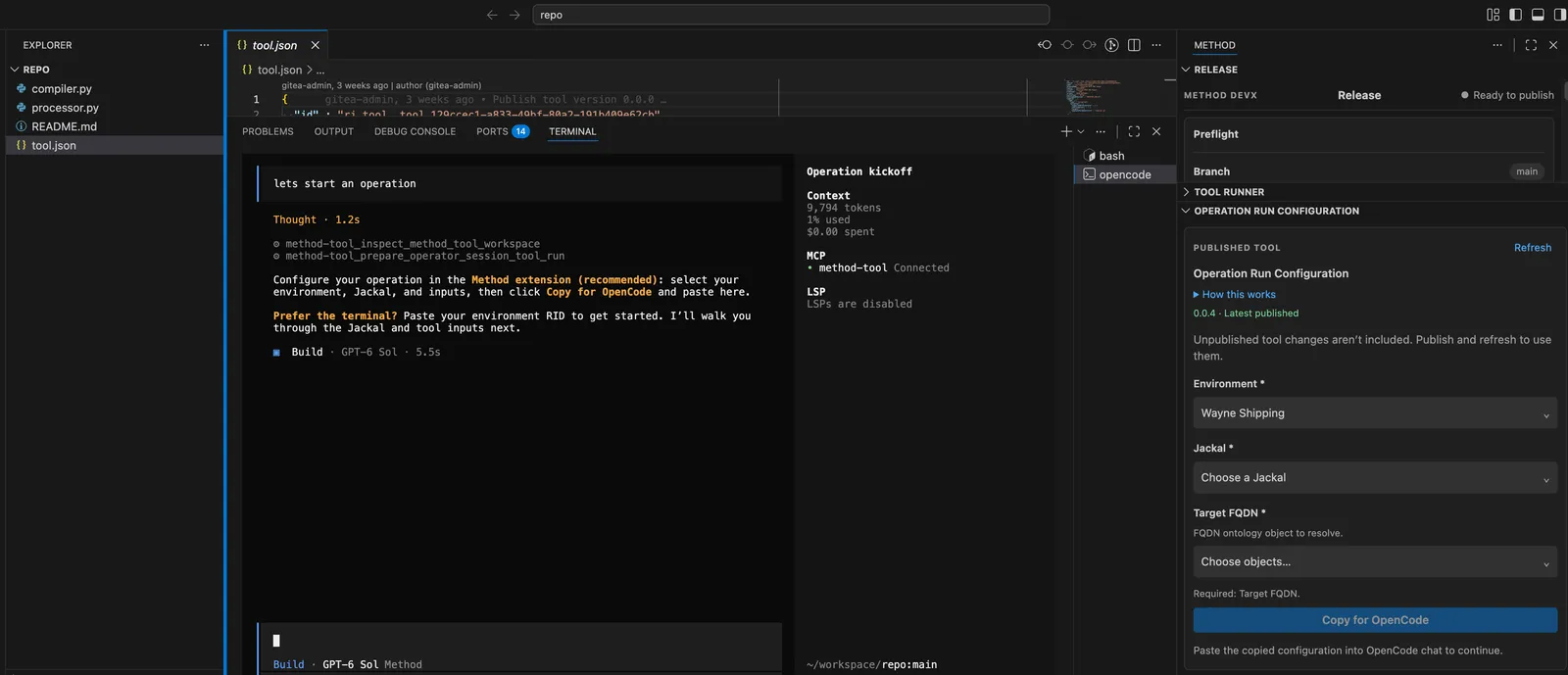
OpenCode uses the Method Tool MCP to create a new Operation and attempt to run your Tool with the configured inputs. It returns compilation errors or execution results to review with you, along with a link to the Operation for further investigation.
Use that feedback to revise, validate, publish, and retest in the same session.
Use a test or range Environment while iterating: this flow actually runs the Tool against the selected target.
Update an existing Tool
Open the Tool’s details and use Edit in code editor. Make your changes, repeat validation, publish, and test the new version.
When the Tool is ready for regular use, select it in an Operation or use it in a Task. Keep its intent and examples useful for the next person or Agent that selects it.
For the definition fields and Compiler and Processor interfaces, see the Tool authoring reference.