

Overwatch
Overwatch is enables terminal-native operators to leverage the Method Platform. You run your own tools in your own shell, and Overwatch records what you do, streams it to the platform, and augments users with AI Agents and an AI Chat to direct the operation.
What is Overwatch?
Overwatch is a powerful terminal session recorder. It records session history, augments operators with AI agents for assistants, enables collaboration features, and maps terminal commands into Objects in the Method Ontology.
Agents in Overwatch
Overwatch Agents are AI collaborators you configure in Agent Fleet. Agents read and interact with the same session context: the live Timeline, accepted Objects in the Ontology, notes, and Report context.
Agents can investigate Object Findings as they appear, draft Report content from session evidence, and propose next commands for you to review. Like all Agents in Method, Overwatch Agents are governed by Agent Policies. Policies control which Agents can use which MCP Tools, in which Environments, and whether a Tool call is approved, denied, or requires approval.
What Overwatch captures
Once enabled, Overwatch captures every command, output, and associated metadata in your operation. A green status bar sits at the bottom of the terminal for the duration of a recording. The bar shows the Session ID, a hotkey reminder, and a running command count. The bar turns yellow when the session is paused.
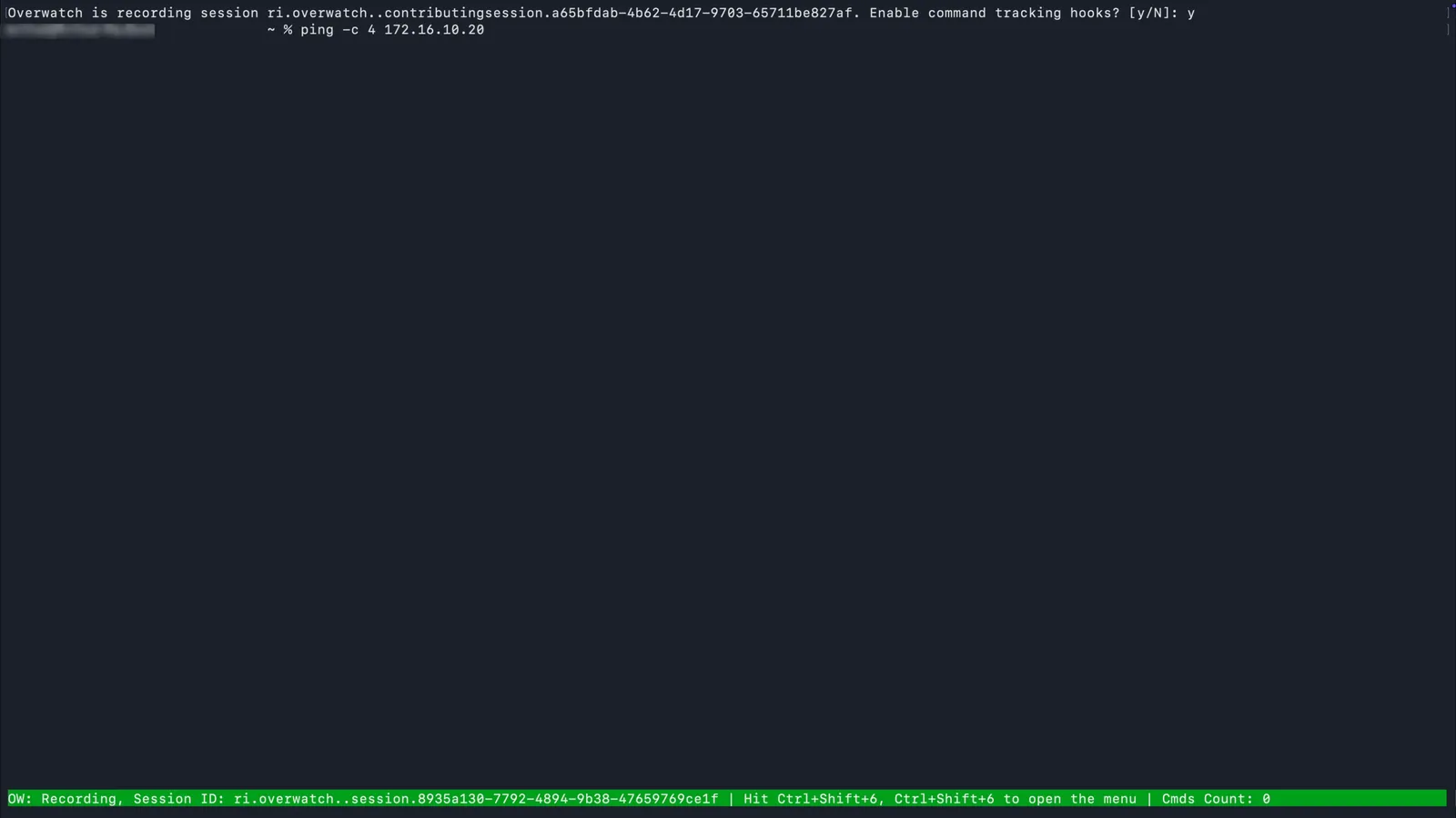
Overwatch can also record subshells (ssh, sudo su, docker exec) into the session on demand through the Overwatch menu (Ctrl+Shift+6, Ctrl+Shift+6).
The Overwatch session
An Overwatch session is the unit of work that holds everything captured from the terminal plus everything contributed from the platform. Inside the platform, the session view is organized into four tabs: Chat, Agents, Sessions, and Configuration.
Chat
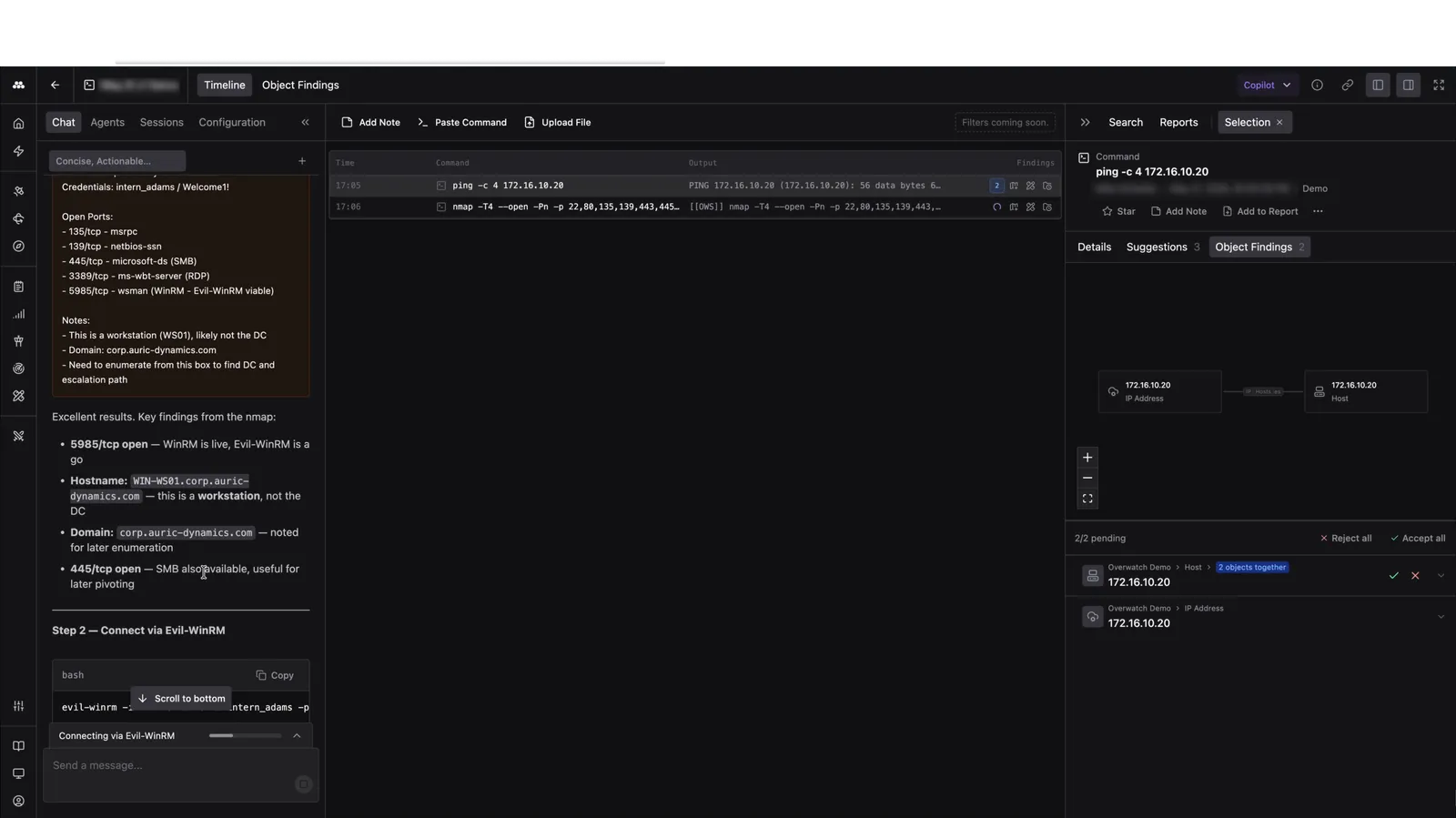
Chat in Overwatch enables you to ask questions about your operation so far, interact with notes and Object Findings, and plan next moves. It has read access to the live Timeline and the Ontology, so suggestions reflect what has happened in the operation and what the platform already knows about the target.
You can scope a Chat response to a specific Timeline event by attaching that event as context. Chat formats suggested commands so you can copy them directly into the terminal.
A Chat’s history stays available across sessions, so you can pick up a line of reasoning where you left off. You can keep a Chat to yourself or share it with someone else in the session.
Agents
The Agents tab shows the history of every Agent that has run inside the session. Each entry records what the Agent was asked to do, the Timeline events it produced, and the response it returned. Use this tab to audit AI activity, review past recommendations, and trace which Agent contributed which Object Finding.
Sessions
The Sessions tab is where each terminal recording that contributed to the Overwatch operation lives. Multiple sessions from multiple users can contribute to one Overwatch operation, where they are displayed in a unified history of the commands run. Live Sessions are currently recording. Archived Sessions are past recordings.
A session begins from the terminal with overwatch record and is observable from the platform in real time. Multiple sessions can run at once, one per terminal.
Sessions can be watched from the Overwatch Timeline tab, where all session histories are combined into one feed, or from the Live Session view, where you can watch a user’s terminal live.
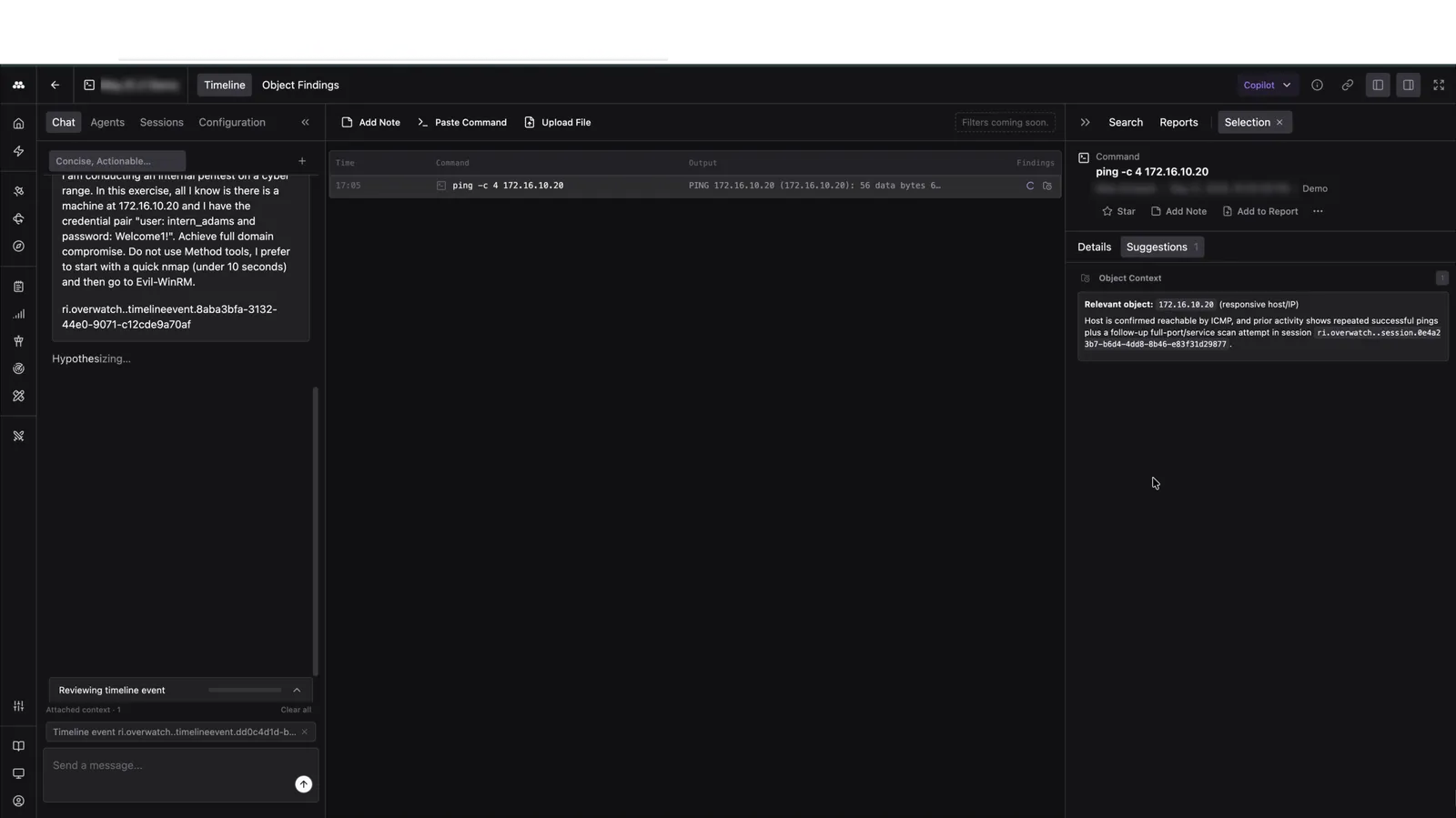
In the Timeline, you can view every command run as a row with its timestamp, the command, the full output, and any Object Findings tied to it. Selecting a row opens the Selection panel, which exposes three tabs:
- Details: the command, its output, and metadata
- Suggestions: AI-generated next steps grounded in this specific command
- Object Findings: Objects extracted from the command’s output
Each Timeline row also supports Star, Add Note, and Add to Report.
Object Findings and the Ontology
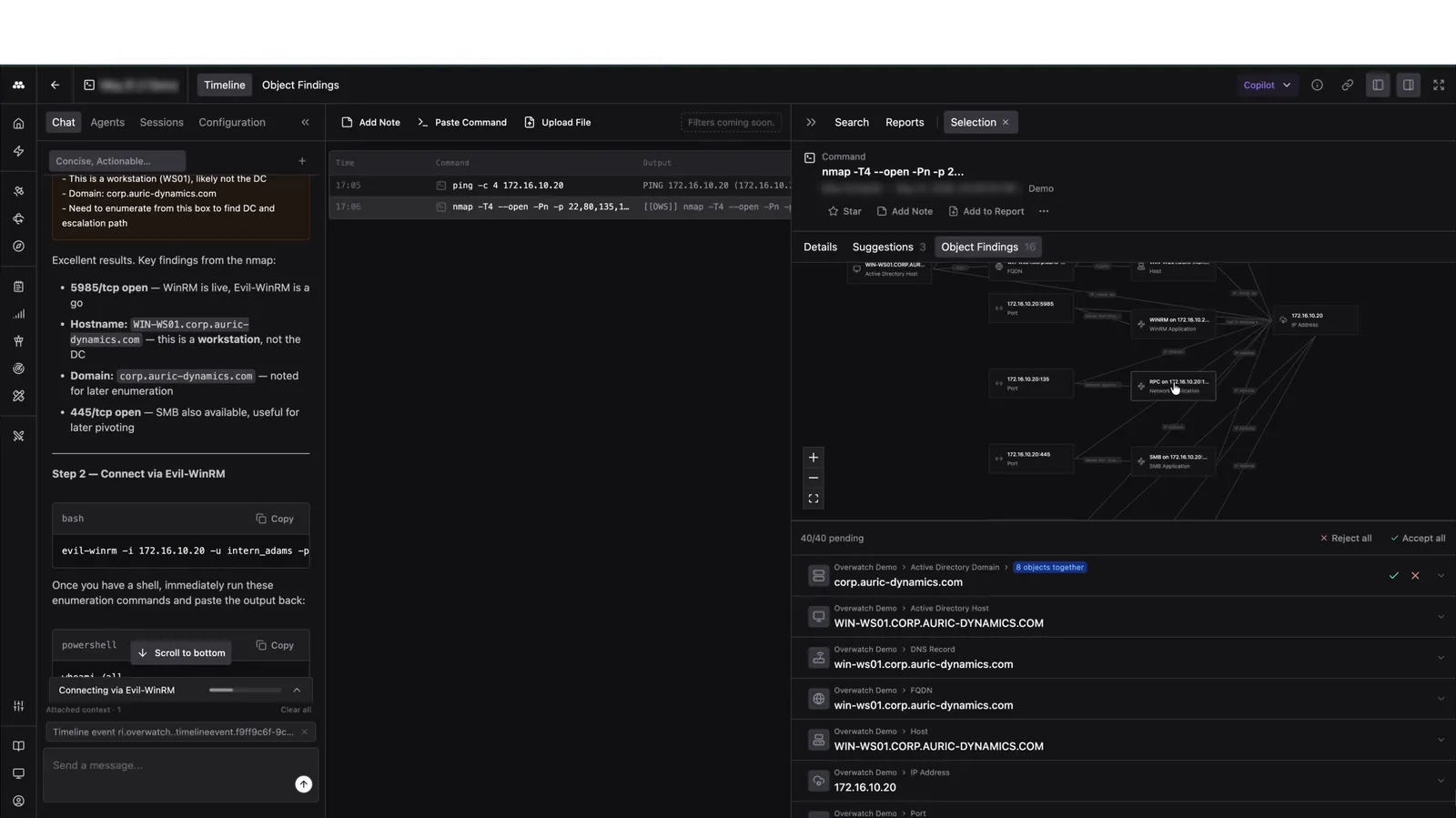
As commands run, Method analyzes the command output for data to extract and store in Objects. Each Object Finding is an Object extracted from command output: hosts, IPs, FQDNs, services, credentials, and other infrastructure.
Object Findings are suggestions “pending approval” until someone working the session accepts or rejects each one. Accepted Objects become part of the Method Ontology and are immediately available to Method AI Agents and downstream Tools. A graph view alongside the Object Findings list shows how each new Object connects to existing Ontology data.
Manually-added Timeline Events
The session view’s action bar lets anyone working in the platform contribute directly to the Timeline:
- Add Note: drop a written note inline with the terminal commands
- Paste Command: push a suggested command for the person at the terminal to run
- Upload File: share research, screenshots, or a context file
Anything you contribute from the platform appears in the terminal view inline with the recorded activity.
Reports
You can generate a Report at any point during the session and export it once the session ends. Ask Chat to write one and it will, pulling from the session’s starred commands, accepted Objects, and notes. An Agent can draft a Report the same way. A Report can capture a focused slice of the session or stand in for the full operation.
Configuration
The Configuration Tab is where you can enable or disable Agents assisting in your Overwatch session. Agents fall into the following categories:
- Operational History Assistants: Agents which search past operational history from within Method or from PDF uploads
- Command Assistants: Agents which recommend commands and Tools, or help troubleshoot commands
- Object Assistants: Agents which help triage and act on Object Findings
How Overwatch fits into Operations
The Operations application is where you create, organize, and report Overwatch sessions alongside Operator work.
Start a standalone Overwatch session from New > Overwatch session when the engagement begins in the terminal. Start Overwatch from an existing Operation when the terminal activity belongs to that Operation’s objective, Targets, Findings, and Report.
Overwatch and Operator are peers. Each is one way to get terminal work into the Ontology. Use the one that matches the work in front of you.
For how to install Overwatch and start a session, see Run an Overwatch session. For the in-platform workflow during a live session, see Observe a live session. For the three ways teams run Overwatch together, see Choose how to run Overwatch.