

Run Tools through a portal
Portals link Jackals in your Environment and route network traffic between them through Method. Use them to reach services accessible from another host while keeping your Tools on the host where you run them.
This guide walks you through using a portal as a SOCKS5 proxy. You’ll run a Tool on a source host and route its traffic through a target Jackal that can reach the destination service. This workflow lets you reach internal services, keep Tool binaries off sensitive hosts, or access external services through a host with the outbound access you need.
Before you begin
You need:
- An Operation in which to run your Tool
- Two hosts with Jackals installed in your Environment
- A target Jackal that can reach the destination service
- A Bring Your Own Tool (BYOT) built with the Courier Compiler
To create a BYOT Tool, see Create and publish a Tool.
Create a portal
1. Choose the source and target
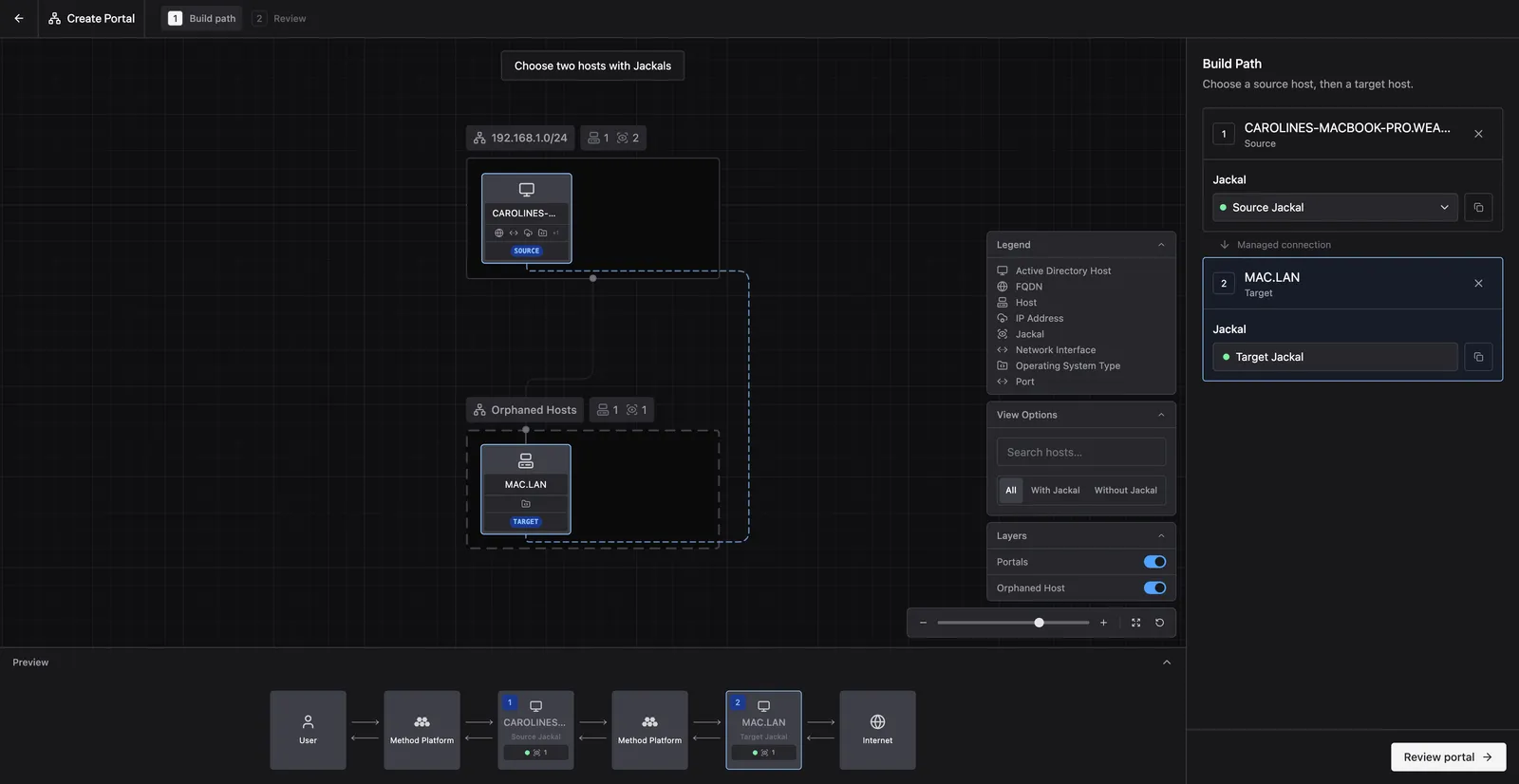
In your Operation, open Network Map and select Create Portal. Choose a source host and its Jackal, then a target host and its Jackal.
- Source: The host where your Tool runs and its traffic enters the portal
- Target: The host whose Jackal connects to the destination service, also called the egress Jackal
The target host is the host forwarding traffic, not the destination service itself.
In this example, the source host runs Source Jackal, and the target host runs Target Jackal. The preview shows the path between them through Method.
2. Review and create the portal
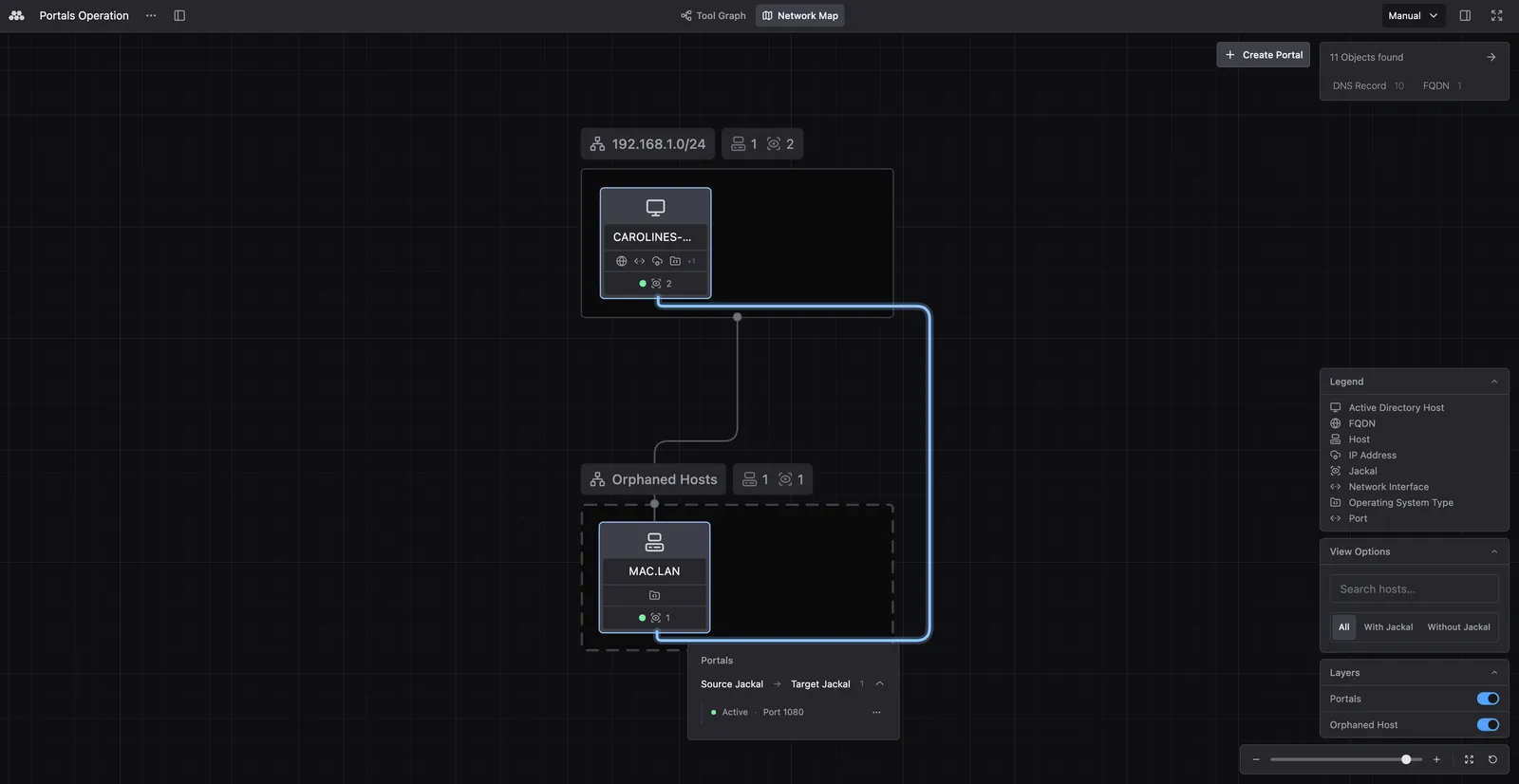
Click Review portal. Review the source and target, then create the portal.
Advanced settings let you change the listening port and duration. The defaults are port 1080 and one hour. Wait until the portal is ready before running a Tool through it.
Run a Tool through the portal
Configure your BYOT Tool to run on the source Jackal. Select the input Objects and set any Tool parameters, then open Run via portal.
Select the portal by its listening port and egress Jackal. In this example, select Port 1080 → Egress: Target Jackal.
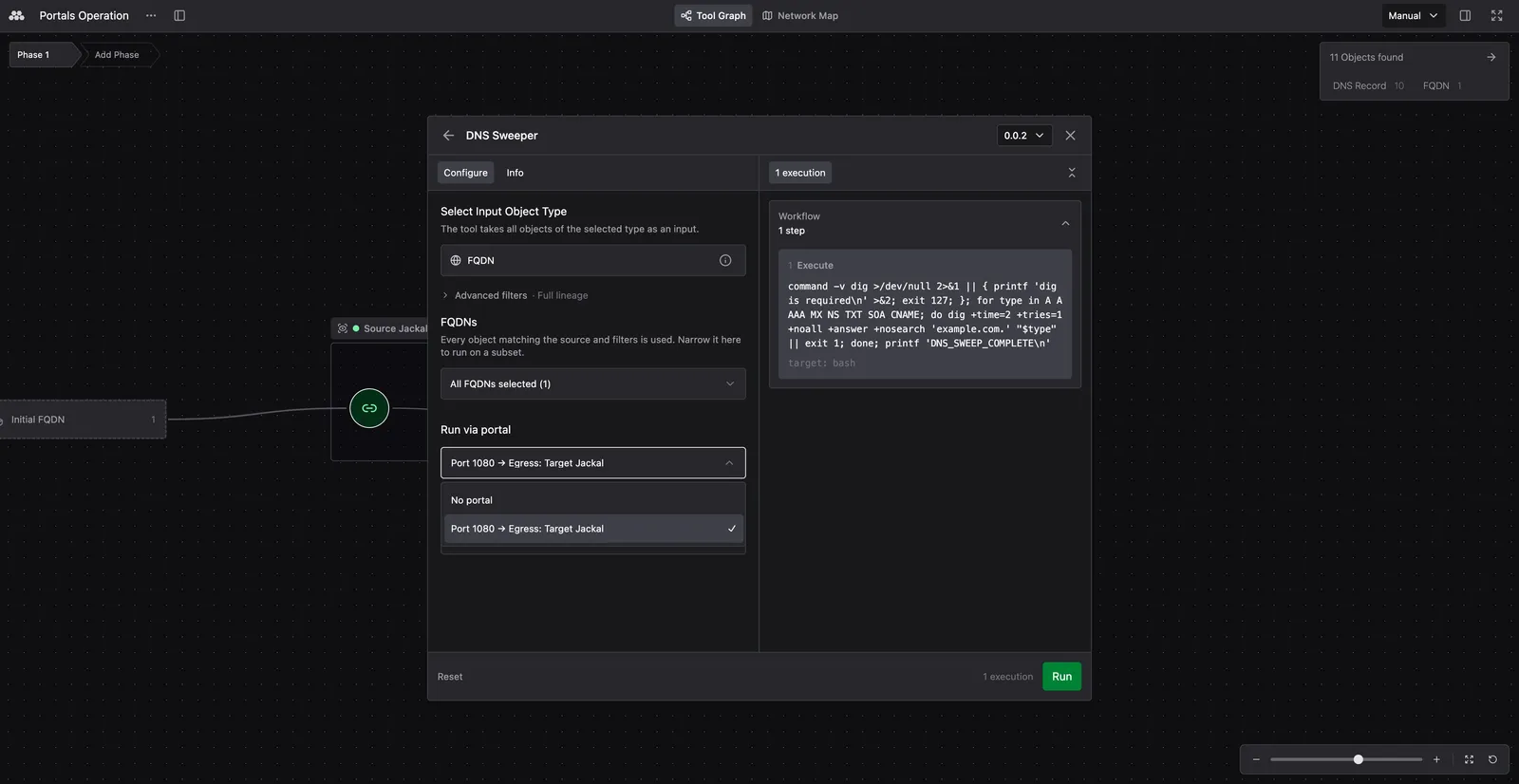
Click Run. The Tool executes on the source host, and its traffic reaches the destination through the target Jackal.
Verify the execution used the portal
Find the Tool execution in the Operation graph. The portal icon identifies executions that ran through a portal. Hover over the icon to see Ran via portal, the listening port, and the egress Jackal.
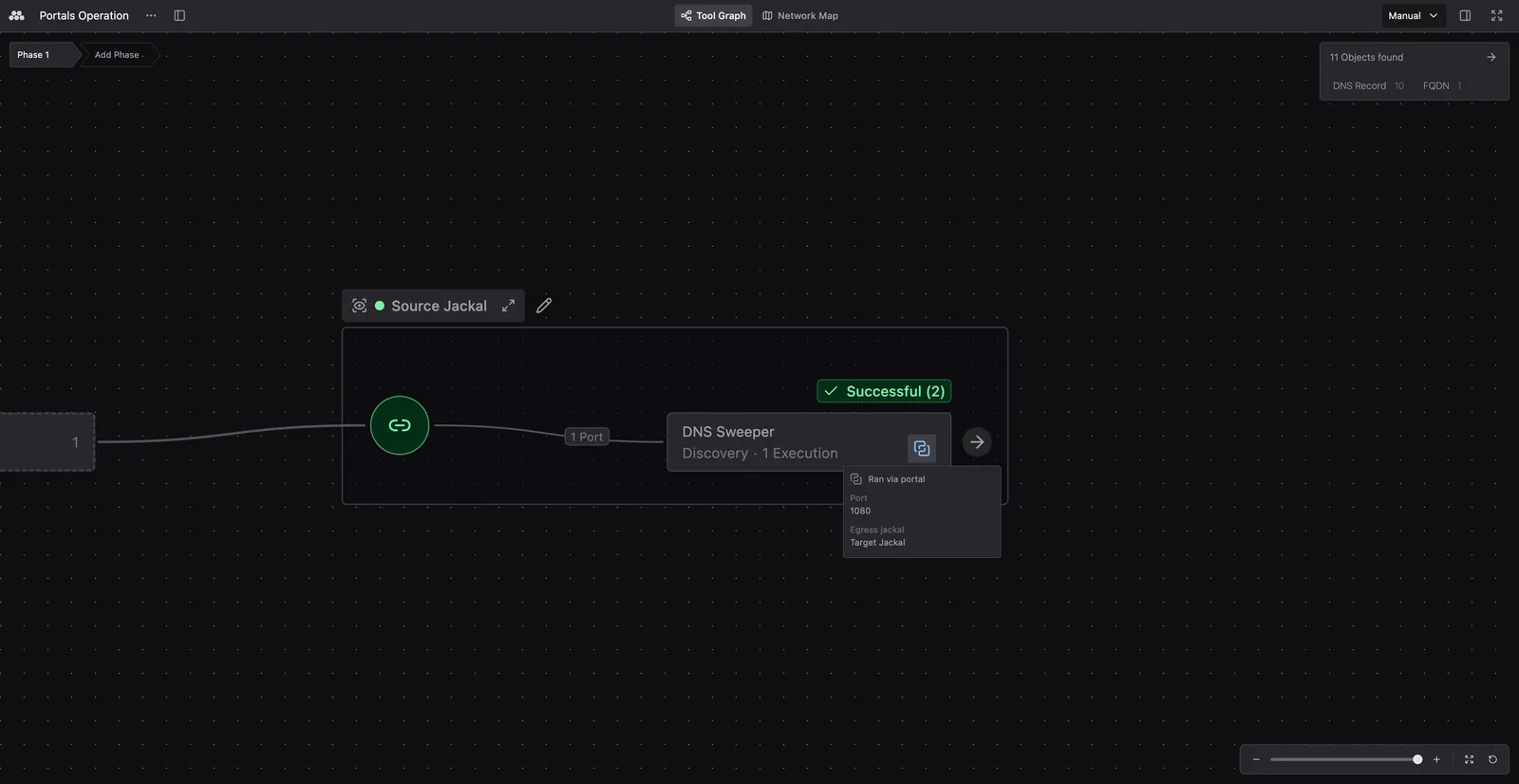
In this example, the Tool ran on the source host using Source Jackal. The portal listened on port 1080 at the source, and Target Jackal connected to the destination service.