

Develop a Tool locally
Develop a Git-backed Tool on your computer with the Method extension and Method Tool MCP. The extension can sign you in, configure Git authentication for the Tool repository, clone it, and prepare the local MCP server. This workflow uses a Tool repository; Developer MCP is a separate hosted connection for external MCP clients.
Local development is especially useful for Tools that use compiled artifacts. You can complete the compilation process locally, test the artifact, and then upload it with Method Tool MCP. This keeps the build-and-iterate loop in your editor before you publish a Tool version.
Prerequisites
You need:
- Access to a Method instance with Open locally enabled for your Tool
- An editable, user-managed Tool repository, created or forked in Method
- Git and VS Code or Cursor installed on your computer
- Permission to sign in to the same Method instance that hosts the Tool
If you have not created a Tool yet, start with Create and publish a Tool. A repository fork preserves its Git history; a fork of a legacy published Tool starts a new repository from its definition and code.
Open the Tool in your editor
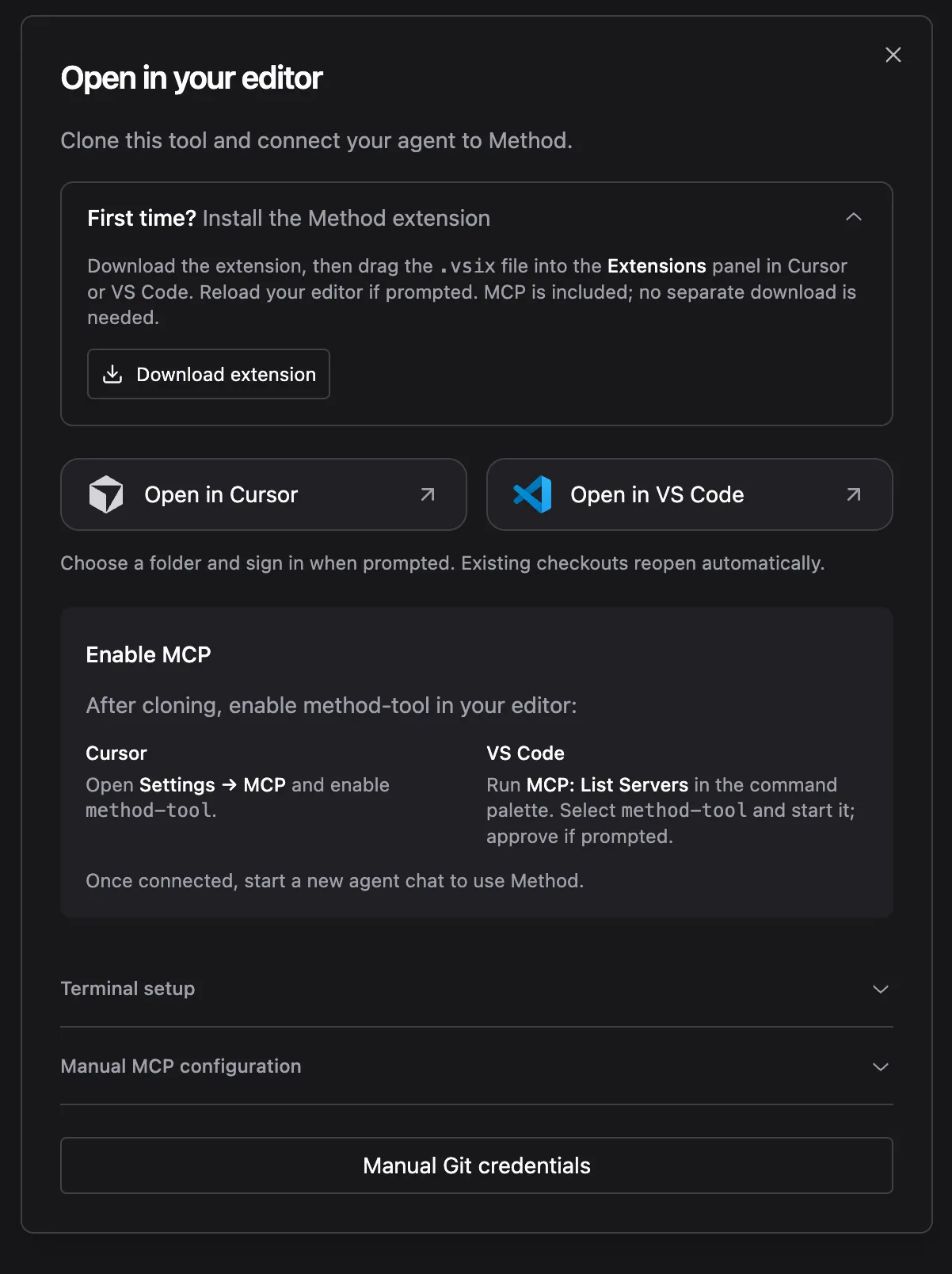
- Open the Tool detail page in Method and select Open locally.
- Under First time? Install the Method extension, download the
.vsixfile. Install it in your editor’s Extensions panel and reload the editor if prompted. The extension includes Method Tool MCP, so the editor flow needs no separate MCP download. - Select Open in VS Code or Open in Cursor. Allow your browser to open the editor, then approve Open locally in the editor.
- Choose a parent folder for the clone and complete browser sign-in if prompted. The extension configures Git authentication for this repository, clones the Tool, adds local editor configuration, and opens the folder. If the editor reports that the current workspace is untrusted, trust it and open the Tool link again.
The repository URL should be the exact HTTPS clone URL shown by this Tool’s dialog. Keep credentials out of the URL and repository files.
Enable Method Tool MCP
After cloning, start the method-tool MCP server:
- VS Code: Run MCP: List Servers from the Command Palette, select
method-tool, and start it. Approve the prompt if one appears. - Cursor: Open Settings → MCP and enable
method-tool.
Start a new agent chat after the server connects. The MCP configuration is local to the Tool workspace and points to the Method instance used for the clone.
Set up from a terminal
For terminal setup, install method-tool-mcp on your PATH, then copy the API URL and clone URL from Open locally. In a macOS or Linux shell, run:
Use the exact URLs from the same Method instance. git-setup configures Git for that repository URL. The helper uses your Method login to obtain and renew a repository-scoped Git credential. If you use Manual Git credentials instead, the password expires after four hours and must be replaced.
The extension’s bundled MCP binary may not be on your shell’s PATH. If command -v method-tool-mcp returns nothing, use the editor commands above or install the CLI on your PATH. The editor can use its bundled binary without a shell installation.
For a repository created before local setup files were added, use Manual MCP configuration in the dialog to copy .vscode/mcp.json and .method/development.json. Check existing files before replacing them.
Verify the setup
- Confirm the checkout contains
tool.jsonand rungit remote get-url origin. The remote should match the HTTPS clone URL from Method, without embedded credentials. - Confirm Method: Sign In completes in the editor.
- Confirm
method-toolis running in MCP: List Servers in VS Code or Settings → MCP in Cursor. - Run
git fetchin the Tool checkout to check repository authentication.
Local edits and MCP validation do not publish a Tool version. Follow Create and publish a Tool when you are ready to validate, release, and test the Tool.
Troubleshooting
If a release fails after a commit or push, inspect the release status before retrying. The commit or tag may already exist even though publication did not complete.